Delegating email to a virtual assistant works best when they can act in your inbox without you handing over your password. With Drag, you share exactly what you want, keep control of what gets sent, and see everything in one place. This guide shows how.
Available on: Chrome extension · Web app · Desktop app
Set up delegation
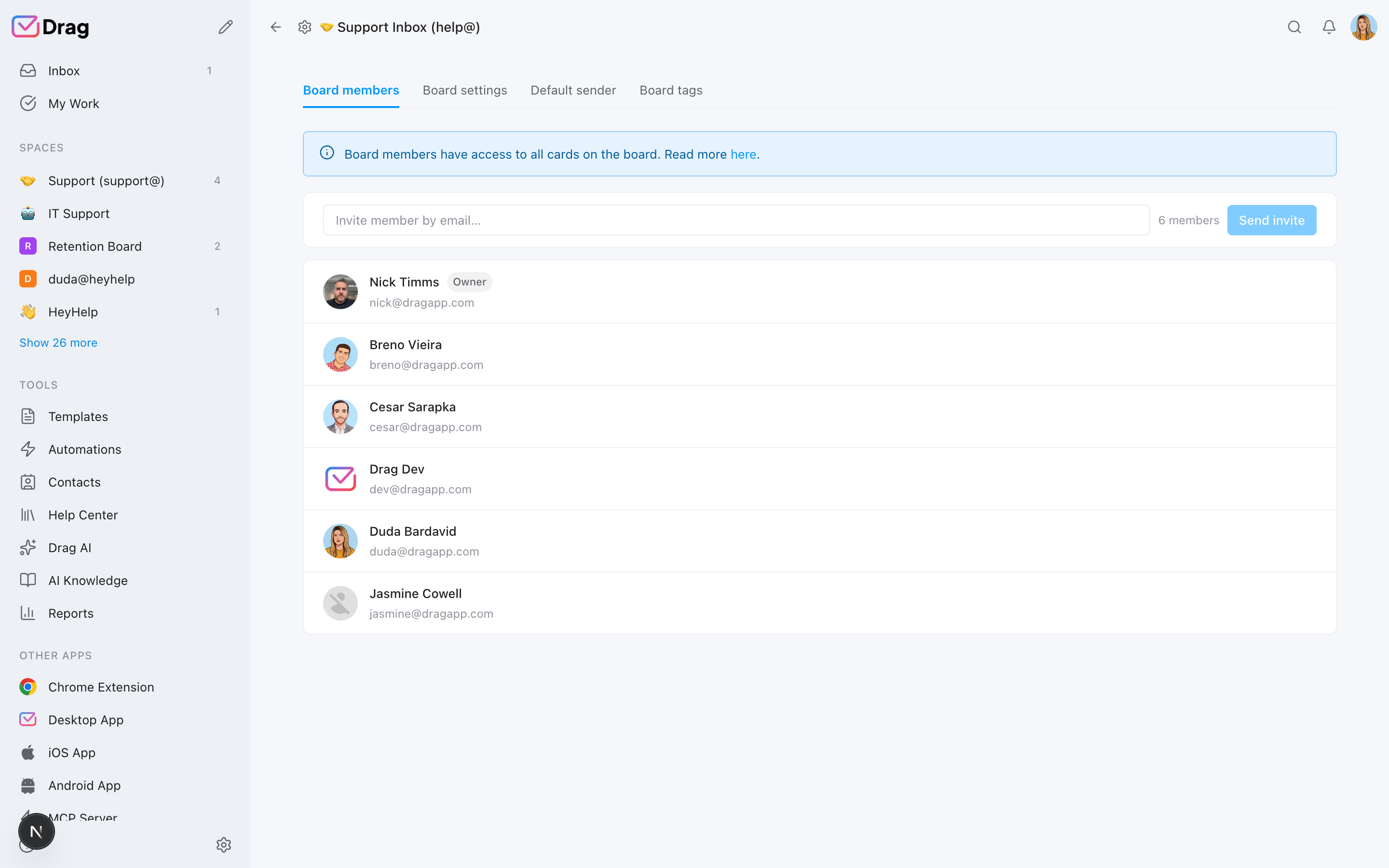
Share a board with your assistant
Rather than sharing your whole inbox, create a board for the email you want to delegate and share it with your assistant. They see only that board. To control what they can do, assign the right role and permissions.
Organize, standardize, and automate
- Use shared tags and colors so your assistant knows what needs action, and filter the board.
- Create shared templates so replies match your voice.
- Use automation rules to route and assign email, and set a default sender so replies go out from the right address.
Operate with your assistant
Assign work and review drafts before they send
Assign email to your assistant, and use shared drafts so you can review and approve a reply before it goes out.
Let AI write the first draft
With AI credits (included on Plus and Pro, or bought on Starter), AI Drafts can write a suggested reply in your tone, which your assistant then refines and you approve. AI Drafts never send on their own, so this fits the same review-before-send flow. Add your FAQs and documents to AI Knowledge so the drafts use your real answers, and use AI Tagging by Intent so your assistant can see at a glance what needs a reply.
Keep instructions and context on the card
Use notes and the card's internal chat to leave instructions, and mention your assistant to hand something over. Add tasks and subtasks for multi-step requests, and create cards manually for work that did not arrive by email.
Using Varley with an assistant
- Your assistant can use Varley too. It works through their own account and role, so it can only do what you've allowed them to do.
- Triage your inbox board to see what needs you first. See How do I triage a board with Varley?
- Draft for your review. “Draft a reply accepting the meeting and suggesting 3pm”, then insert it as a shared draft for you to check.
- Hand back the decisions. “Assign this to me and add a comment: needs your sign-off”
New to Varley? See What is Varley? and What can I ask Varley?.
Pro tips
- Keep control with permissions. Give your assistant a role that fits their responsibilities, and revisit it as you delegate more.