AI Drafts suggest email replies for you, based on the thread you are answering and your own writing style. You stay in control: Drag never sends anything on its own. Every draft is yours to review, edit, and send.
Available on: Chrome extension · Web app · Desktop app
AI Drafts are part of Drag AI and use AI credits (2.5 credits per draft). Plus and Pro include a monthly allowance, and on Starter an admin can buy credits. See How do AI credits work? and the AI pricing guide.
What AI Drafts do
When a draft is generated, Drag writes a suggested reply based on:
- The content of the email or thread you are replying to.
- Your previous messages and writing style.
- Any knowledge you have added in AI Knowledge, such as FAQs, links, and files.
AI Drafts only suggest replies. Nothing is sent automatically, and no tags or actions are applied without your approval.
Where you can use AI Drafts
AI Drafts work anywhere you reply to email in Drag: individual boards, shared boards, and existing threads. They are turned on per board, so you decide exactly where drafts are generated.
AI Drafts are not available for WhatsApp boards.
How to enable AI Drafts
AI Drafts are enabled per board, from the Drag AI section:
- Open Drag AI. In the Chrome extension, open it from your Drag dashboard. In the web app, open it from the sidebar.
- At the top, select the board you want to configure.
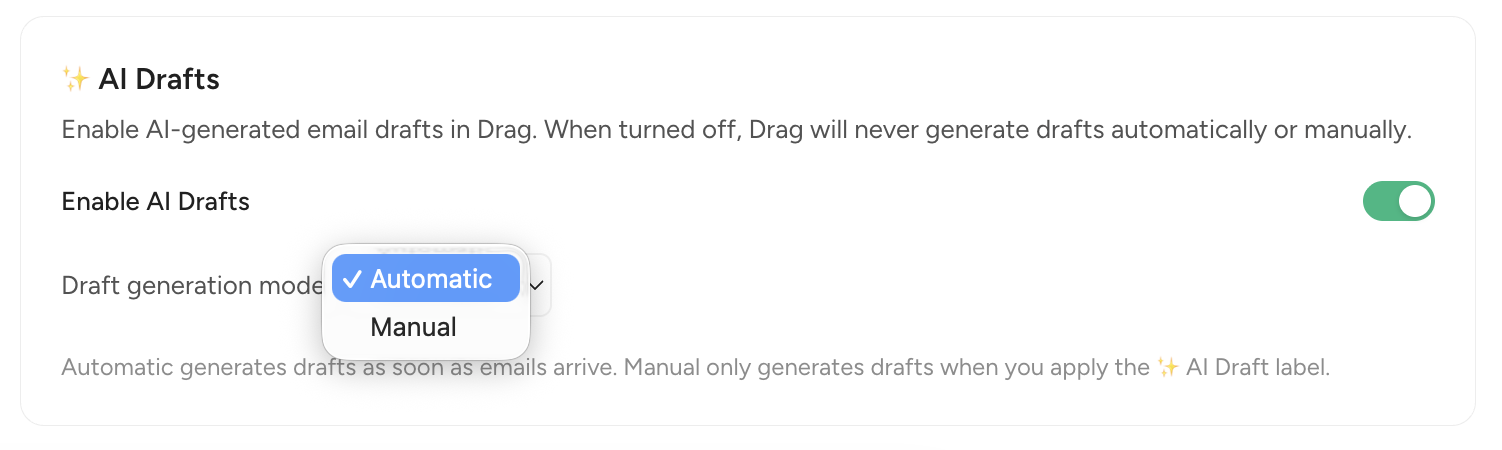
- In the AI Drafts card, toggle it on.
Choose a draft generation mode.
The desktop app works the same way as the web app, with silent auto-updates.
Note: If the toggle won't switch on, or the page says AI features are turned off for your team, an admin has turned off AI for the whole team. See How do I turn off AI for my team?
Draft generation modes
There are two ways to generate drafts on a board.
Automatic
Drag generates a draft reply as soon as an email arrives on the board, including new threads and incoming replies. This suits high-volume boards where most emails need a response.
In automatic mode, Drag skips draft generation for emails that do not need a response. You can still generate a draft for any email by hand (see below).
Manual
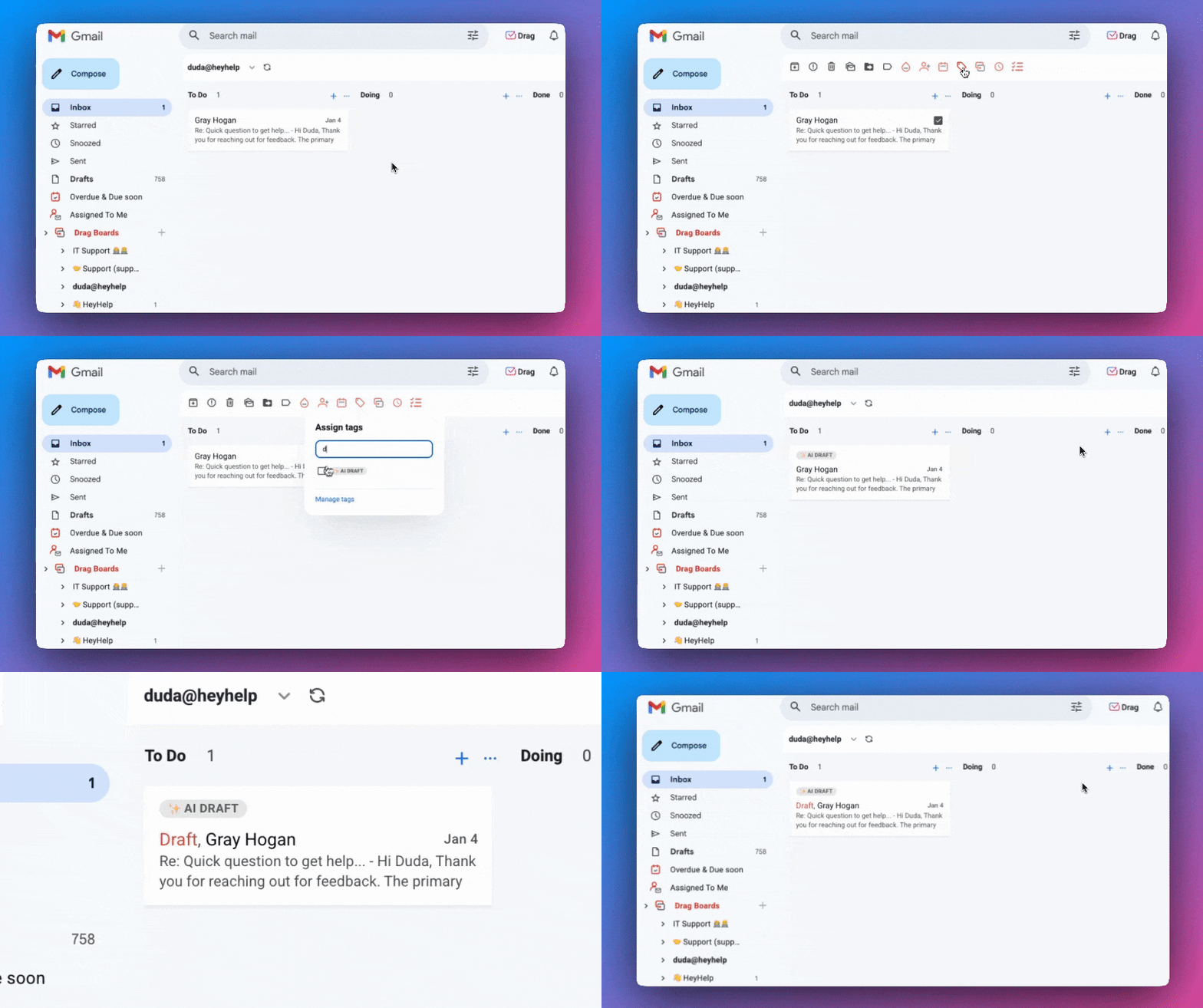
Drag generates a draft only when you ask for one, by applying the ✨ AI Draft label to an email. This suits sensitive workflows, or boards where you want AI help only now and then.
Generate a draft by hand
In either mode, apply the ✨ AI Draft label to any email and Drag generates a draft within a few seconds.
Review and send
AI Drafts never send email for you. Before a message goes out:
- Review the full draft.
- Make any edits you want.
- Click Send when you are happy with it.
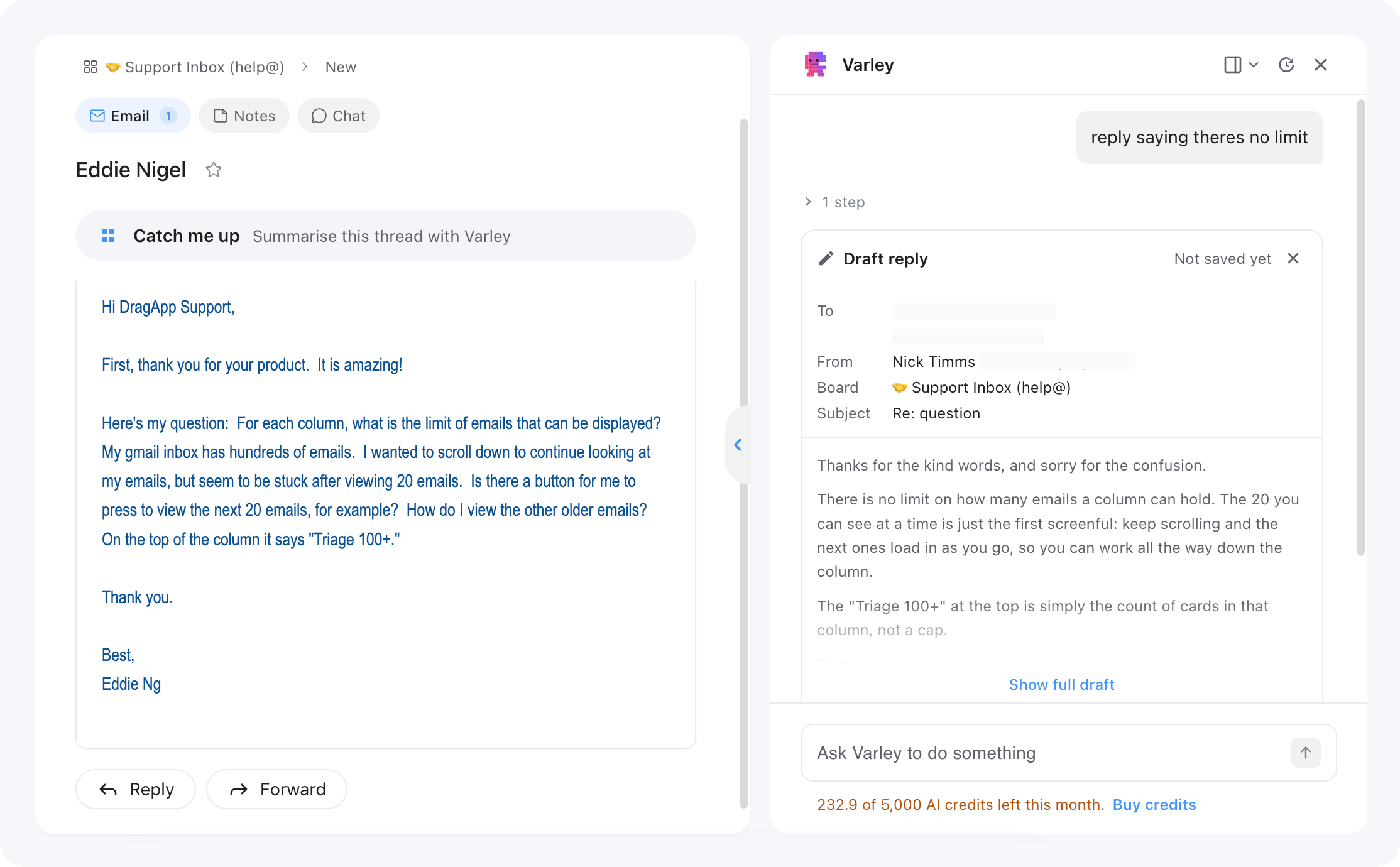
Need a draft right now? Ask Varley
AI Drafts work in the background as email arrives. When you want a reply written to your own instructions, open Varley and ask, for example “Draft a reply saying we've refunded the difference”. You can insert it as a draft, send it after confirming, or ask for changes. See How do I draft and send replies with Varley?
Privacy and data handling
Drag only processes an email when it is actively generating a draft:
- In manual mode, only emails you label ✨ AI Draft are processed.
- Emails are not continuously scanned.
- Content is used solely to generate the draft.
- Your data is not used to train public AI models.
You can turn AI Drafts off for a board at any time from the same settings.