AI Tagging by Intent reads the purpose of each incoming email and tags the card automatically, so your team can see what an email is about, and act on it, without opening every message.
Available on: Chrome extension · Web app · Desktop app
Intent tagging is part of Drag AI and uses AI credits (0.1 credits per email). Plus and Pro include a monthly allowance, and on Starter an admin can buy credits. See How do AI credits work? and the AI pricing guide.
What it does
Intent tagging analyzes the content of new incoming emails on a board and sorts each card into one of seven intent categories:
- ✨ Action required: the sender is asking you to do something, including bug reports and time-sensitive requests.
- ✨ Awaiting response: you replied and are now waiting for the other person.
- ✨ FYI: informational messages that need no action.
- ✨ Notifications: automated or system-generated alerts, such as receipts and account updates.
- ✨ Resolved: the conversation has reached a clear conclusion.
- ✨ Pitches: unsolicited sales or partnership outreach.
- ✨ Broadcasts: newsletters, announcements, and promotional content.
The tags appear directly on the cards in your board, helping you separate urgent work from noise.
How to enable AI Tagging by Intent
Intent is one of the AI tagging categories. You turn it on per board, from the Drag AI section:
- Open Drag AI. In the Chrome extension, open it from your Drag dashboard. In the web app, open it from the sidebar.
- At the top, select the board you want to configure.
- In the AI Tagging card, toggle it on.
- Under Select AI tagging category, choose Intent.
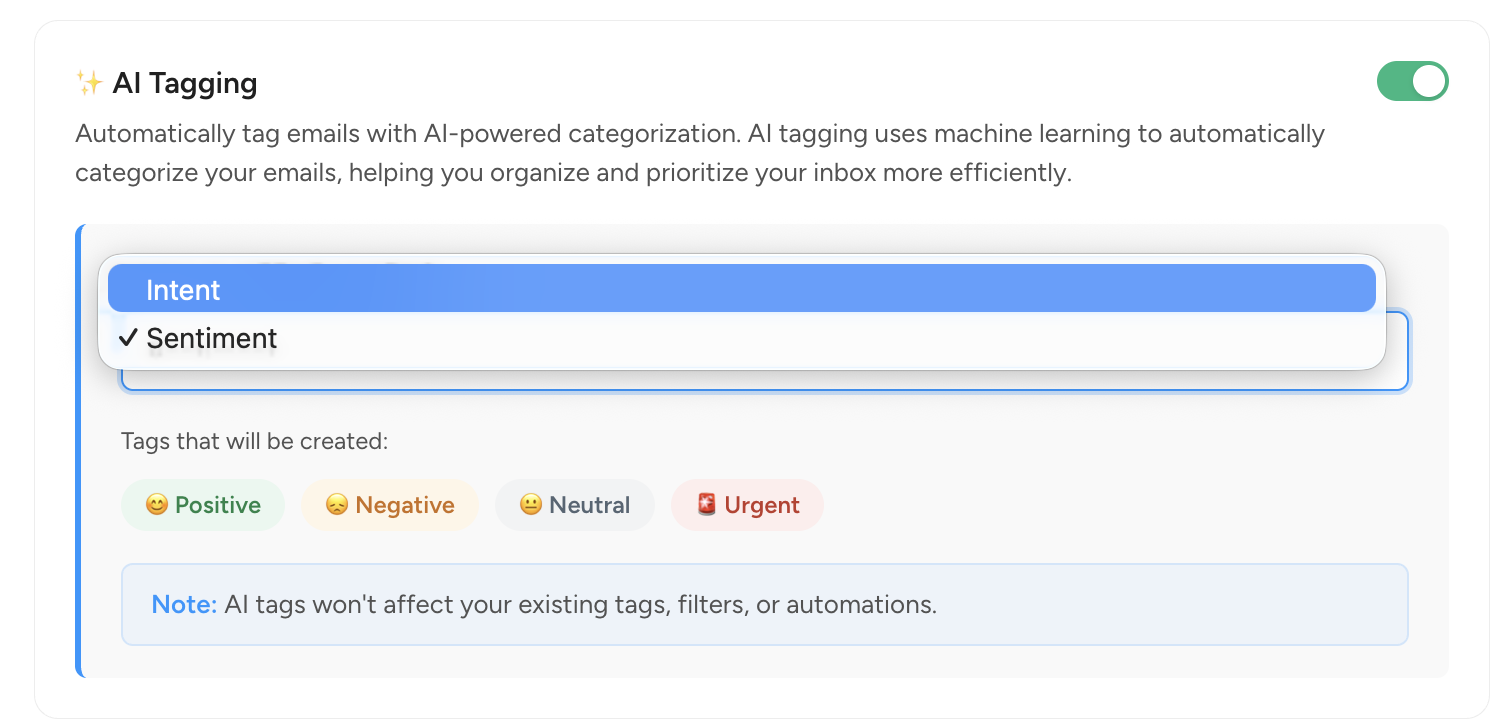
The desktop app works the same way as the web app, with silent auto-updates.
Drag then tags new incoming emails on that board. It does not tag emails that arrived earlier, and it does not affect your existing tags, filters, or automations.
Note: If the toggle won't switch on, or the page says AI features are turned off for your team, an admin has turned off AI for the whole team. See How do I turn off AI for my team?
How it works behind the scenes
When a new email arrives:
- Drag's AI analyzes the text, tone, and structure of the message.
- It works out the sender's intent: a request, an update, a pitch, or an automated notification.
- It applies the matching intent tag to the card.
This analysis happens securely inside Drag's AI engine.
Tags update with the conversation
Intent tags are dynamic. Drag re-reads a thread as it develops and updates the tag to match the latest state. For example, an email that arrives as Action required becomes Awaiting response once you reply with a question, so your board always reflects the current stage of each conversation.
Act on intent with automations
Intent tags can trigger automation rules, so your boards take action, not only organize email. For example:
- When the tag is Action required, move the card to a To-do column and assign it to an owner.
- When the tag is Awaiting response, notify yourself to follow up later.
- When the tag is Pitches, move the card to an Archive column.
Use intent tags with Varley
Ask Varley about your tagged cards, for example “Show me the unassigned Action required cards on Support” or “Archive the Pitches cards in Inbox”. Varley proposes the change and waits for your approval.
Common questions
- Why do some emails have no intent tag? Only new incoming emails are analyzed. Intent tagging does not run on task cards or WhatsApp boards.
- Can I add my own intent categories? Not yet. Drag supports the seven categories above.
- Do intent tags change over time? Yes. Drag re-classifies a thread as it evolves so the tag stays aligned with the latest message.