AI Sentiment Detection reads the tone of incoming emails and tags each card so your team can see, at a glance, who is happy, who is frustrated, and what needs urgent attention.
Available on: Chrome extension · Web app · Desktop app
Sentiment Detection is part of Drag AI and uses AI credits (0.1 credits per email). Plus and Pro include a monthly allowance, and on Starter an admin can buy credits. See How do AI credits work? and the AI pricing guide.
What it does
Sentiment Detection analyzes the tone of new incoming emails on a board and tags each card with one of four sentiments:
- 🙂 Positive: happy, satisfied, or appreciative messages.
- 😐 Neutral: factual or informational messages.
- 😠 Negative: frustrated, upset, or dissatisfied messages.
- 🚨 Urgent: messages that need urgent action or a fast reply.
The sentiment tag appears directly on the card in your board, so you get context without reading every email in full.
How to enable Sentiment Detection
Sentiment Detection is one of the AI tagging categories. You turn it on per board, from the Drag AI section:
- Open Drag AI. In the Chrome extension, open it from your Drag dashboard. In the web app, open it from the sidebar.
- At the top, select the board you want to configure.
- In the AI Tagging card, toggle it on.
- Under Select AI tagging category, choose Sentiment.
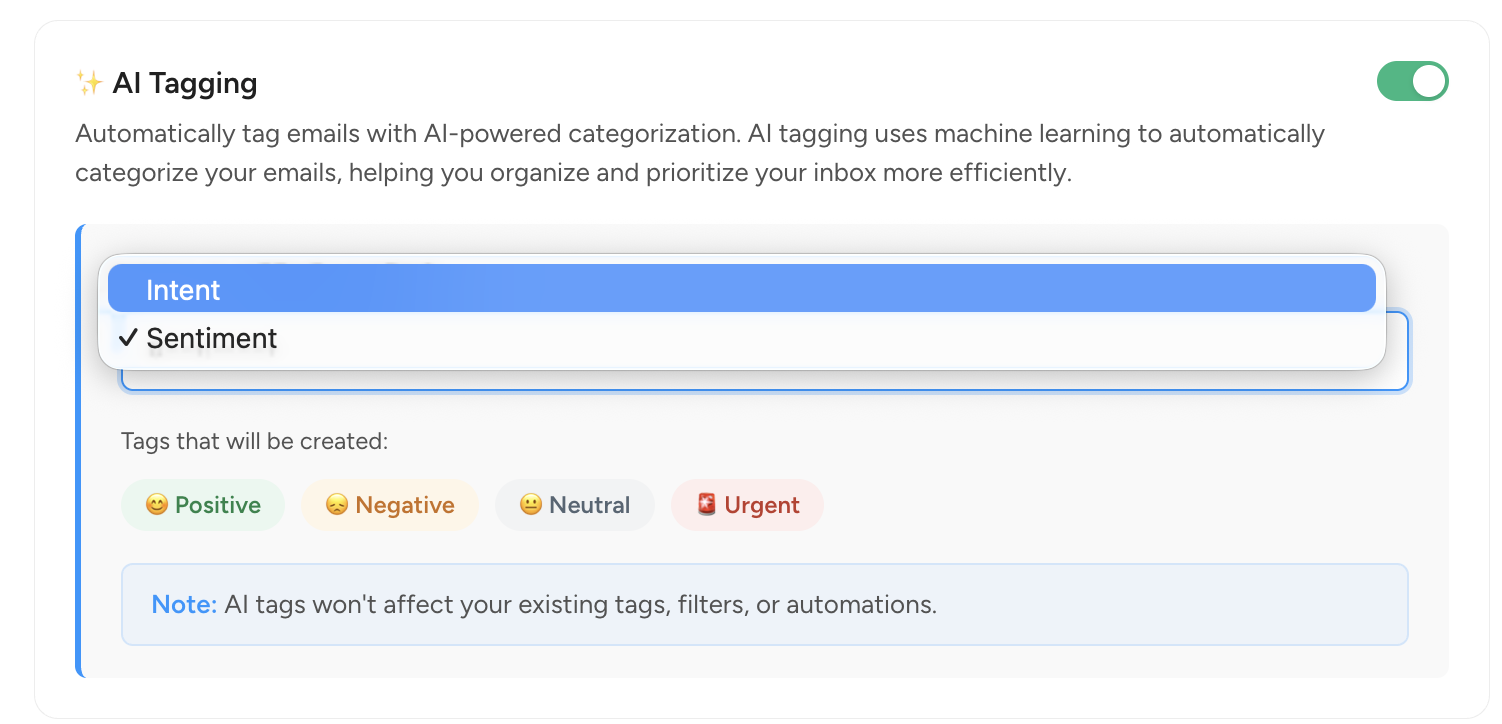
The desktop app works the same way as the web app, with silent auto-updates.
Drag then analyzes new incoming emails on that board. It does not tag historical emails. You can enable Sentiment Detection separately for each board, so you might use it on Support and Sales boards but not on internal ones.
Note: If the toggle won't switch on, or the page says AI features are turned off for your team, an admin has turned off AI for the whole team. See How do I turn off AI for my team?
How it works behind the scenes
When a new email arrives:
- Drag's AI scans the message content.
- It picks up tone patterns and emotional cues, such as words of frustration, gratitude, or urgency.
- It assigns one of the four labels: Positive, Neutral, Negative, or Urgent.
This analysis happens securely inside Drag's AI engine.
Example use cases
- Customer support: flag unhappy customers early and escalate faster.
- Sales: track the overall mood across leads and accounts.
- Operations: measure client satisfaction trends over time.
- Internal workflows: gauge the tone of team communication.
Act on sentiment with automations
Sentiment tags can trigger automation rules, so Drag does not only read the tone, it acts on it. For example:
- When sentiment is Negative, move the card to an Escalations column and notify a manager.
- When sentiment is Positive, move the card to Hot Leads and assign it to your top sales rep.
Use sentiment tags with Varley
When you triage a board with Varley, cards tagged urgent are flagged in the results. You can also ask, for example “Which cards on Support are tagged Negative?”
Common questions
- Why do some emails have no sentiment tag? Only new incoming emails are analyzed. Drag does not tag emails that arrived before you turned the feature on.
- Can I add my own sentiment categories? Not yet. Drag supports the four types above.
- Do sentiment tags update as a conversation evolves? No. A sentiment tag is set when the email is first analyzed and does not change on its own.
- Is it available on task cards or WhatsApp boards? No. Sentiment Detection runs on email cards in standard boards.