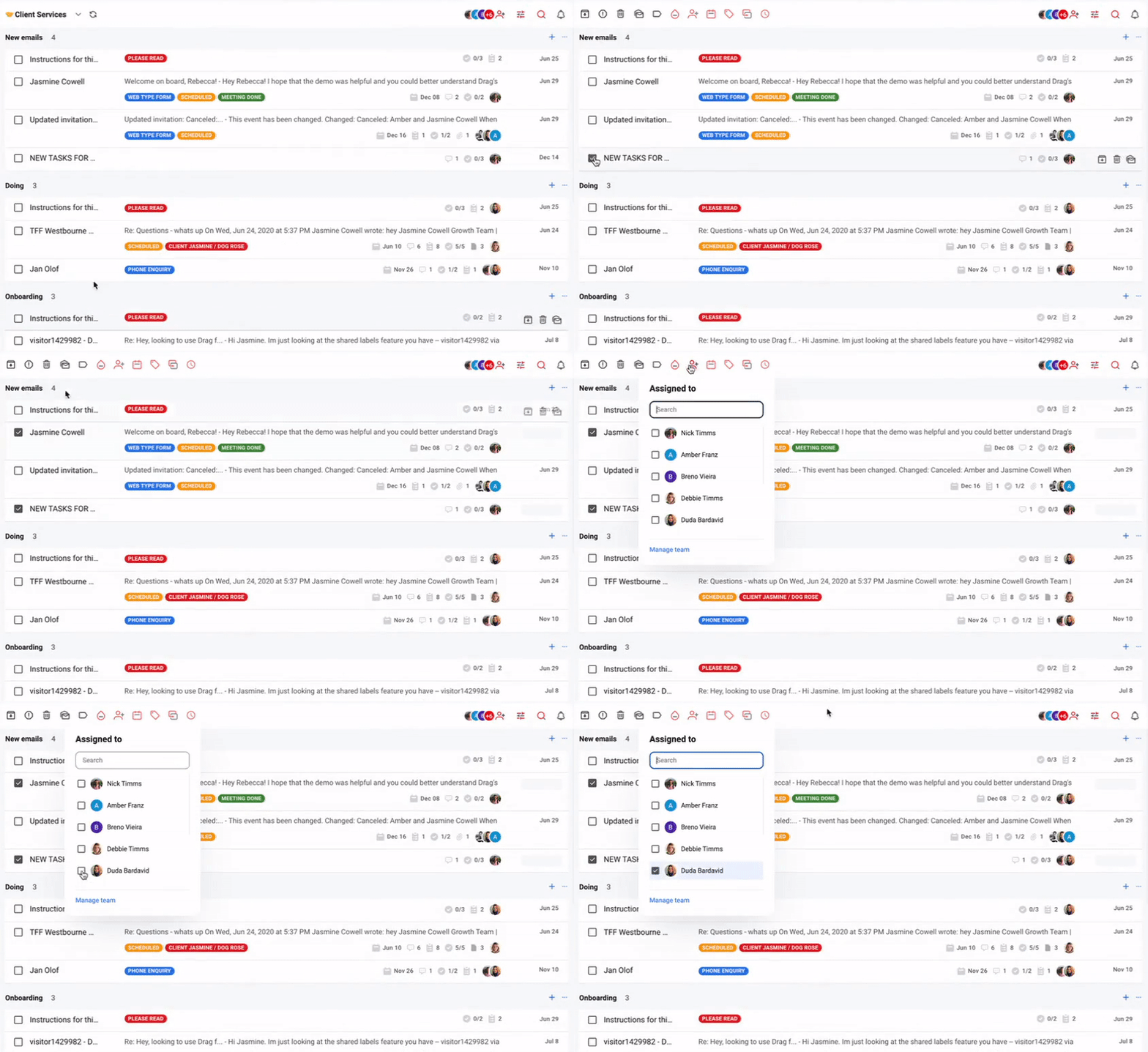
Assigning cards (emails or tasks) makes it clear who is handling what. Every new email or task on a board starts unassigned, and you can assign it to a teammate at any time.
Available on: Chrome extension · Web app · Desktop app
Note: You can only assign a card to a teammate who has access to that board. If the person is not there yet, invite them to the board first.
Assign a card
- Select the cards you want to assign.
- Click the assign icon on the top bar.
Choose the teammate (or teammates). Drag saves the assignment, and their avatar appears on the card.
Tip: In the web app you can also assign without opening the card: click the assignee control on a card on the board (in any layout), right-click a card, or select several cards and assign them together from the toolbar.
Unassign a card
Follow the same steps and uncheck the teammate you want to remove.
The desktop app works the same way as the web app, with silent auto-updates.
Tip: Ask Varley “Assign this to me”, or assign up to 50 cards in one request. See How do I move, assign, tag or archive many cards at once?