Sharing a board lets teammates collaborate on the same cards instead of forwarding and cc'ing. You can invite and remove members whenever you like. This article covers both the Chrome extension and the web app.
Available on: Chrome extension · Web app · Desktop app
In Gmail (Chrome extension)
- Open the board you want to share.
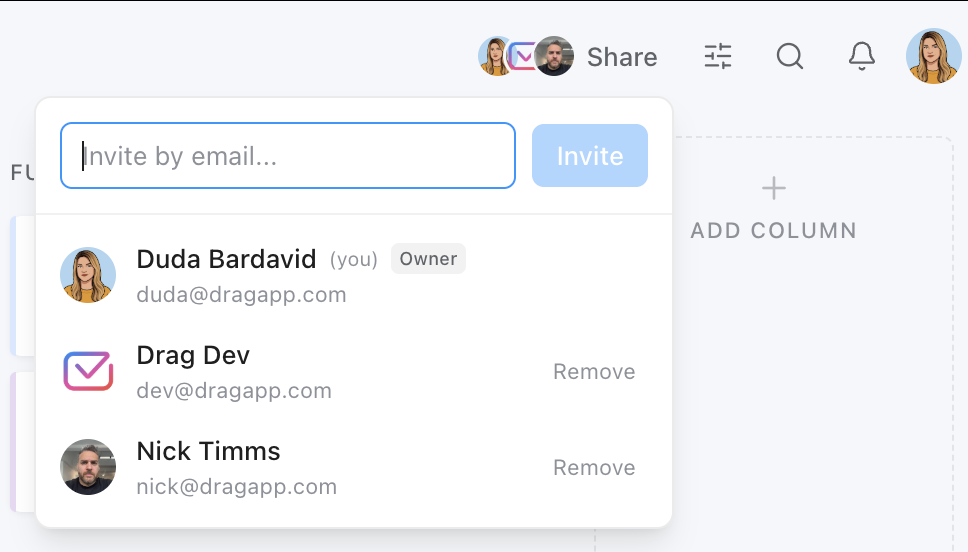
Click the Share board with team button, or click the team-member avatars at the top right of the board.

Type the email of the team member you want to add in the invite member field, then click Send.
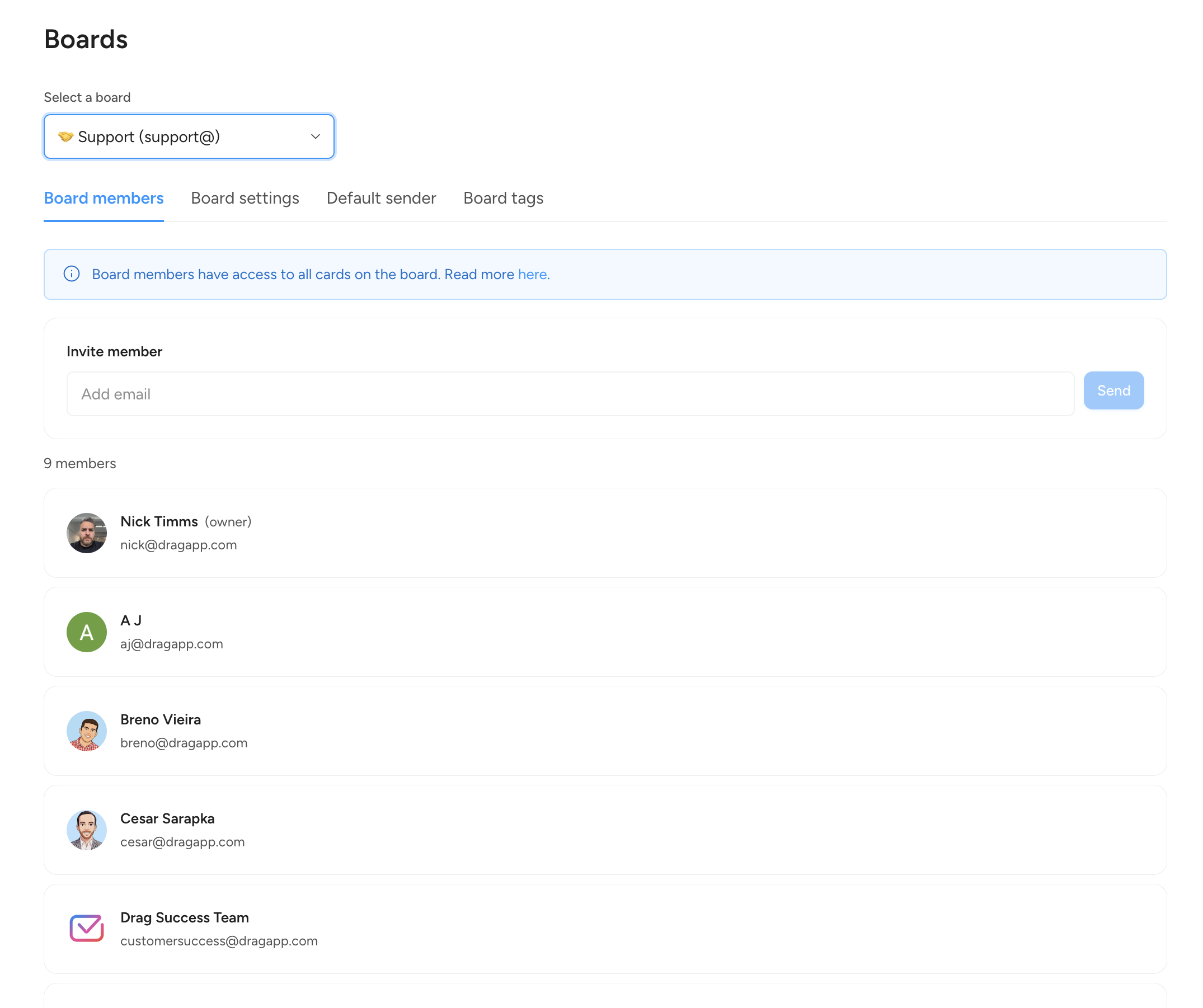
- To remove someone, open the same dialog and click the Remove button next to their name.
Note: Board and team admin is moving to the dashboard. To manage members there, open the Drag menu at the top right of Gmail to go to the dashboard, then open the board's members settings.
In the web app
- Open the board.
Click the Share button on the top right
Enter the email of the team member you want to invite and click Invite.
- To remove someone, open the same Members list and remove them.
The desktop app works the same way as the web app, with silent auto-updates.
Tip: You can also invite teammates while you create a board, so a shared board is ready from the start.