Filtering narrows a board down to the cards that matter right now, in a few clicks. This article explains the filter dimensions and how to apply, remove and reuse a filter.
Available on: Chrome extension · Web app · Desktop app
What you can filter by
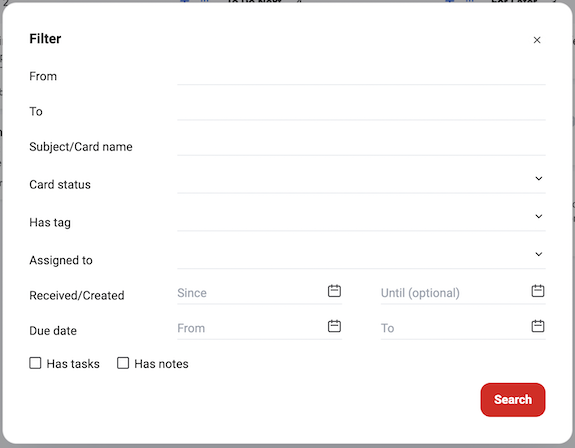
You can filter a board across several dimensions:
- From: email senders (for email cards).
- To: email recipients (for email cards).
- Subject / card name: the title of the card, whether an email subject or a task title.
- Card status: unread, read, draft, sent, archived or snoozed. You can select more than one.
- Has tags: filter by one or more shared tags.
- Assigned to: show only cards assigned to you, or to anyone else. You can select more than one person.
- Received / created: the date range a card was received (email) or created (task).
- Due date: the date range a card is due.
- Has tasks: only cards that contain subtasks.
- Has notes: only cards that contain notes.
How to filter a board
- Open the board you want to filter.
- Click the filter icon at the top right of the board.
- Choose the fields you want to filter by, or type a keyword.
- Click Search.
Your board now shows only the cards that match.
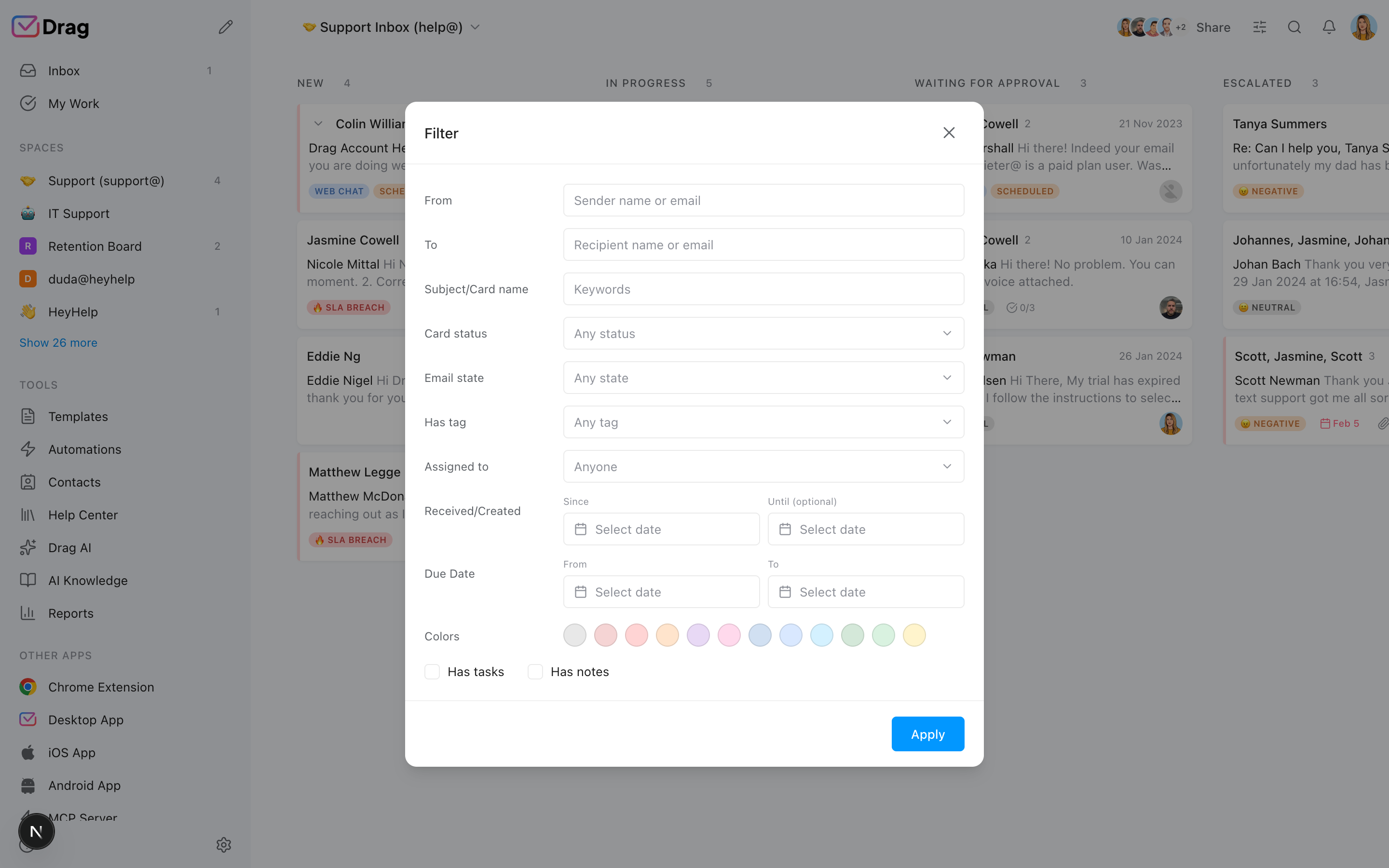
In the web app, the board offers the same filtering. Open the board's filter control to bring up the Filter window, which covers the same criteria: From, To, Subject/Card name, Card status (Open, Pending, Closed), Email state (Unread, Read, Snoozed), Has tag, Assigned to, Received/Created, Due Date, Colors, Has tasks, and Has notes. Choose your criteria and apply.
Note: On the web app, the ⌘K / Ctrl-K search is scoped by board and an Include archived toggle rather than by these filter dimensions. Use the board filter for the criteria above, and search to jump to a specific card.
How to remove a filter
To clear a filter, close the red Filter tag that appears at the top right of the board while a filter is active.
Reuse recent filters
Your recently used filters appear at the top of the filter panel. Click one to re-apply it right away.
The desktop app works the same way as the web app, with silent auto-updates.
If you still have questions, our Support team is happy to help at support@dragapp.com.
Tip: Prefer to ask? In Varley, try “Show me the unassigned cards in To do on Support”
