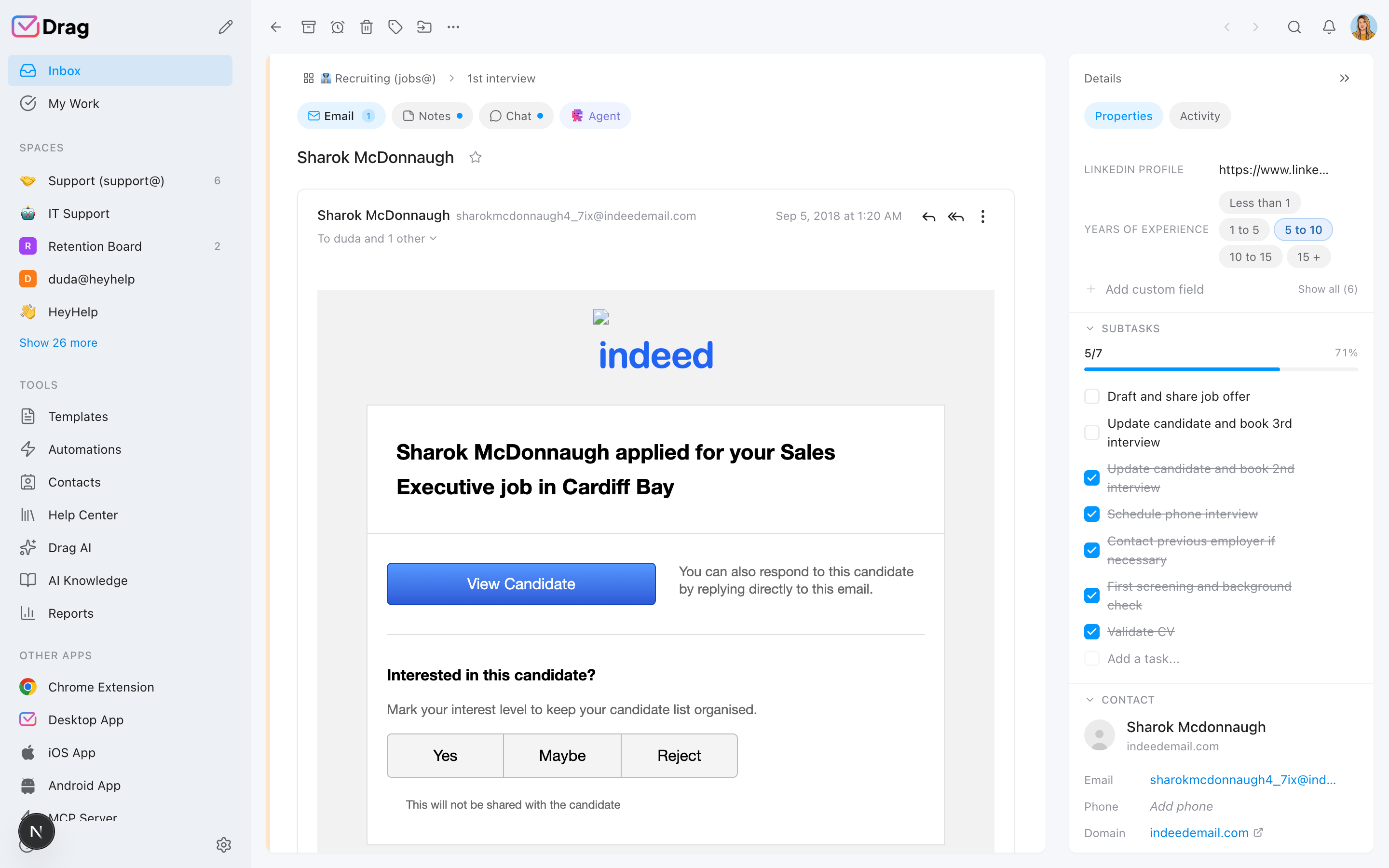
Tasks turn a card into a checklist. Break the work into subtasks, check them off, and see progress at a glance. This is useful for recurring, multi-step work like onboarding, reviews or content production.
Available on: Chrome extension · Web app · Desktop app
Note: Tasks are available on the Starter, Plus and Pro plans.
Add subtasks to a card
- Open the card.
- Open the Tasks tab (in the web app, the Subtasks section of the card).
- Type a subtask in the box at the top and press Enter. Repeat for each subtask.
- Check the box next to a subtask to mark it complete.
Edit or delete a subtask with the pen and bin icons next to it.
Other ways: you can add and tick off subtasks straight from the board, without opening the card, using the subtask control on a card. This works from every board layout: Kanban, List, Stream and Preview.
Track progress
The Tasks tab shows completed against total next to its name. For example, 2/3 means two of three subtasks are done. You can see this from the card view without opening the tab.
Task cards vs email cards
An email card is built around an email thread. A task card is one you create yourself for work that is not tied to an email. Both kinds of card can hold subtasks, notes, files and everything else in the card view.
Automate on completion
You can trigger an automation when all of a card's subtasks are complete, for example to move the card to a Done column or assign it to someone for a final review.
The desktop app works the same way as the web app, with silent auto-updates.
Tip: With a card open, ask Varley: “Create a task on this card to send the contract”