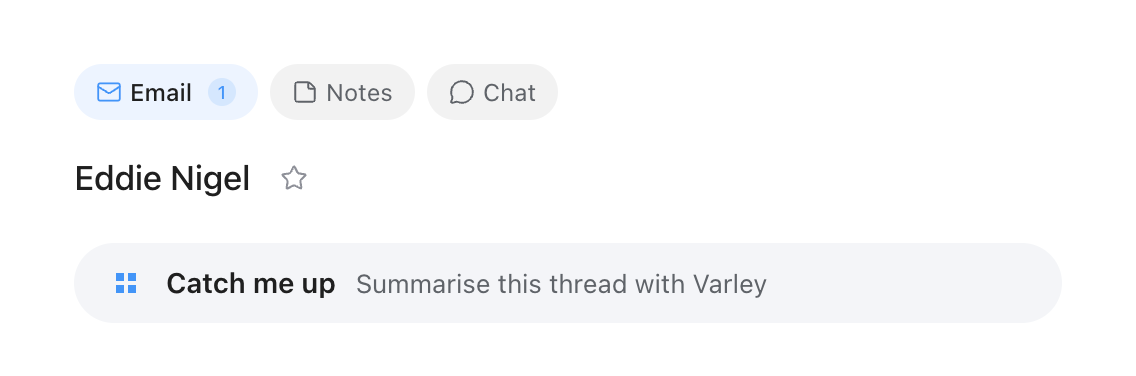
Drag Card View is what you see when you open a card on a board. It brings the email or task together with your team's collaboration and the card's settings, all in one place. From here you can read and reply to the conversation, assign the card, set a due date, add tags, notes, subtasks and files, set custom fields, and chat with your team.
Available on: Chrome extension · Web app · Desktop app
The card view has the same capabilities everywhere, but the Chrome extension and the web app arrange them differently. Here is a tour of each.
In the Chrome extension
The card opens with a row of tabs and a top toolbar.
Tabs
- Details shows the email conversation, for cards that contain email. From here you can archive, delete, mark read or unread, star, reply, reply all, forward, and reply as a shared inbox, Google Group or teammate.
- WhatsApp shows the WhatsApp conversation. It appears only on WhatsApp boards.
- Tasks is a checklist of subtasks, with a progress count such as 2/3.
- Notes is a private notebook on the card.
- Activity is a log of everything that happened on the card.
- Contact shows contact details for the people on the card.
- Files lets you upload and download files.
- Related reaches the other cards merged in, for merged cards.
Top toolbar
Above the tabs, the toolbar gives you the card's tools: color code, assign the card, due dates (with an Add to calendar option), tags, move to another board, snooze, card URL, print or open in a new tab, and custom fields. Breadcrumbs under the title show where the card sits across boards and columns, and Previous / Next move you between cards in the same column. An internal chat opens on the right, where you can @mention teammates.

In the web app
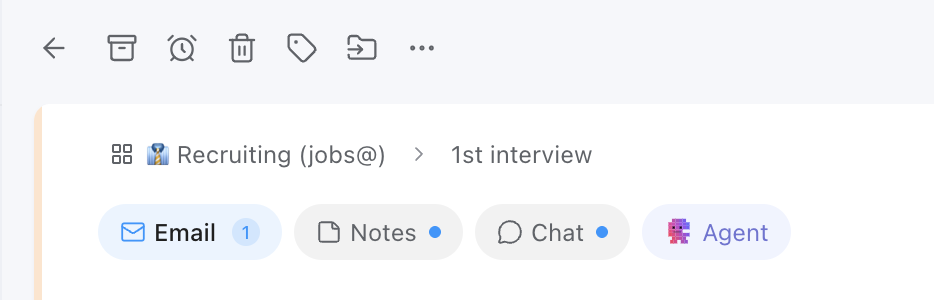
The card opens as a conversation with a set of primary tabs, and a properties panel on the right.
Primary tabs
- Conversation shows the email or WhatsApp thread, with the reply actions. On standard boards it is labeled Email.
- Notes holds the card's notes.
- Chat is the internal team chat, where you @mention teammates.
Properties panel
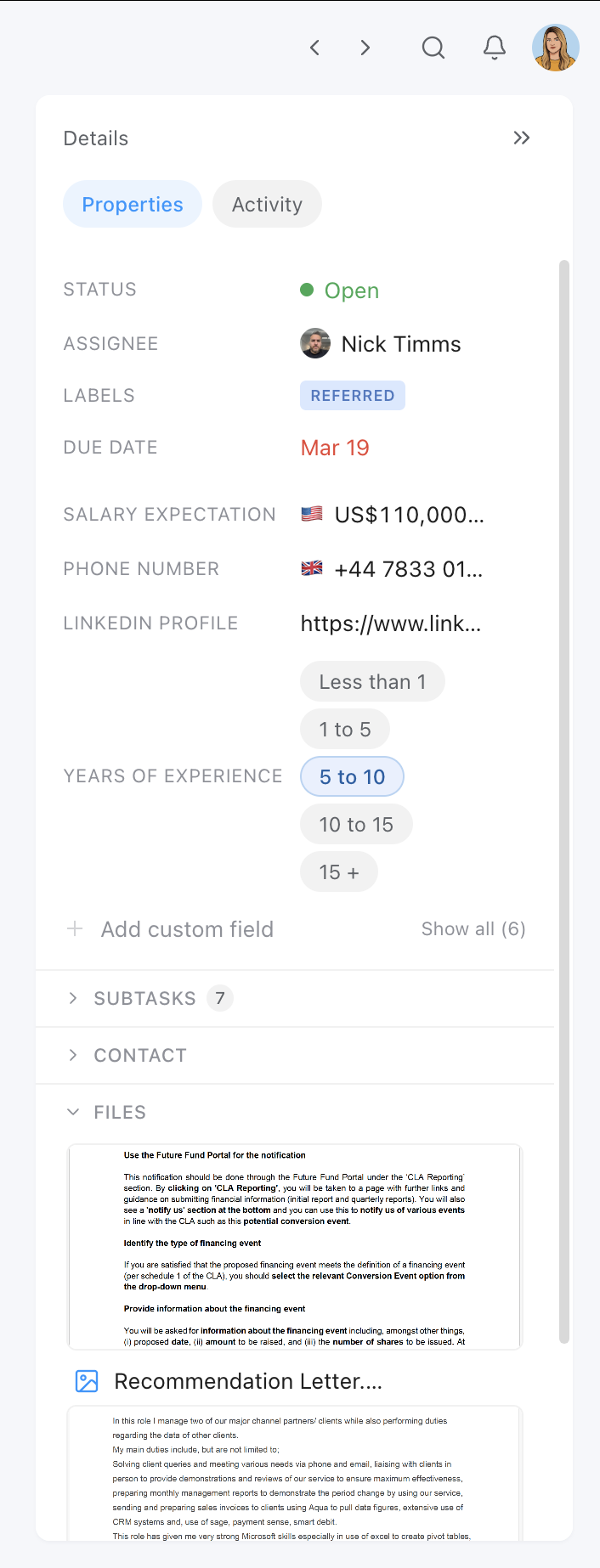
The panel on the right holds the card's settings and its related content:
- Properties: status, assignee, tags, due date (with an Add to calendar option), and custom fields.
- Subtasks: the card's tasks.
- Contact: contact details for the people on the card.
- Files: the card's uploaded files.
- Activity: the card's activity log.
Card actions such as archive, snooze, move, color and star are available from the conversation and the card's action menu.
The desktop app works the same way as the web app, with silent auto-updates.
Tip: On an email card, click Catch me up at the top of the thread and Varley summarizes it for you. See How do I catch up on a long thread with Varley?