When separate cards are about the same thing, such as different contacts on one deal, or several customers reporting one issue, you can merge them so all the context lives in one card. This article shows how, and how merged cards behave.
Available on: Chrome extension · Web app · Desktop app
Note: Merging cards is available on the Plus and Pro plans.
How to merge cards
In Gmail (Chrome extension)
- Click and hold the card you want to merge.
- Hold the SHIFT key. A "Merging cards enabled" message appears at the bottom left.
- Drag it onto another card until a blue border appears.
- Drop the card, then release SHIFT.
In the web app
Drag one card onto another and confirm the merge when prompted.
How merged cards appear
A merged card can be expanded to show every card inside it, or collapsed to save space. The control looks different on each platform.
In the Chrome extension
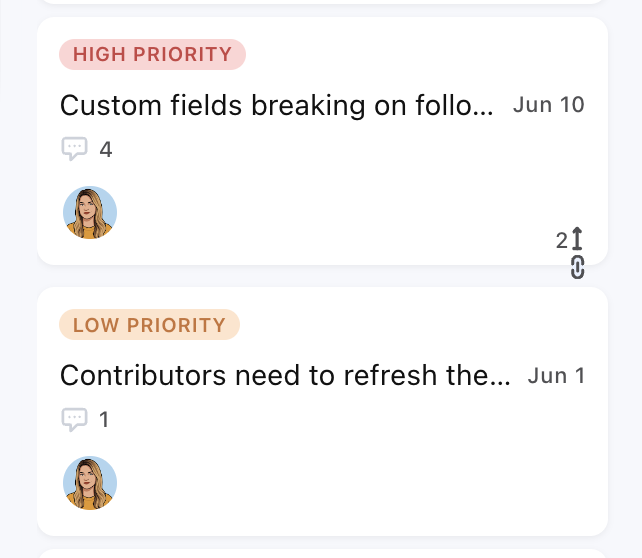
A chain icon with a number sits at the bottom right of the merged card, showing how many cards are inside. Click the chain icon to expand or collapse the card.
In the web app
A chevron sits at the left of the merged card, next to the title, with the number of cards in the group. Click the chevron, or the card, to expand or collapse it. When expanded, the merged cards stack together inside a bordered group.
Parent and child cards
The top card is the parent; the rest are child cards. The parent card defines a few things:
- When the merged card is collapsed, the parent's title is the overall title shown.
- Moving the parent card (archive, delete, move across columns or boards, or move to a Gmail folder) moves the whole merged card, children included.
- Moving a child card moves only that child.
How merged cards work
- Merged cards stay independent: each keeps its own title, assignee, tags, due date and color.
- Applying a due date, assignment, color or tag to any card in the merge affects only the card you selected.
- You can move a merged card to a Gmail folder only if you have permission on every card inside it. See why you cannot move emails that are not your own.
- Filters (and sub-boards) match the whole merged card if any card inside matches. Filtering by Unread, for example, returns the merged card when one card inside is unread. Search works the same way.
What happens on a new reply
- Whichever card gets the reply, the merged card behaves like a normal card: it moves to the top, the reply shows in bold, and depending on your board setup it may move back to the first column.
- If the reply lands on a child card, that child moves directly below the parent, and the merged card expands so you can see the new reply from the board.
How to un-merge cards
- Click the chain icon to expand the merged card.
- Select the card or cards to remove, and drag them out of the merged card.
The desktop app works the same way as the web app, with silent auto-updates.