You can select every card in a column or list at once, then act on them together, for example to archive, assign, move or merge them.
Available on: Chrome extension · Web app · Desktop app
Select all cards in a column
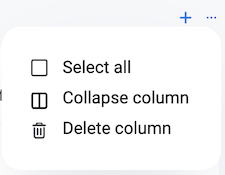
Click the three-dot button at the top right of a column or list, then choose Select all (in the web app it is labeled Select all cards).
Like Gmail, Drag selects the cards that are currently on display. Columns load cards in batches of 20, so:
- If a column has 20 cards or fewer, all of them are selected.
- If a column has more than 20 cards, the top 20 are selected.
Select more than 20 cards
To select more, scroll down the column to load the next batch of 20 cards. Keep scrolling and the column keeps loading batches until every card is shown, then select all.
How many cards can I select?
There is no hard limit. For the best performance, we recommend staying under 120 cards when you run bulk actions such as archive, assign or delete.
The desktop app works the same way as the web app, with silent auto-updates.
Tip: To change many cards without selecting them, ask Varley, for example “Move every card from Northwind in To do to In Progress”. See How do I move, assign, tag or archive many cards at once?