When you use merged cards, the Related view helps you find the other cards connected to the one you are looking at. Related cards only appear for merged cards.
Available on: Chrome extension · Web app · Desktop app
In the Chrome extension
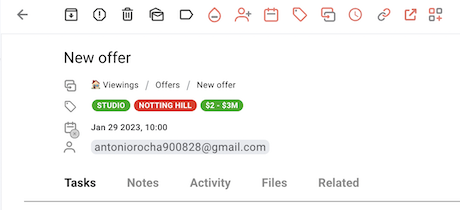
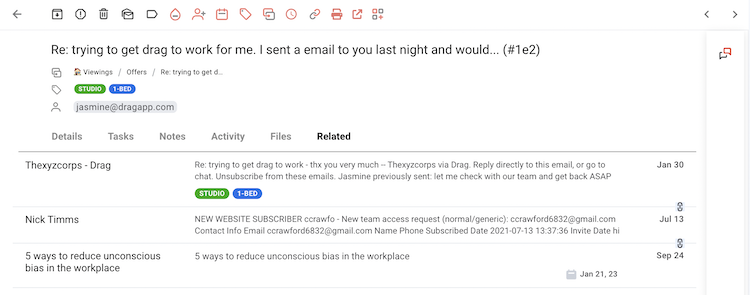
The Related tab sits on the card's top bar, next to the Files tab. Open a card that is part of a merged card, and the Related tab lists the other cards in the merge, along with their tags, colors and due dates.
In the web app
The web app does not have a separate Related tab. Instead, the cards in a merge are shown together on the board: click the chevron on a merged card to expand it and see the other cards inside. See How do I merge cards?.
The desktop app works the same way as the web app, with silent auto-updates.