Every board and card in Drag has a unique URL. You can link to a specific card or board from anywhere, for example from another card's chat, your team chat app, or a document, to point a teammate straight to the right place.
Available on: Chrome extension · Web app · Desktop app
Copy a link to a card
In the Chrome extension
Open the card, then click the copy card permalink button on the top bar. A message at the bottom left confirms the link is copied.
In the web app
Right-click a card from board view and choose Copy link, or open the card and use its actions menu (the three-dot button) to Copy link. A Link copied message confirms it.
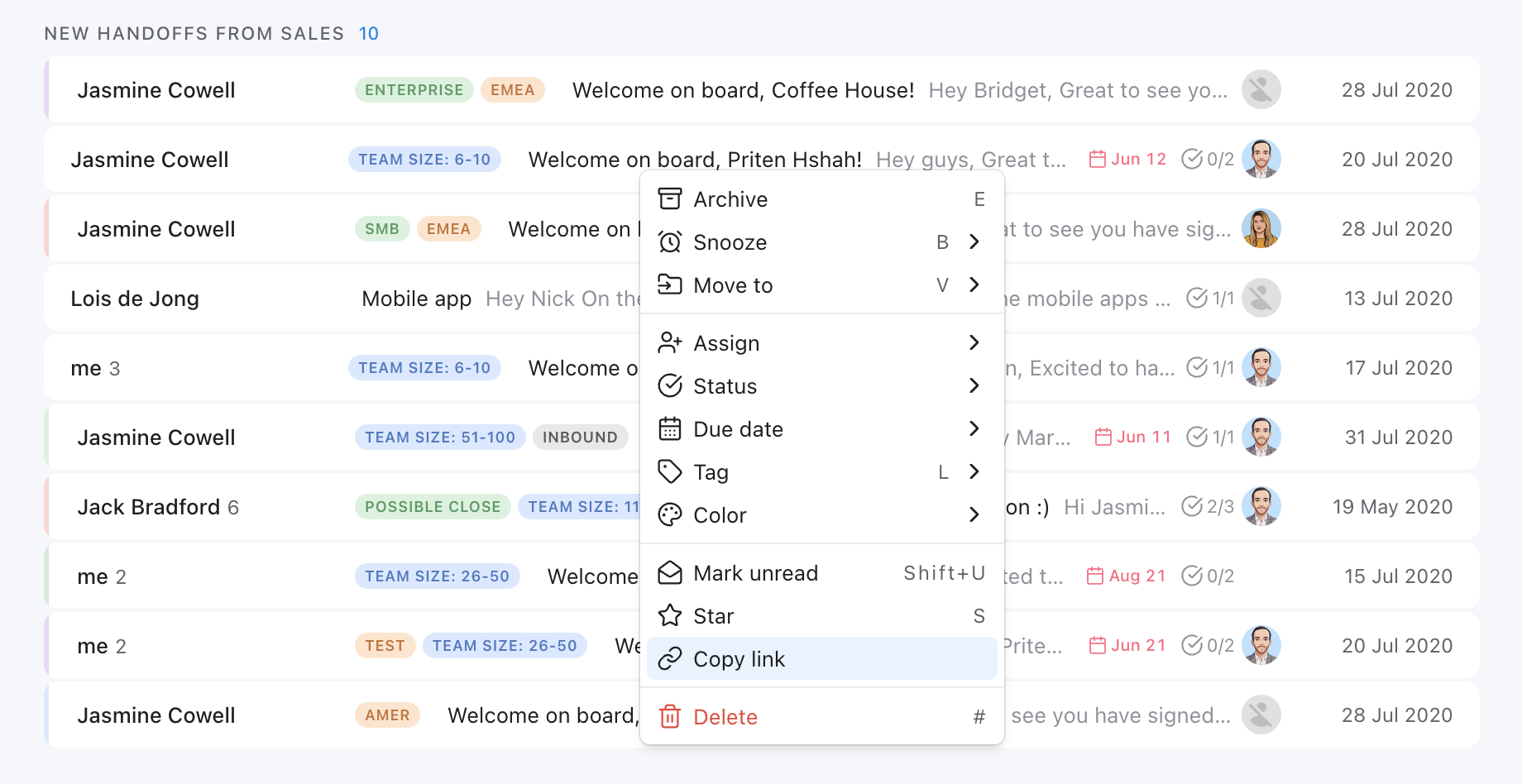
Once copied, paste the link anywhere: in another card's chat, in your team chat app, or in a document.
Copy a link to a board
For a board, copy the URL from your browser's address bar and paste it wherever you need. The URL contains the board's unique ID.
Why does a link open my inbox?
A card link can open your normal inbox instead of the card in three cases:
- You do not have access to that card or board. You can only open links for cards on boards you are a member of.
- The card was permanently deleted. Links keep working for archived cards, but not once a card is deleted from the Gmail bin.
(Chrome extension) You are signed in to Gmail with a different account. If a link contains
/mail/u/0/but your Drag account is not account 0, replace the0with the number of the account that has access to that board or card.
The desktop app works the same way as the web app, with silent auto-updates.
If you still need help, our team is happy to help at support@dragapp.com.