On a shared board, teammates can reply to emails on behalf of each other, or on behalf of a shared address such as support@. This article shows how to set up the permissions and choose the sender when you reply.
Available on: Chrome extension · Web app · Desktop app
From an Empty or Shared Inbox board
For empty or shared inbox boards, each email account on the board (including teammates and the shared inbox) has to grant permission for others to reply on its behalf.
Grant reply permission
- Open the board's settings. In the Chrome extension, open the Drag menu to go to the dashboard, then open the board's settings. In the web app, open Board options from the board-title menu.
- Under Reply permissions, turn on the toggle to let others reply on your behalf.
- Sign in to the shared inbox account and repeat, so your team can send as the shared inbox.

Choose the sender when you reply
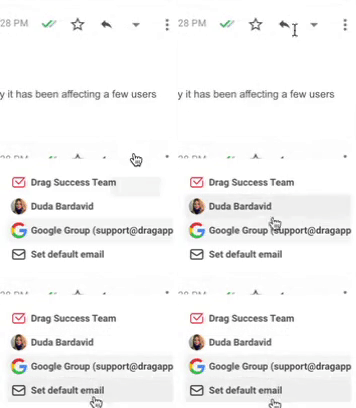
When the permissions are granted, the Reply as button in the card gives you sender options. When you reply, pick the sender you want from the dropdown (or set a default sender). In the web app, choose the sender from the From row in the reply composer. The recipient sees the email from the sender you chose.
From a Google Groups board
To reply from a Google Groups alias, each user first adds the alias to their own Gmail or Google Workspace account:
- In Gmail, open Settings, then the Accounts tab.
- In the Send email as section, click Add another email address.
- Enter your name and the alias address, click Next Step, then send the verification.
- For work or school accounts, enter the SMTP server (for example, smtp.gmail.com), plus the username and password.
- Click Add account, sign in to that account, open the confirmation email, and click the link.
Note: Every user who needs to reply as the Google Group alias has to do this in their own account.
Once that is done, you can pick the Google Group address in the From field when you compose or reply.
How to set up a default sender
You can set one default sender per board. For a shared inbox such as support@, this means every reply on that board is sent from support@ automatically.
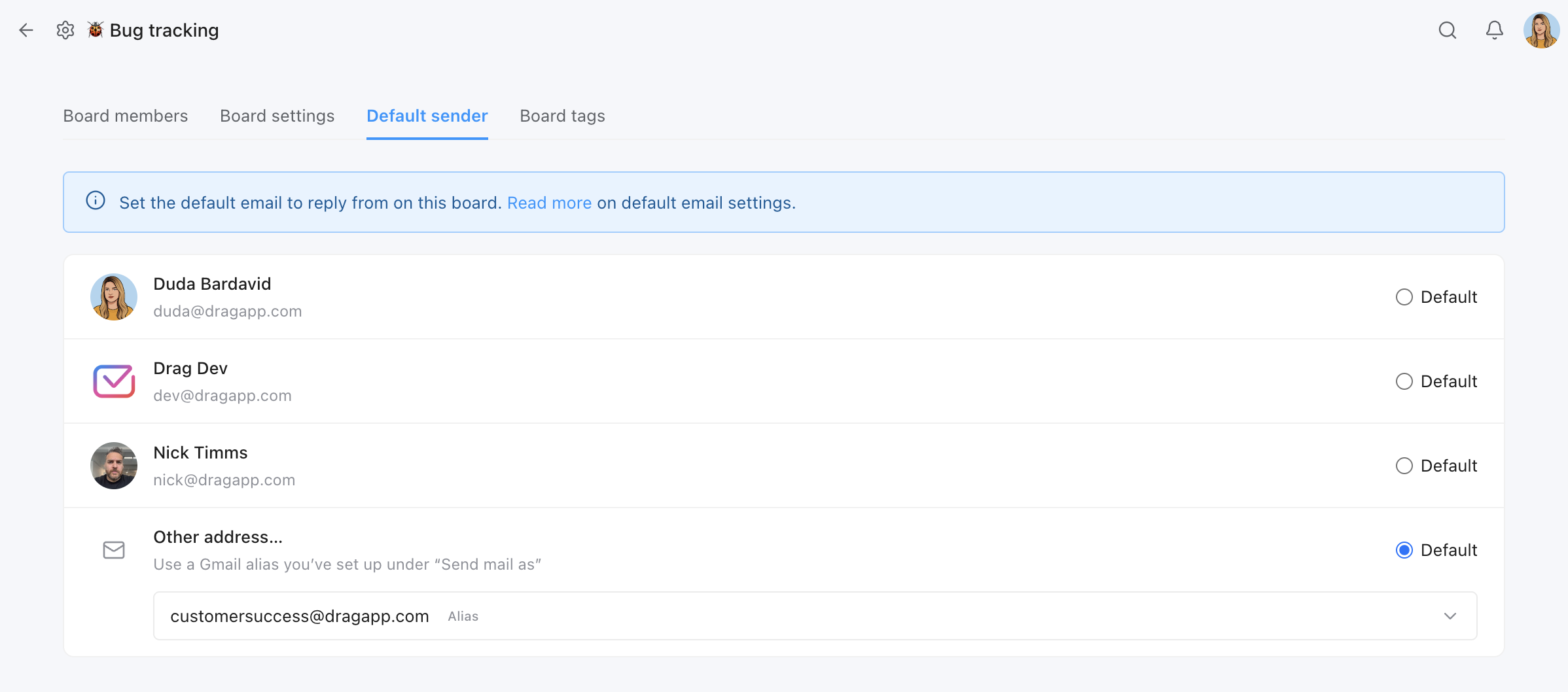
- Open the board's settings (in the dashboard for the extension, or Board options on web) and go to Default sender. You can also pick Set default email from the dropdown next to the board title.
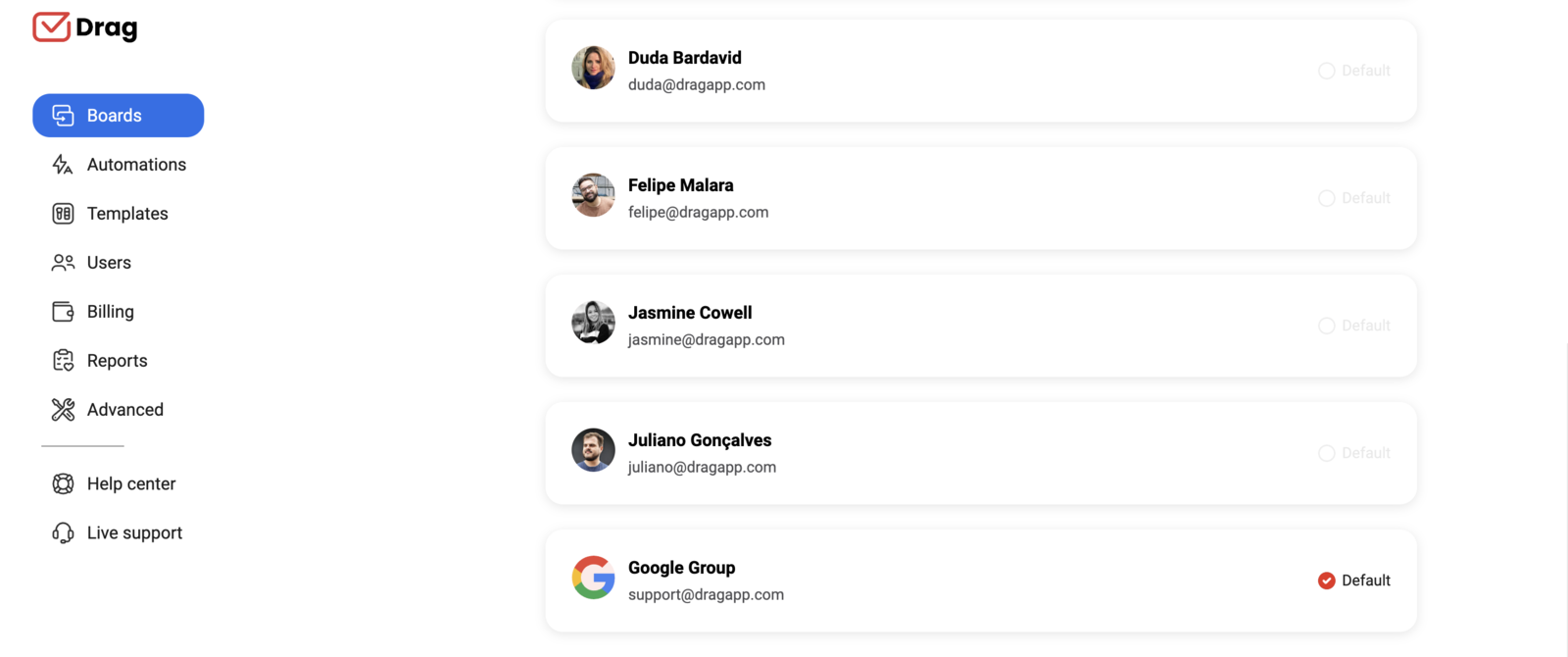
- You will see the teammates invited to the board, with a checkbox showing who has granted reply-as permission on that board.
Select the one address to use as the default. It must have granted permission, and you can set only one default per board.
After that, replies go from the default address, and you can still pick another permitted sender manually at any time.
How signatures work when you reply as another address
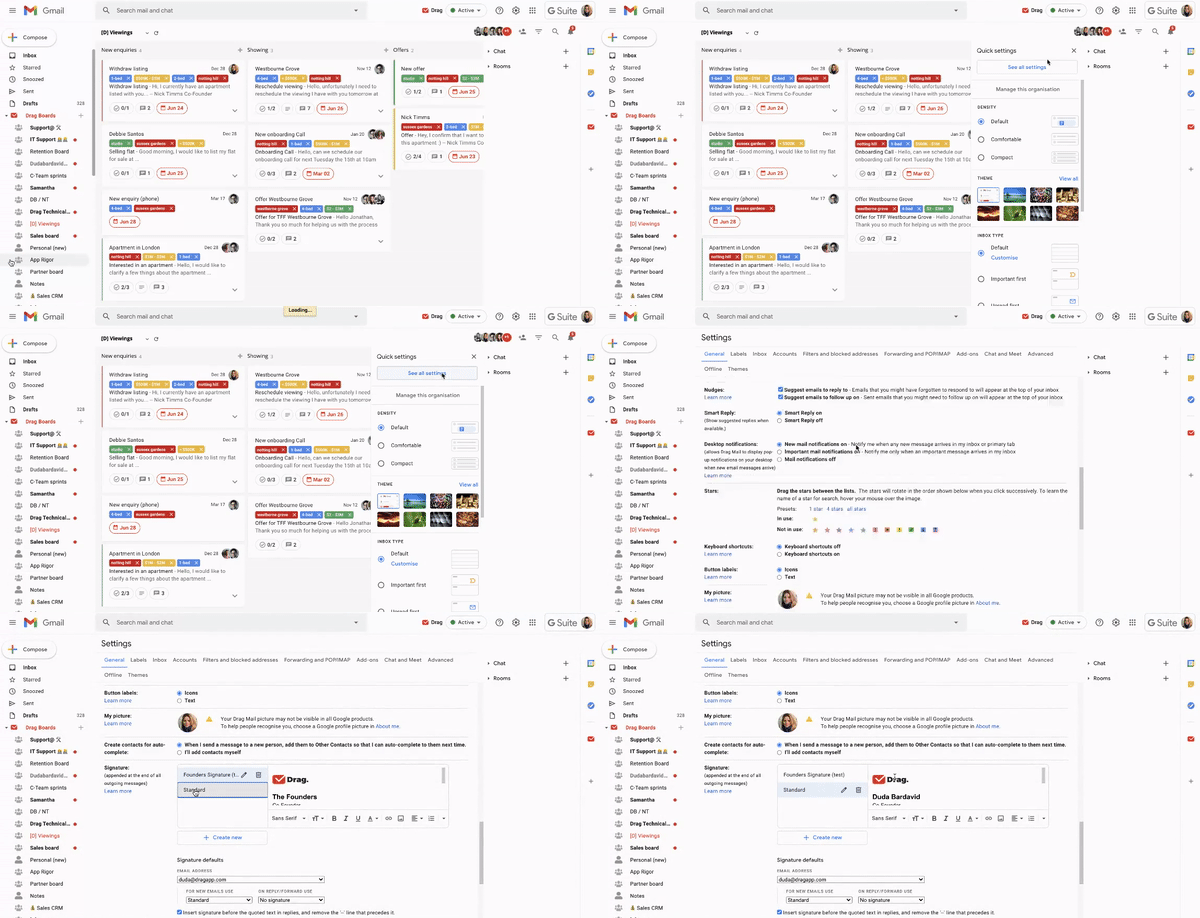
Drag inserts the signature of the address the reply is sent from. For a shared inbox, replying as another address uses that sender's signature automatically. For a Google Group alias, manage the signature in Gmail: open Settings, the General tab, scroll to Signature, and edit the signature for that address.
The desktop app works the same way as the web app, with silent auto-updates.
Tip: Replies drafted by Varley use the board's reply address too. See How do I draft and send replies with Varley?