When you create a board, you choose how it gets its cards: start empty, or connect a channel, a Shared Inbox, a WhatsApp number, or a Google Group. This article explains each type and how to connect an empty board to a channel later.
Available on: Chrome extension · Web app · Desktop app
If you connect a channel, messages sent to that Shared Inbox, WhatsApp number or Google Group load into the board in real time. If you do not, the board starts empty and you shape it around your workflow. The board types are the same whether you use the Chrome extension or the web app.
Empty board
Choose this if you want a blank canvas. You can then populate it your way: create new cards, drag cards into it, or set up automations to move cards in automatically. Empty boards are a flexible workspace for you or your team.
Shared inbox board
Choose this if you want emails from a shared account (such as support@) to load automatically. You need the login and password for that address. In a Shared Inbox board, new emails land at the top of the first column in real time.
WhatsApp board
Choose this if you support customers over WhatsApp. A WhatsApp board connects a WhatsApp Business number, so incoming WhatsApp messages land on the board as cards in real time and your team replies from the same shared view, using pre-approved templates when a conversation needs them. Connecting a number has a few prerequisites; see How to set up a WhatsApp shared inbox.
Google Groups board
Choose this if you collaborate through a Google Group. Groups have no password of their own; they are distribution lists where several people receive the same emails. A Google Groups board avoids the usual problems (duplicate replies and unclear ownership) by centralizing every message on one shared board. New emails land at the top of the first column in real time.
Can I change a board type?
Empty boards can be connected to a Shared Inbox, a WhatsApp number, or a Google Group at any time. Once a board is connected to a channel, that connection cannot be changed.
To connect an empty board to a channel:
- Open the board.
- Click the dropdown menu next to the board title.
Click Add incoming.
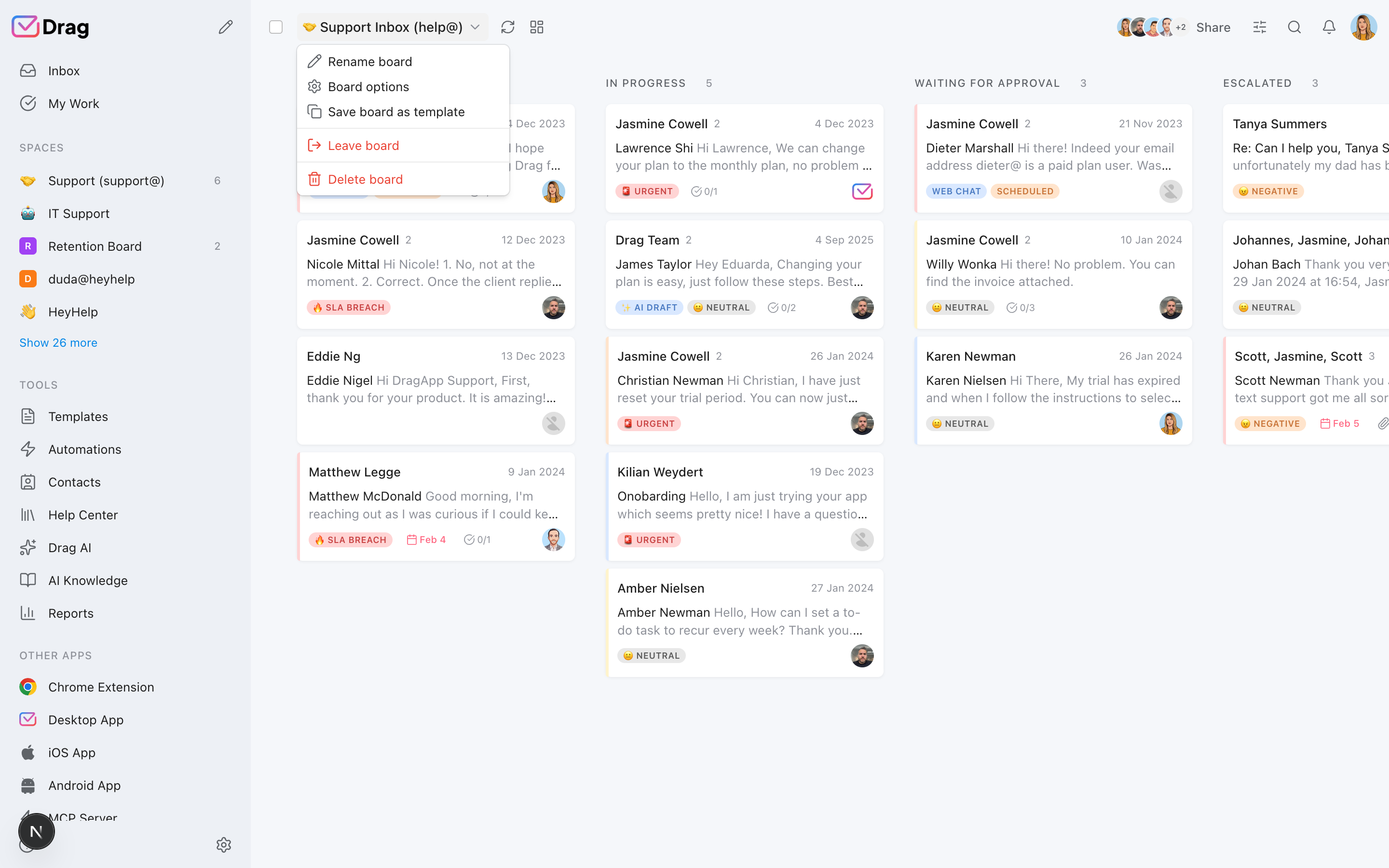
- Choose the channel to connect: a Shared Inbox, a WhatsApp number, or a Google Group.
- Enter the email address (Shared Inbox or Google Group), or connect your WhatsApp Business number.
- For a Shared Inbox, enter the password for that account.
Once connected, new messages load into your board in real time.
The desktop app works the same way as the web app, with silent auto-updates.
If you still have questions, our Customer Champions are happy to help at support@dragapp.com.