Drag has a built-in WhatsApp channel. Once it is connected, your business WhatsApp conversations load as cards on a board, so your team can collaborate on them alongside your email and other boards.
Available on: Chrome extension · Web app · Desktop app
WhatsApp boards are available on Drag's paid plans.
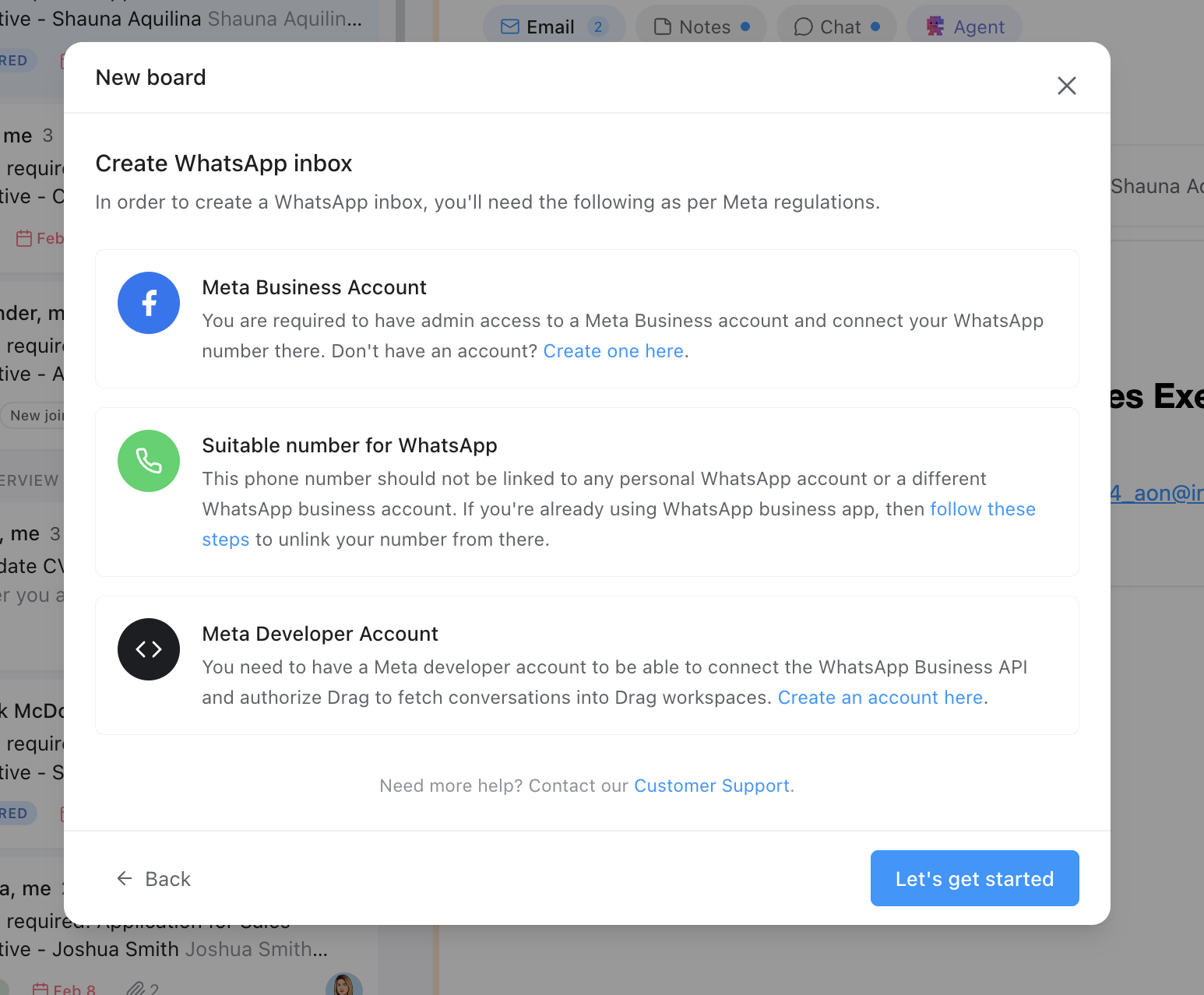
Note: Before you start, read the prerequisites required to integrate with the WhatsApp Business Platform. Meta sets these, and your setup will not complete without them.
Create a WhatsApp board
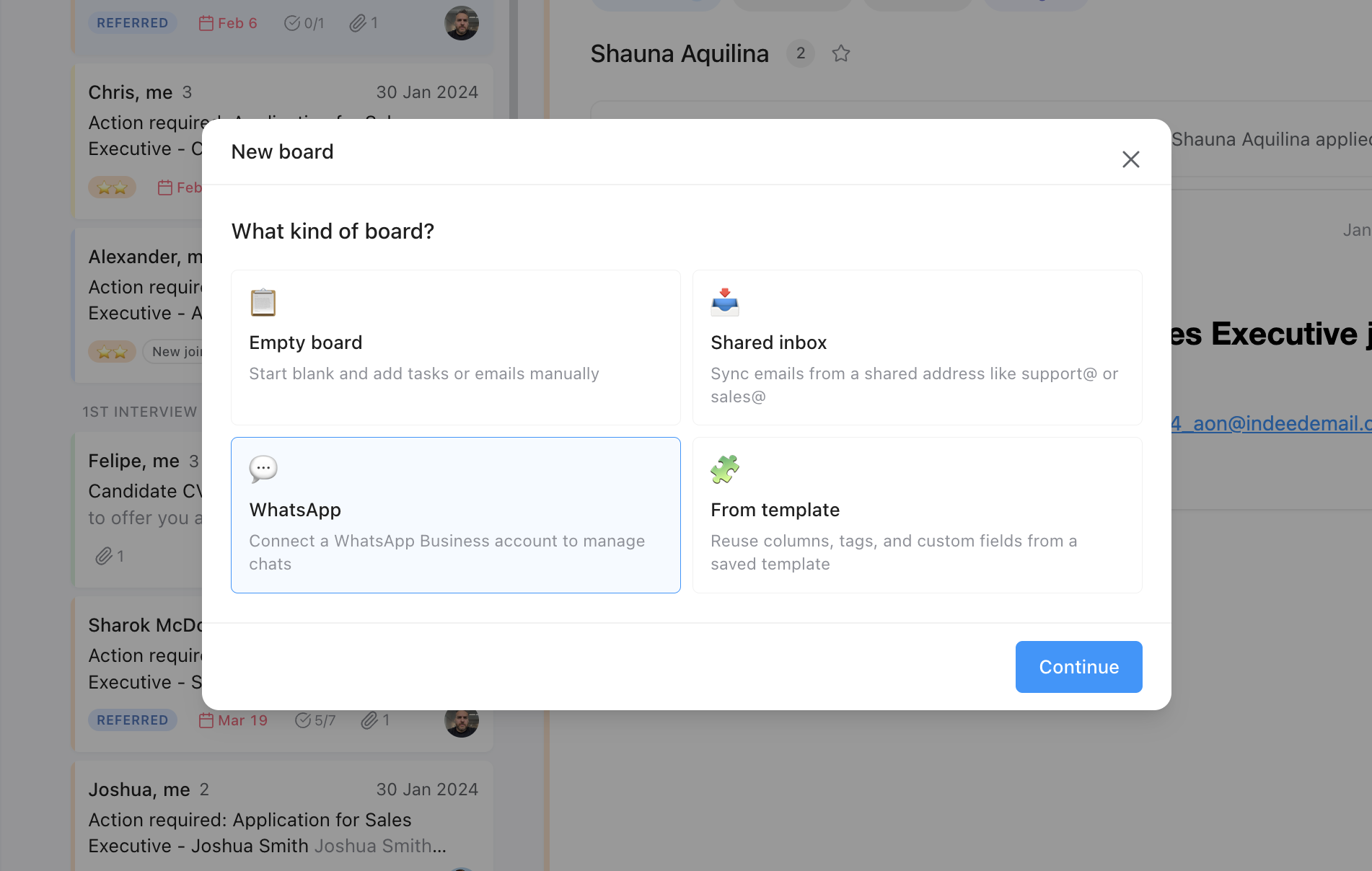
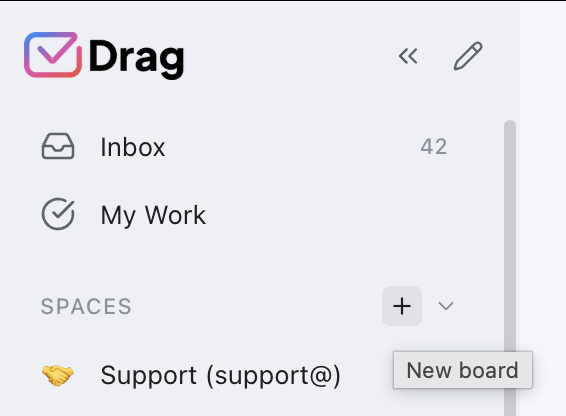
Start a new board. In the Chrome extension, use the add-board control in the Drag Boards list in your Gmail sidebar; in the web app, add a board from your board list.
On the Add Channel step, select WhatsApp and click Next.
Confirm you have read the prerequisites, then click Let's get started.
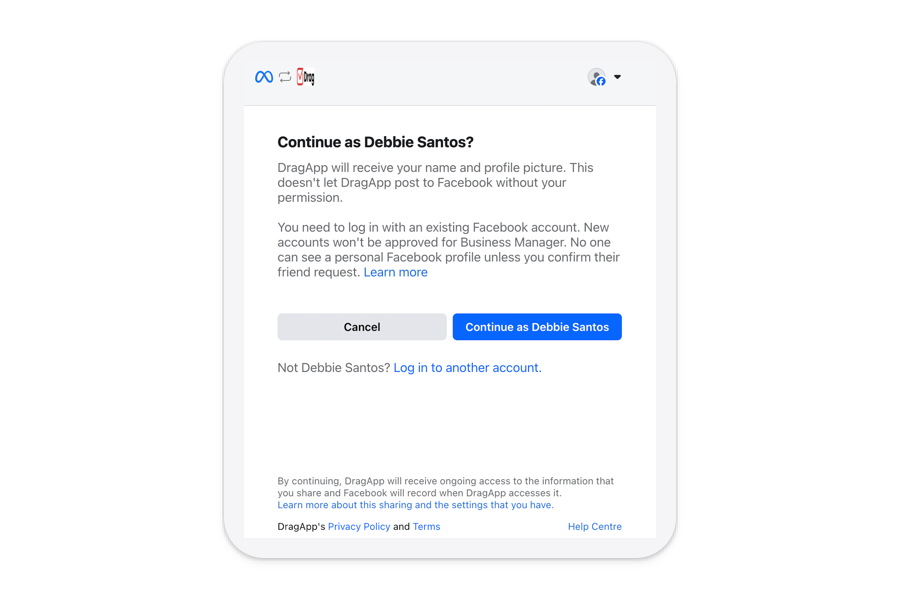
In the popup, log in to your Meta Business account, or click Continue as [name] if you are already logged in.
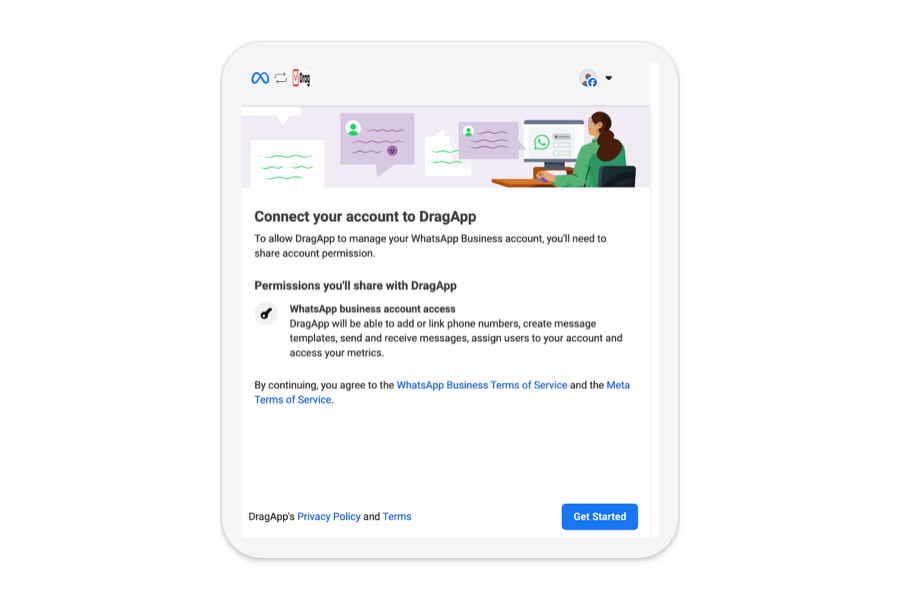
Review the permissions Drag needs to connect to your WhatsApp Business Platform, then click Get Started.
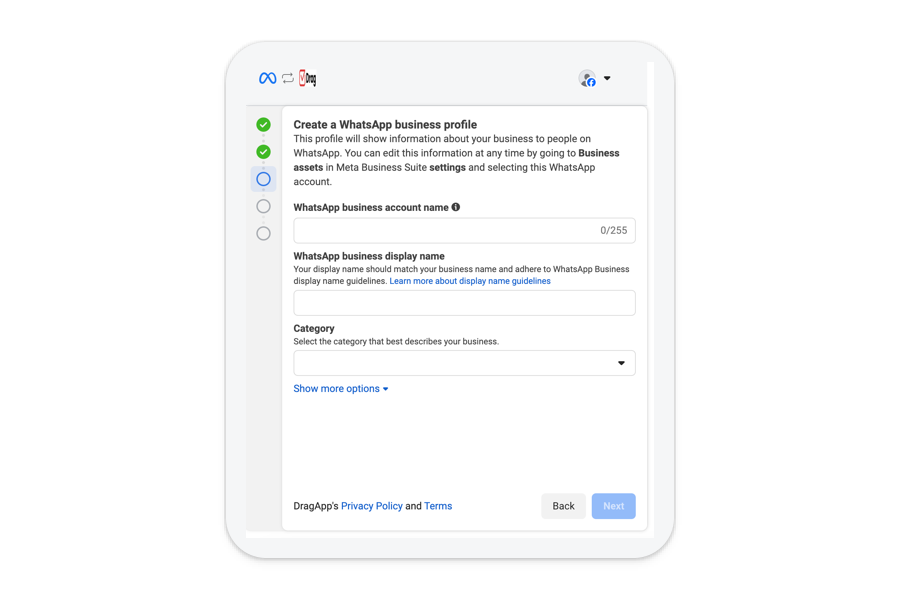
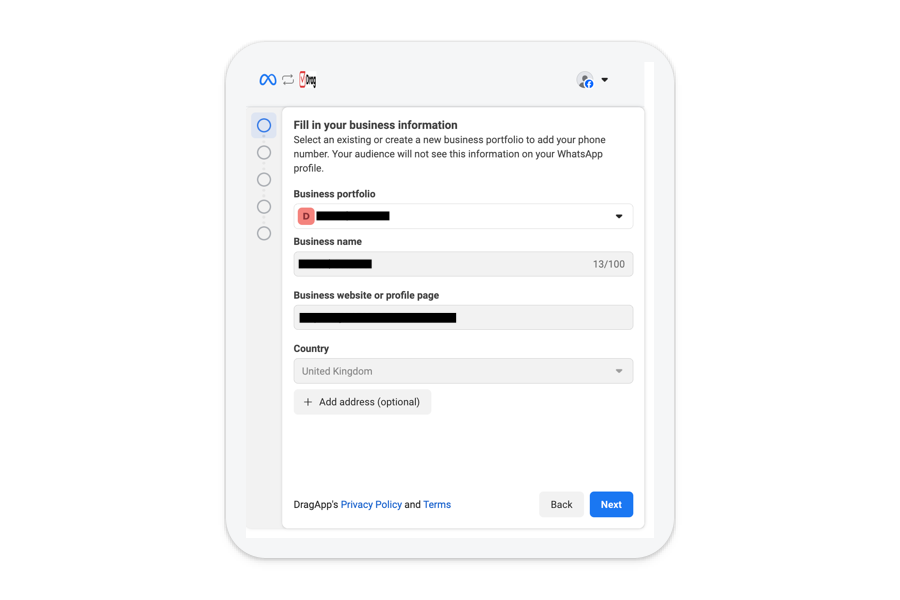
Fill in your business information, then click Next.
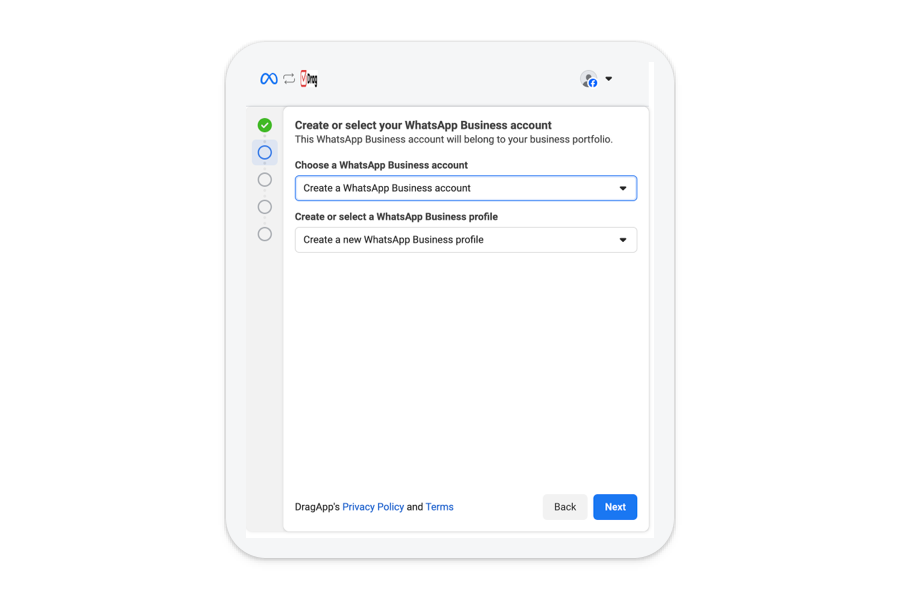
Select an existing WhatsApp Business account, or choose to create a new one, then click Next. If you are creating a new one, fill in the required business details and click Next.
Note: Meta must verify your business before Drag can connect to your WhatsApp Business account. If you need to verify your business, follow the steps in this Meta article.
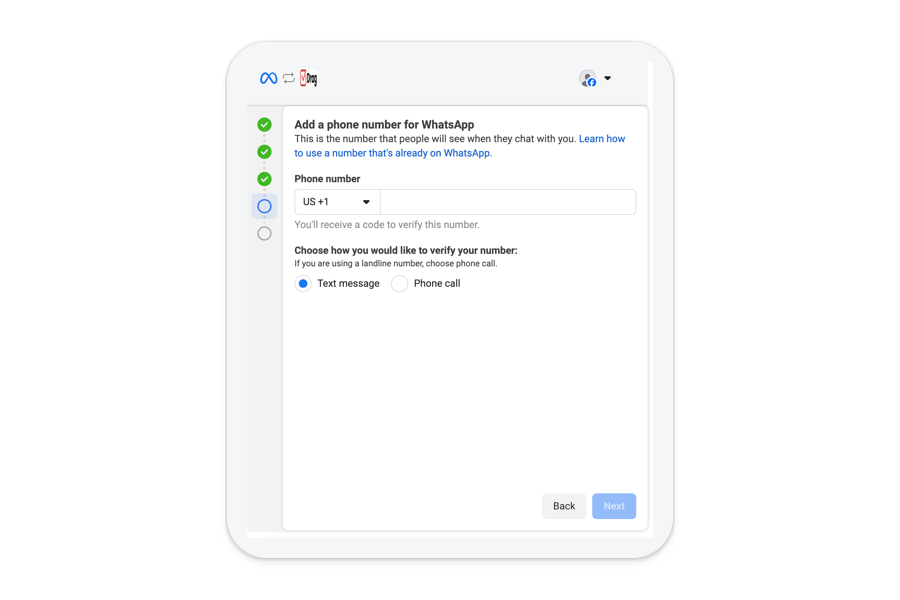
Enter the phone number for your WhatsApp shared inbox board, verify it, then click Next.
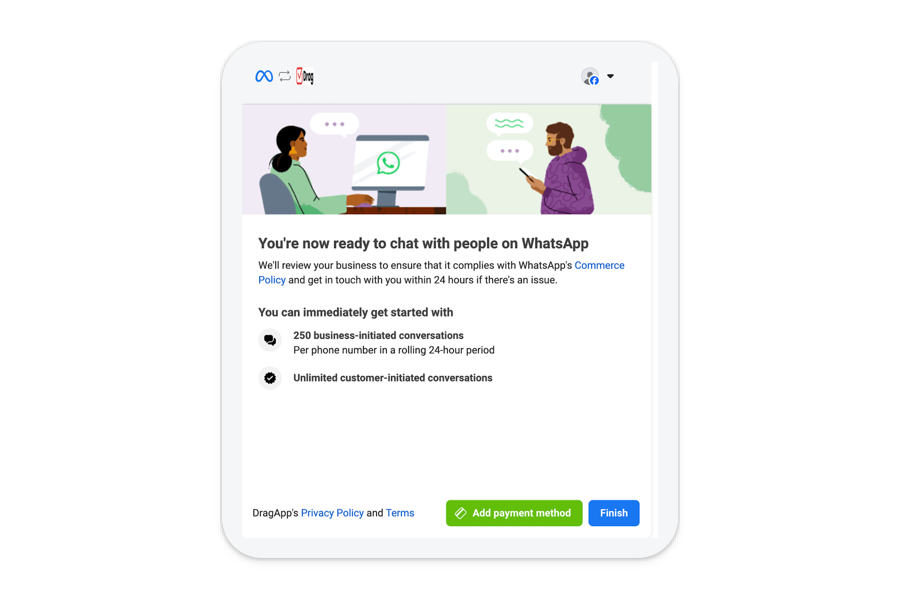
If your business is verified and you have a payment method in your Facebook Business account, click Finish.
Note: You must have a payment method in your Facebook Business account to send WhatsApp messages through the Business Platform. You can add one later.
Once you finish, Drag takes you to your new WhatsApp shared inbox board. New conversations load as cards, ready for your team.
Configure your WhatsApp board
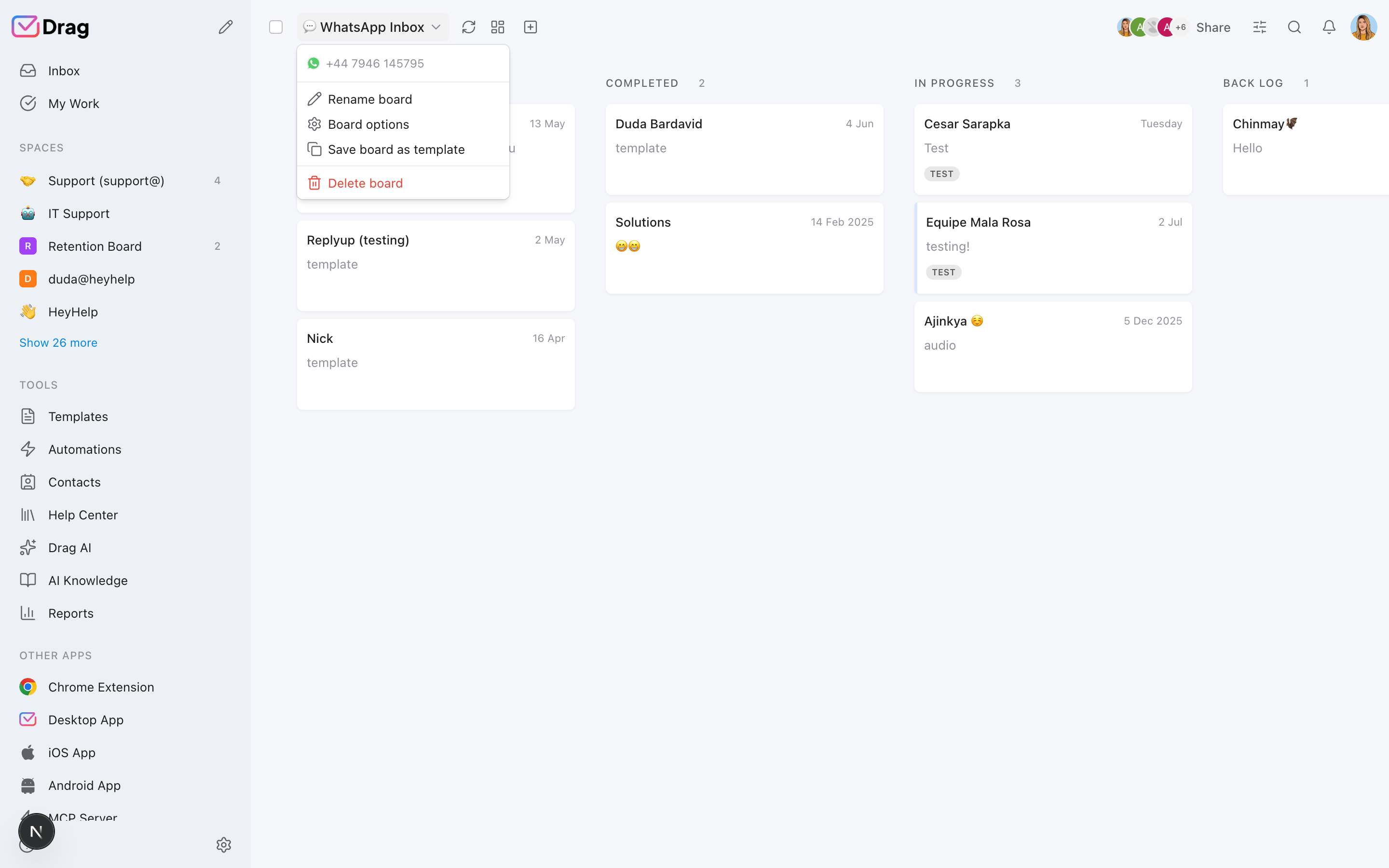
Most settings work the same as any other Drag board. Open the dropdown menu next to the board title and click Board options.
From there you can:
- Invite team members to the board.
- Set up business hours for the board.
- Set up tags for the board.
Note: The reply permissions and default sender settings are not available on WhatsApp boards.
Message templates
Facebook Business account admins set up and manage WhatsApp message templates in your WhatsApp Business settings. Templates must be approved by Meta and then sync to Drag automatically. See how to use WhatsApp pre-approved templates.