Business hours let you set the operating hours of each shared board, so response times and other metrics are measured only while your team is working, and so your automations can act on whether something happens inside or outside those hours.
Available on: Chrome extension · Web app · Desktop app
Note: Business hours are available on the Pro plan.
Set business hours for a board
- Open the board's settings. In the Chrome extension, open the dashboard; in the web app, open Board options from the board-title menu.
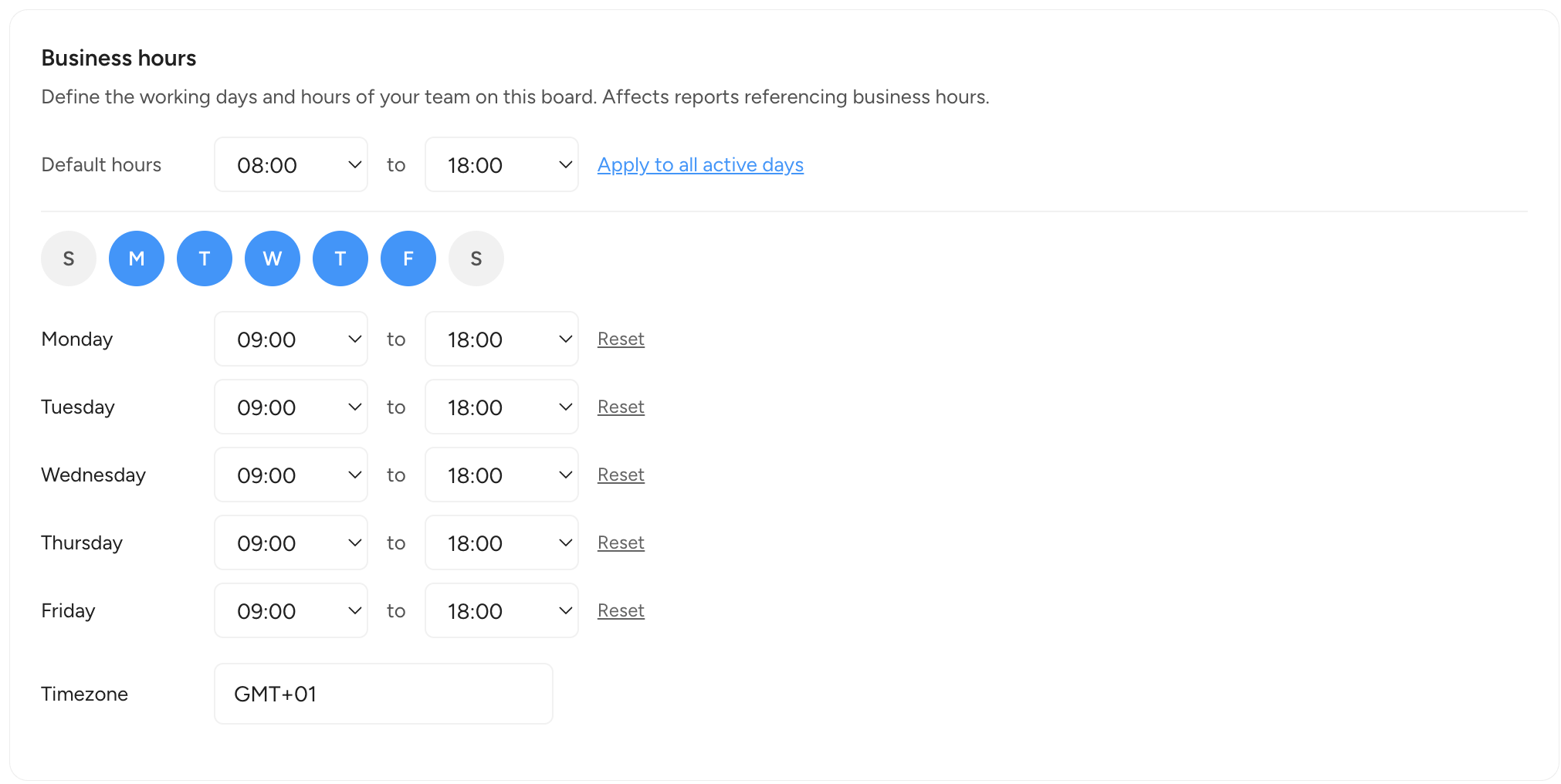
Choose the board, then scroll to Business hours.
- Choose the days of the week, the timezone, and the opening and closing times for each day.
- Click Save. Repeat for each board.
Note: The Clear button resets business hours to every day, 24 hours.
Use business hours in reports
To measure response times only within business hours:
- Open Reports.
- Next to the date-selection dropdown, check Business hours only.
This applies to calculations across all reports.
Use business hours in automations
On triggers
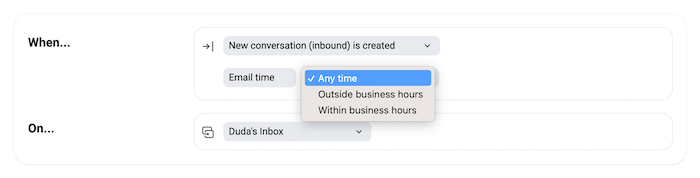
You can trigger an automation based on whether something happens inside or outside business hours, using the Email time option in the trigger.
Note: The Email time option is available only for the triggers New conversation (inbound) is created and Inbound reply is received.

On delays
You can also make an automation's delay count only during business hours, with the within business hours checkbox.

The desktop app works the same way as the web app, with silent auto-updates.