WhatsApp requires businesses to message customers with pre-approved templates once more than 24 hours have passed since the customer's last message. Facebook Business admins create and manage these templates in your WhatsApp Business settings. Meta approves them, and they then sync to Drag automatically, ready to send.
Available on: Chrome extension · Web app · Desktop app
Note: WhatsApp lets you message a customer with a pre-approved template if it has been more than 24 hours since their last message. See Meta's article on the time limit.
Create and manage templates (Facebook Business admins)
You need to be a Facebook Business account admin to create and submit templates for approval.
- Open your Facebook Business account.
- Select the WhatsApp account where you want the templates, scroll down, and click WhatsApp Manager.
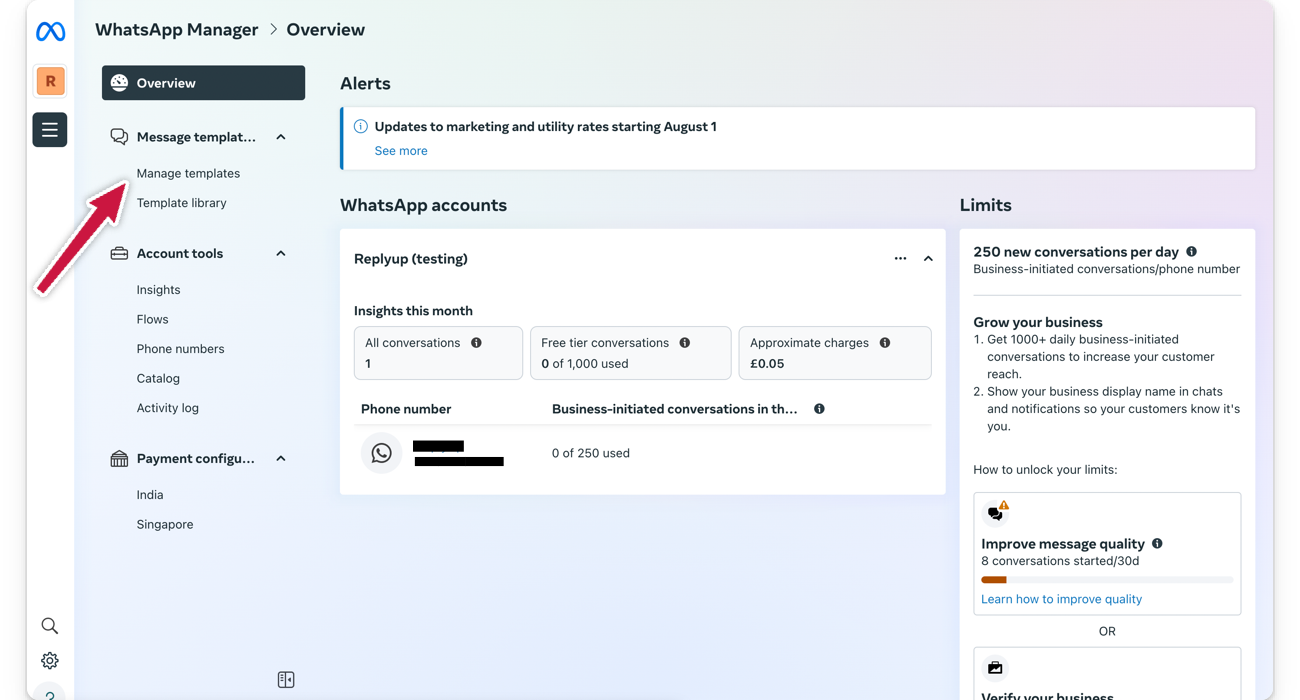
Open the WhatsApp accounts dashboard, then click Manage templates.
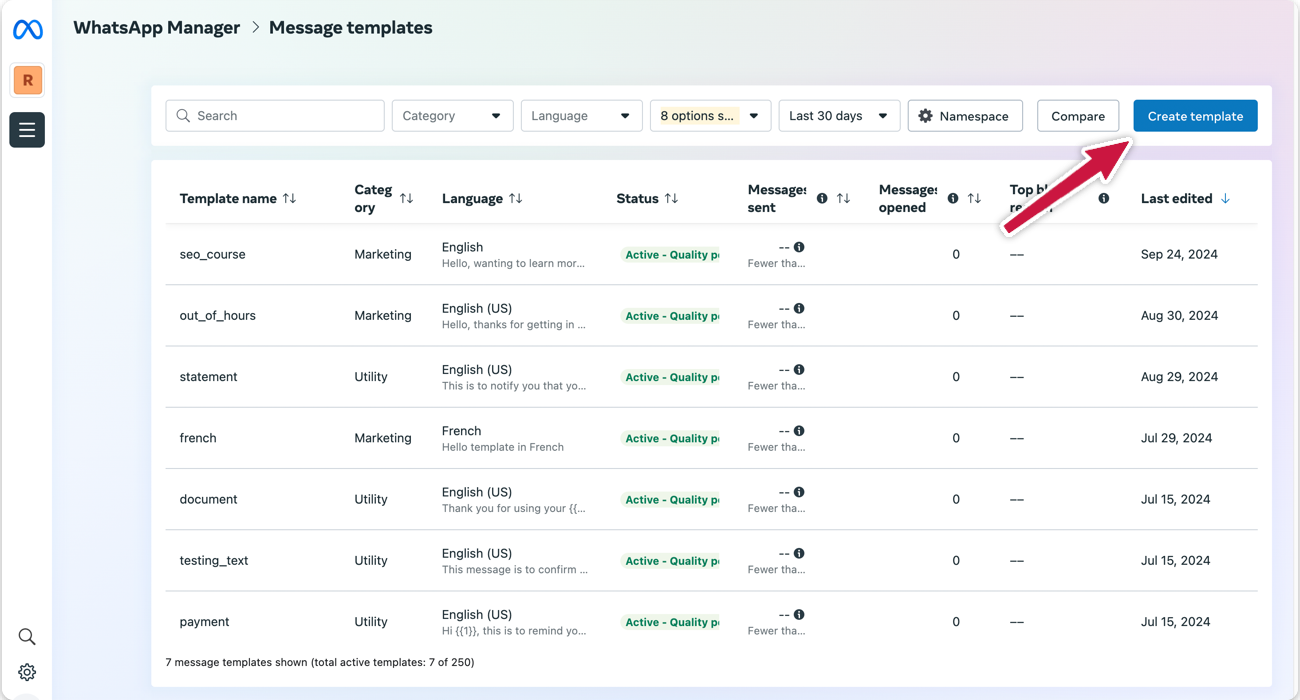
Click Create template.
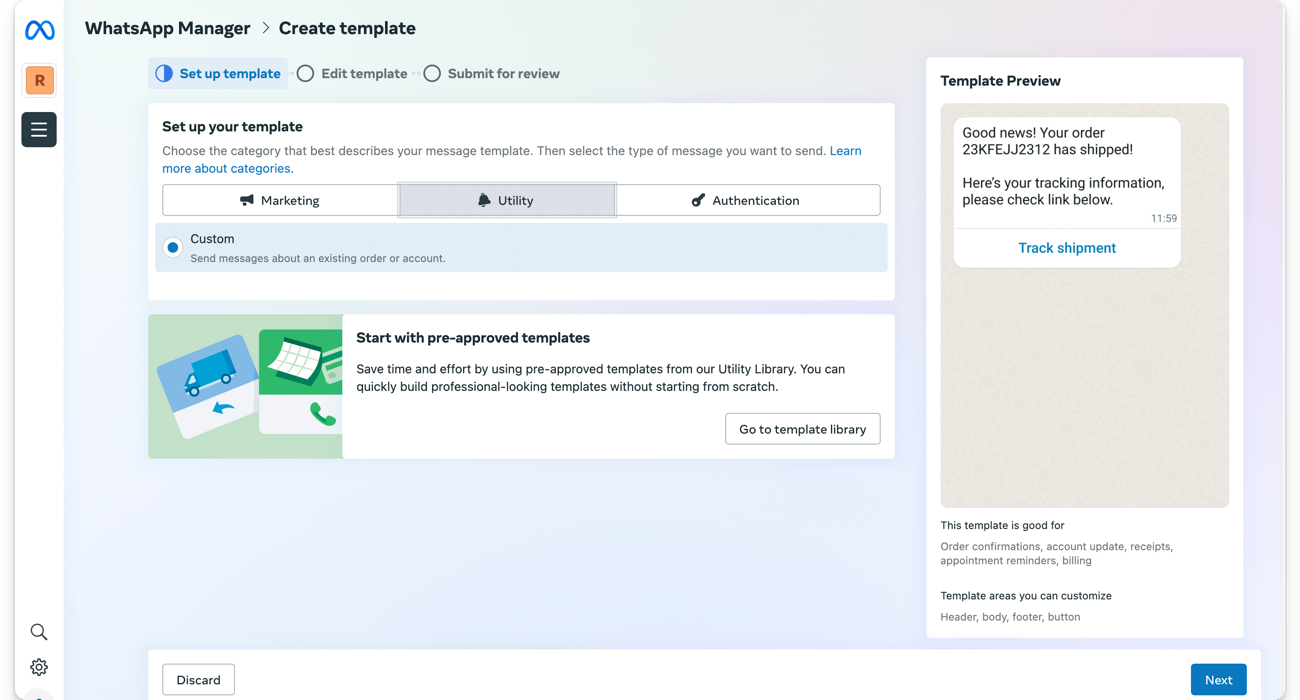
Choose a category, and decide whether to build a custom template or use Meta's template library, then click Next. Catalogs are not supported.
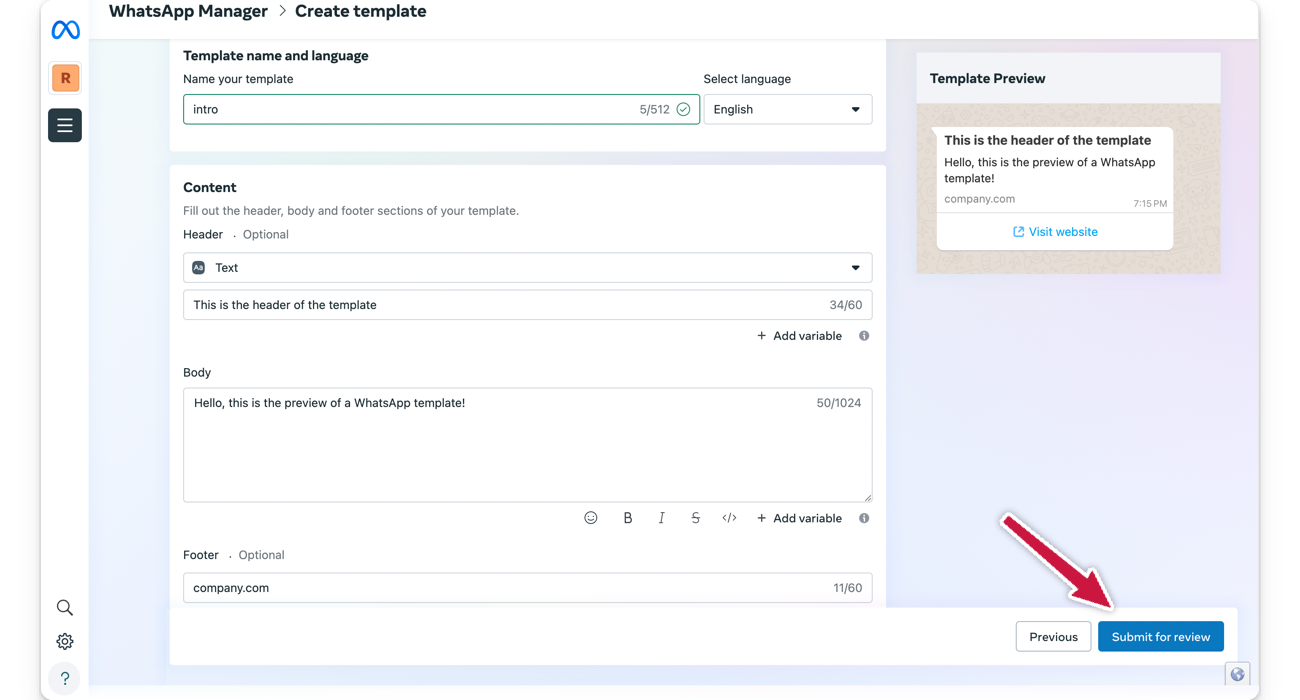
Define the template's content and parameters, then click Submit for review at the bottom of the page.
Meta takes up to 24 hours to approve or reject a template, and notifies you by email. Once approved, the template appears in your Drag WhatsApp board, ready to send.
Send a template from Drag
- Open the detail view of a WhatsApp conversation.
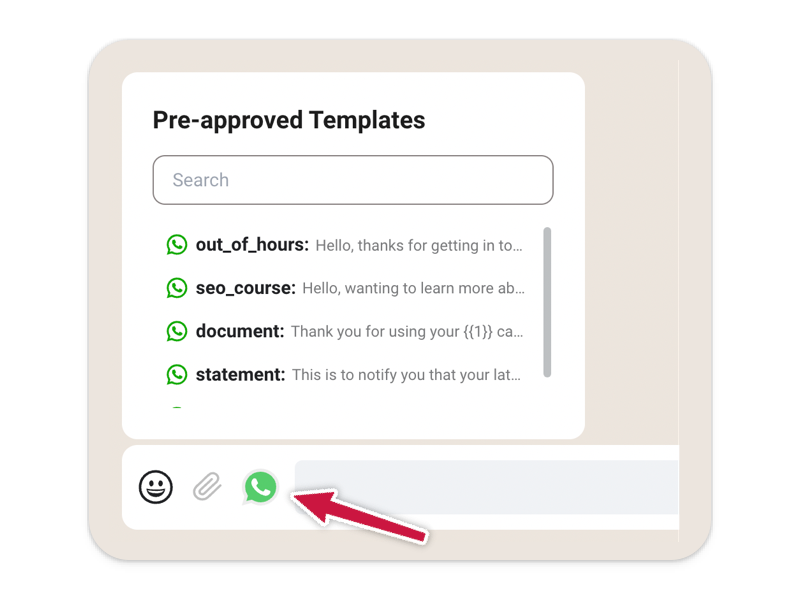
Click the WhatsApp icon in the composer toolbar, then select a template.
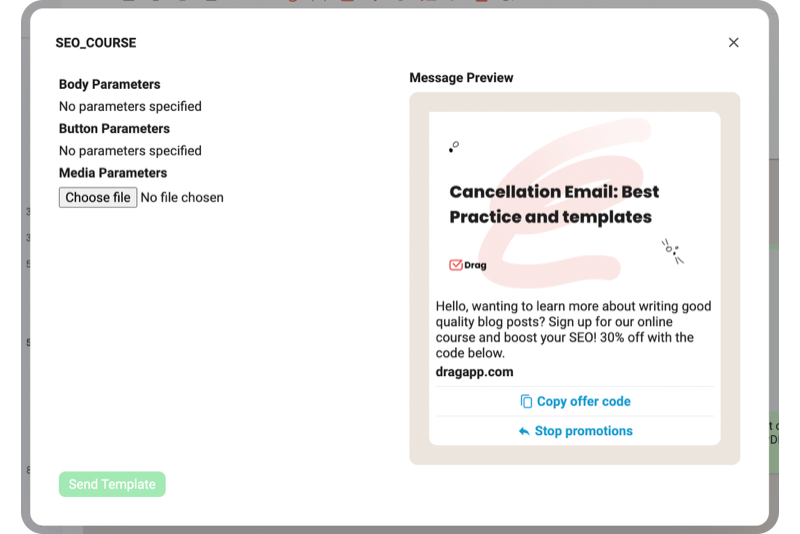
In the preview, fill in any variables the template needs, such as text, links, or files. The preview updates as you type. When you are done, click Send template.
If it has been more than 24 hours since the customer's last message, the normal message field is disabled and you can only send a pre-approved template.
Tip: Varley can reply to WhatsApp conversations within the 24-hour window, and send a pre-approved template when you're outside it. See How do I draft and send replies with Varley?