Email templates let you send repetitive emails in seconds, and share them across your team so everyone uses the same wording.
Available on: Chrome extension · Web app · Desktop app
Why use Drag templates instead of Gmail's?
- They can be shared with your team, so templates stay consistent across a department or the whole company. Gmail templates live in one person's account.
- They can become sequences. You can build automated follow-up steps across several templates. In Gmail you apply templates one email at a time.
- They support variables. Personalize a template with fields like the recipient's first name or company, and reuse them in automated follow-ups.
- They can be organized in folders. Gmail gives you one flat list; Drag lets you group templates into folders (for example, Sales and Support).
Open your templates
Open your templates from Templates: in the Chrome extension, from the Drag menu; in the web app, from the sidebar.
Create a template folder
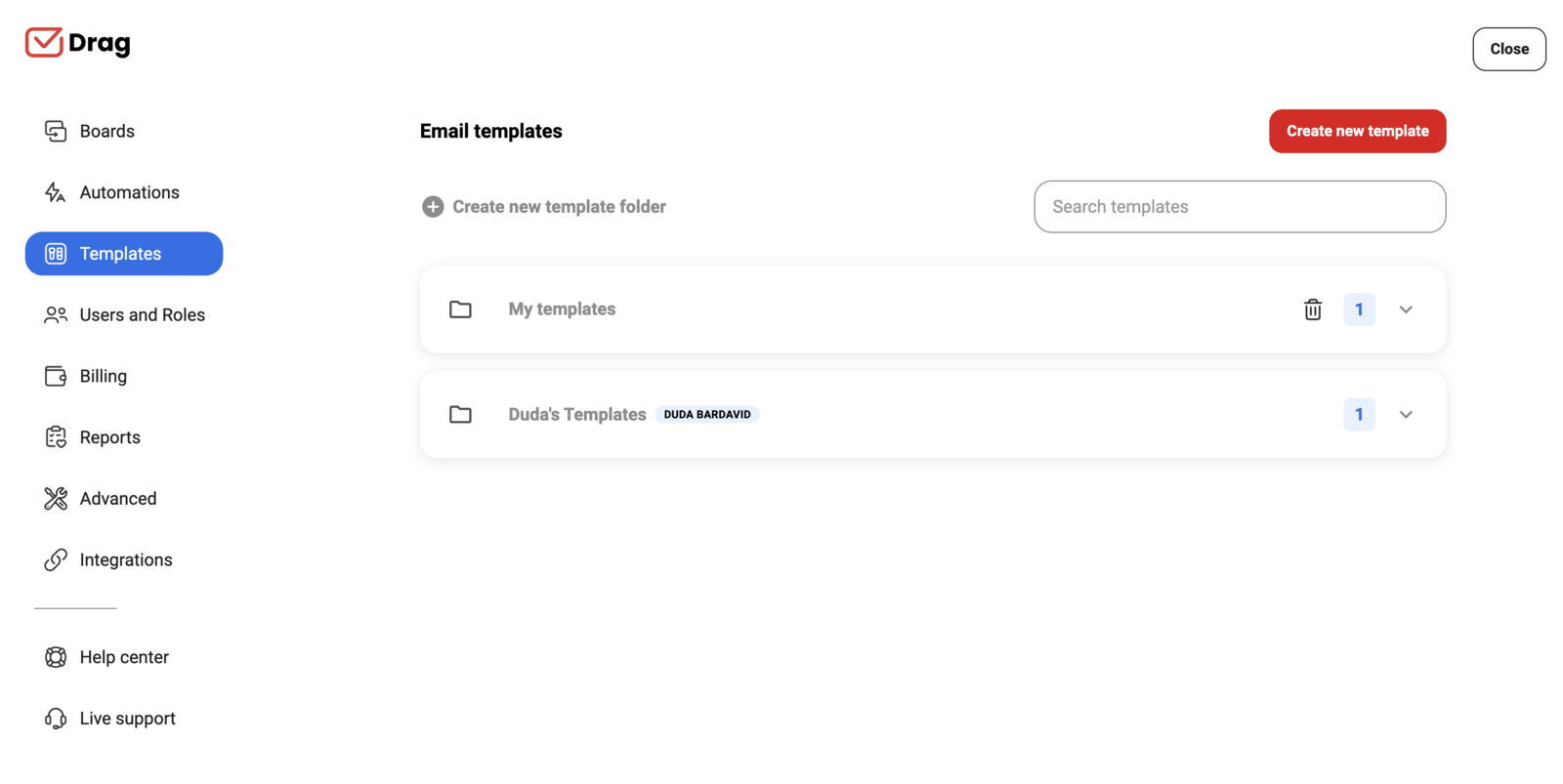
- Open Templates and click Create new template folder.
Type a folder name and press Enter. You will land on the list of templates you can access.
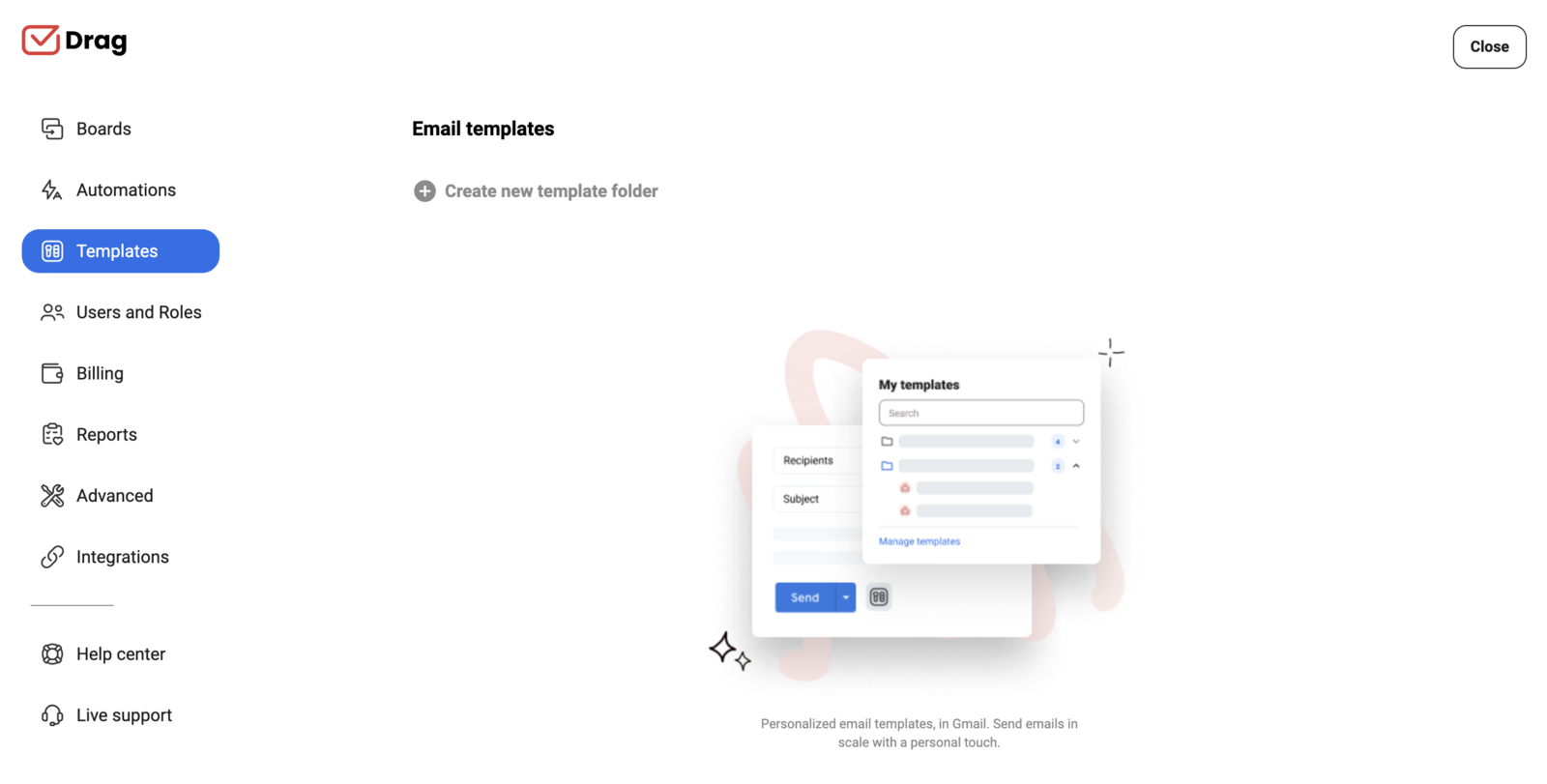
Note: If a teammate has shared templates with you, their folders and templates appear here with the owner's name next to them. Anyone with template access and the right permissions can edit templates, but only the owner can rename their folders.
Create a template
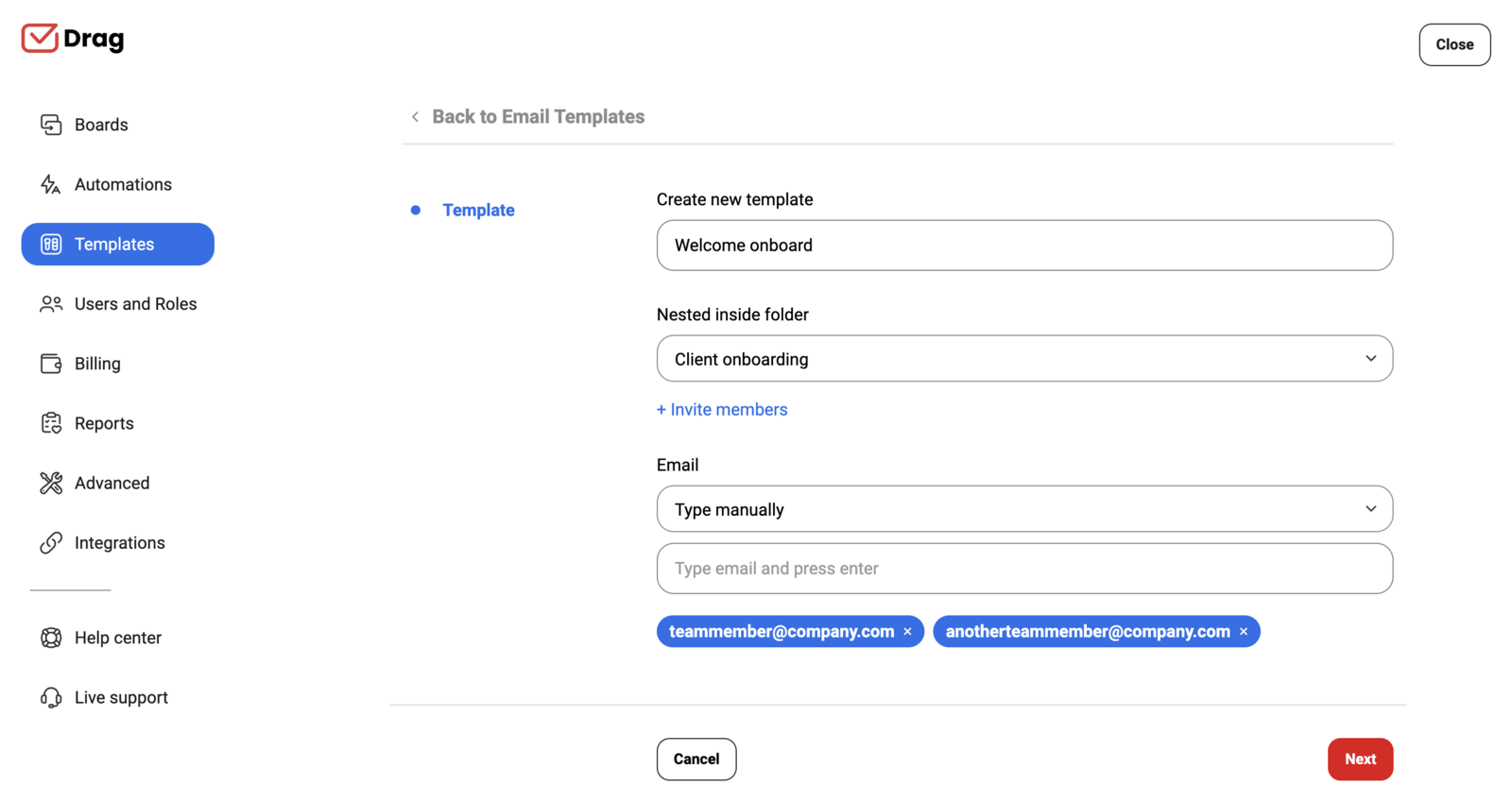
- In the templates section, click Create new template.
- Type a name for the template.
- Choose the folder it belongs in.
- To share it, click Invite members and pick who to share it with. You can share it later instead.
Click Next.
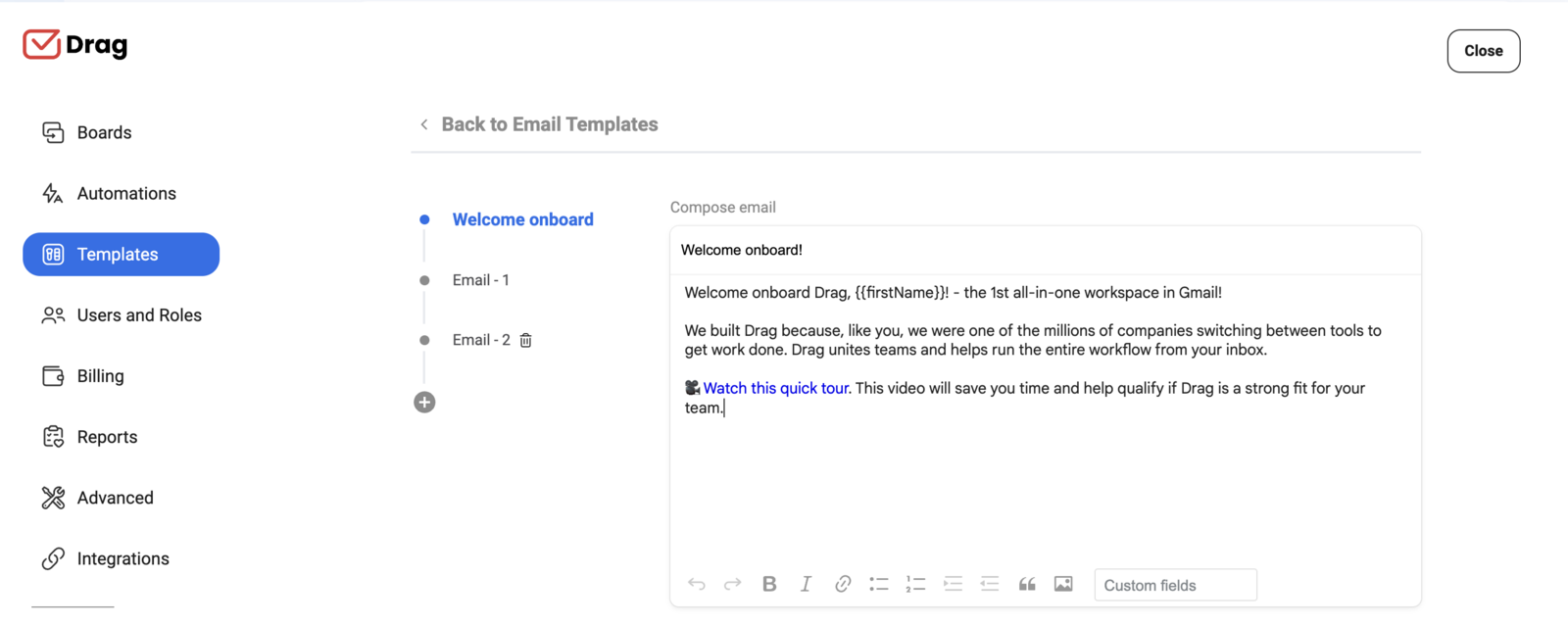
- Write the template content and click Save changes. To personalize it, insert variables such as
{{firstName}},{{lastName}},{{email}}and{{company}}, which fill in per recipient. Click the + icon next to the template to add follow-up steps and turn it into an email sequence.
Share, edit or delete a template
- Open Templates.
- Find the template you want.
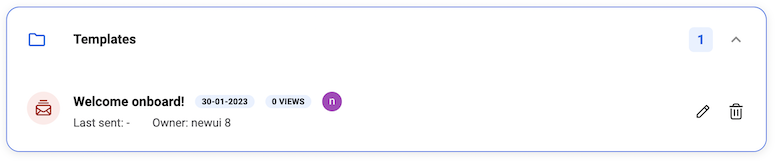
Click the bin icon to delete it, or the pen icon to edit or share it.
Send a template
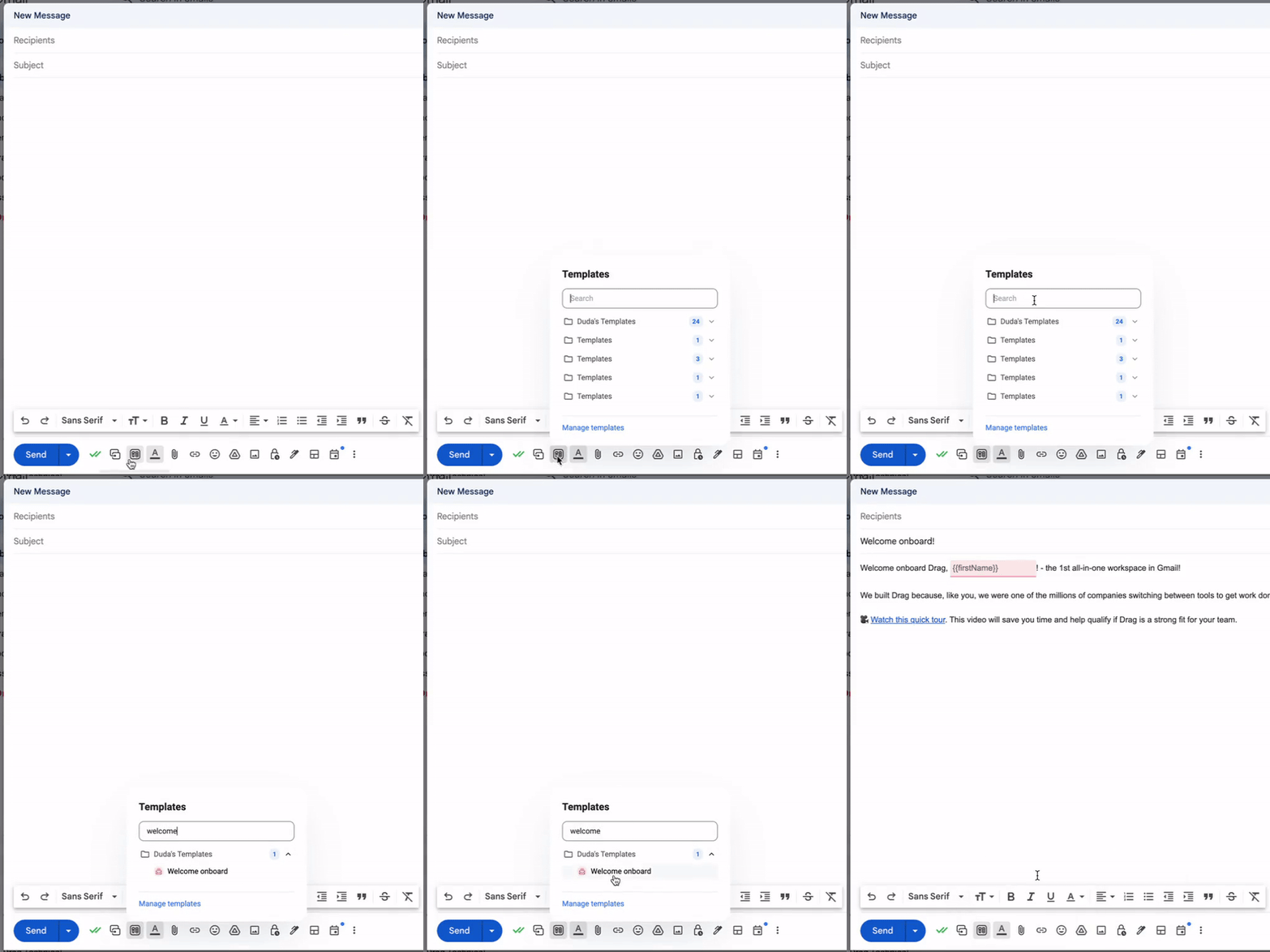
You can use a template when you compose a new email or reply to a conversation:
- Click the templates button on the compose box toolbar.
Pick the template you want (use the search bar to find it).
Note: Email templates are available on the Starter plan and up; multi-step sequences are on Plus and Pro.
The desktop app works the same way as the web app, with silent auto-updates.