When you install Drag and open Gmail, the extension should start on its own. If nothing seems to happen after installing, work through the checks below. Each one is quick, and they cover the most common reasons Drag doesn't appear.
Available on: Chrome extension.
Did you authenticate Drag?
For Drag to work, you need to sign in and grant it the permissions it needs. During install, an authentication popup appears for this. If you didn't see that popup, it may have been closed before you finished.
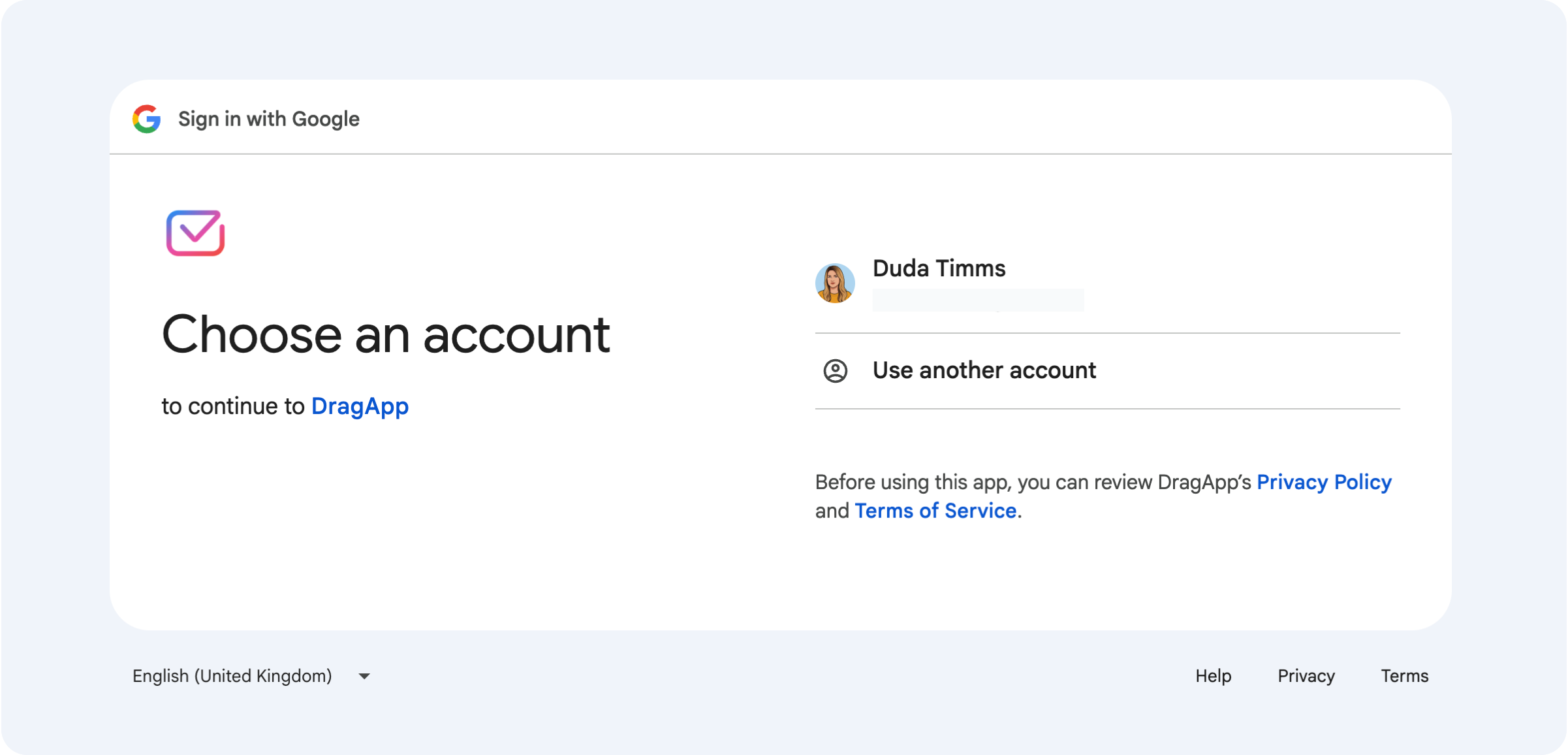
Try these steps to bring it back:
- Refresh your Gmail tab. Closing the popup by accident stops Drag from starting, and a refresh usually makes it reappear.
- Check your other tabs and windows. Depeding on your browser settings, the popup can open in a different Gmail tab or a separate window.
- Check any secondary monitors. If you use more than one screen, the popup may have opened on another display.
Check that Drag is enabled for this account
Drag can be installed but switched off for a specific account. Drag runs per Gmail account, so confirm it is enabled for the one you are using:
- Click the Drag menu button at the top right of Gmail, next to the search bar.
- Go to Settings → Activation Settings.
- Turn on the Enable Drag toggle for this account.
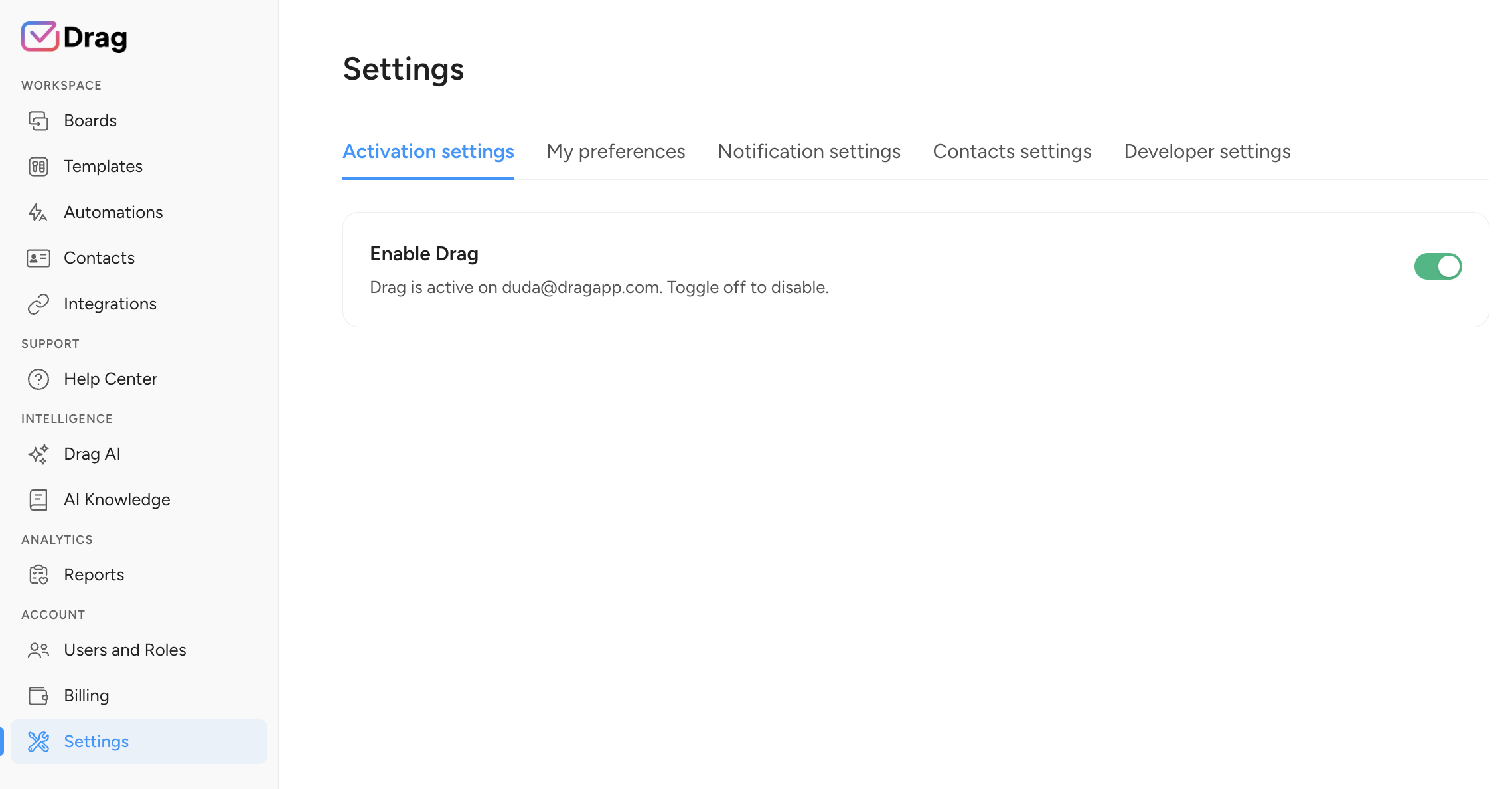
For more on managing Drag across accounts, see Can I enable/disable Drag in different Gmail accounts?.
Check for a conflict with other extensions
Other extensions that also change how Gmail looks can interfere with Drag and stop it from loading. Disable any other Gmail-modifying extensions, then refresh your page to see if Drag appears.
Still not working? Our support team is happy to help at support@dragapp.com.