Yes. Drag runs per Gmail account, so you can turn it on for the accounts where you want it and leave it off everywhere else. This is common when you want Drag for your work email but not your personal one, or the other way around. You control this in the Chrome extension, from inside Gmail.
Available on: Chrome extension.
Enable or disable Drag for an account
Once the extension is installed:
- Sign in to the Gmail account where you want to change Drag.
- Click the Drag menu button at the top right of Gmail, next to the search bar.
- Go to Settings → Activation Settings.
Turn the Enable Drag toggle on to enable Drag for this account, or off to disable it.
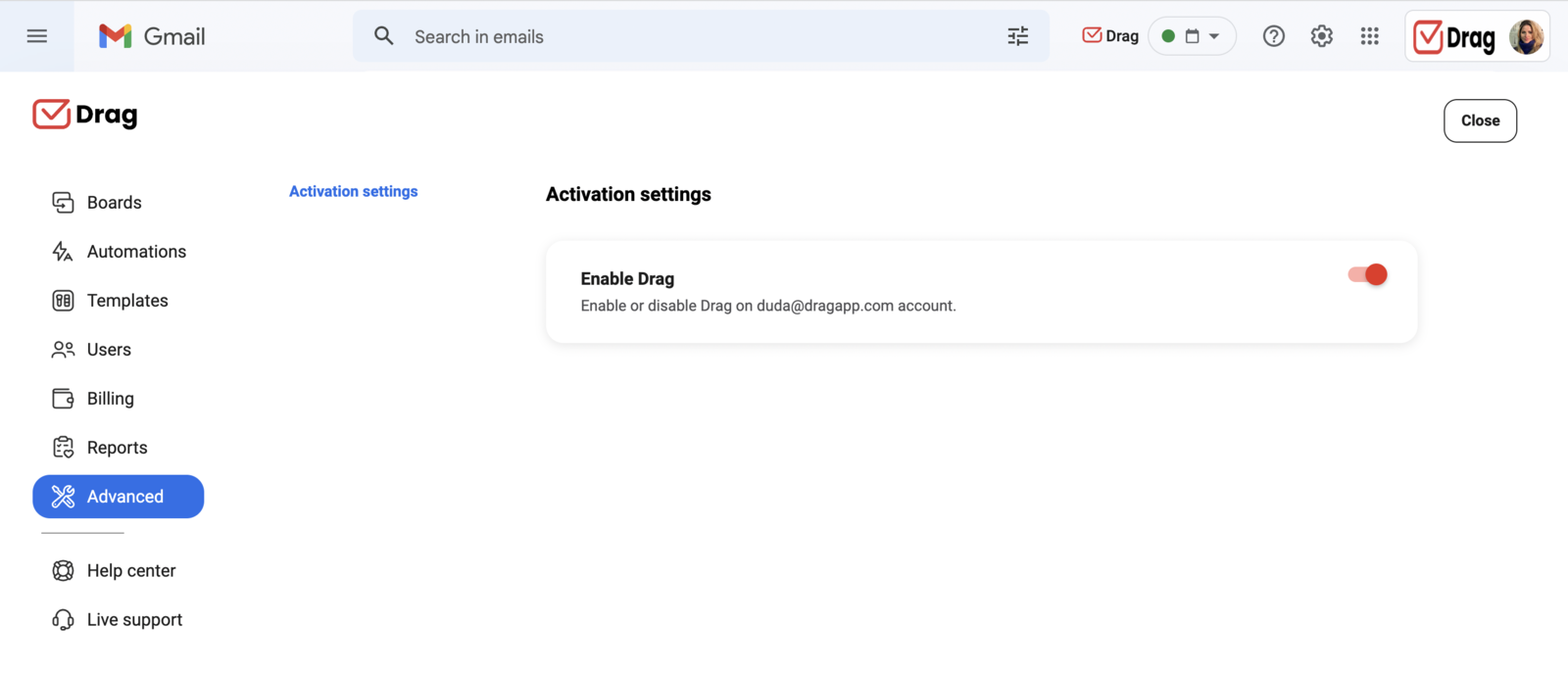
The toggle applies only to the account you are signed in to. Switch to another account and repeat the steps to set Drag separately there.
Tip: To switch which Gmail account you are viewing, use Gmail's own account switcher. Each account keeps its own Drag setting.
Still need help? Our support team is happy to help at support@dragapp.com.