We release new features, improvements, and fixes for the Chrome extension regularly. Updates roll out automatically, so you usually don't need to do anything. Any time we release a new version, it can take up to 48 hours to reach everyone. If a new version is out and you want it right away, you can force an update. This article shows how to check your version and update it.
Available on: Chrome extension. (The web and desktop apps stay on the latest version automatically, so this check applies to the extension.)
Which version do I currently have?
To find the version of Drag installed in your browser:
- Go to chrome://extensions.
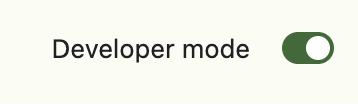
Turn on Developer mode using the toggle at the top right.
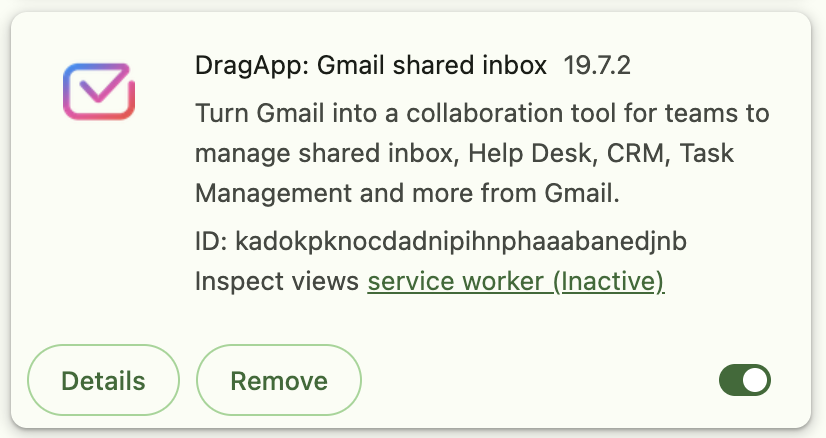
Find the Drag card. Your installed version number appears next to the extension name.
Which version is the latest?
To see the newest published version, check the Drag listing on the Chrome Web Store.
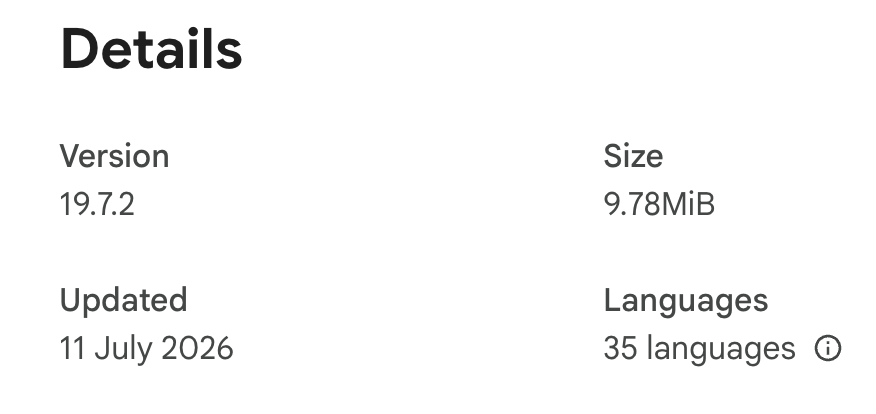
In the Details section of the page, you'll see the latest version and its release date. Compare that with the version you have installed.
How do I update my version?
If your installed version is older than the one on the Chrome Web Store, you can force an update:
- Go back to chrome://extensions with Developer mode on.
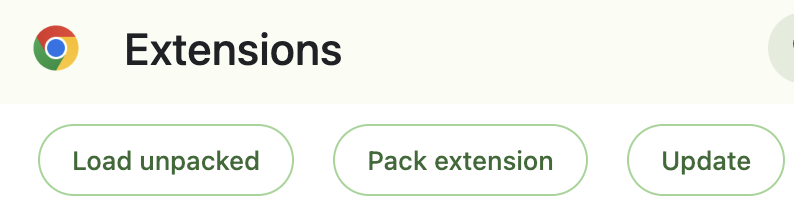
Click Update at the top left. Chrome checks for and installs any available updates.
Still have questions? Our support team is happy to help at support@dragapp.com.