If your Drag boards are missing from the left side of Gmail, one of a few things has usually happened.
Available on: Chrome extension
The extension is disabled in Chrome
- Go to chrome://extensions in your browser.
Check that the Drag extension is enabled (its toggle is on).
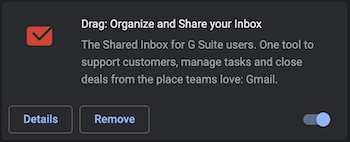
- If it is off, turn it on and refresh Gmail.
Drag is disabled inside Gmail
- In Gmail, open Drag's settings from the top right.
Go to Activation settings and check that Enable Drag is on.
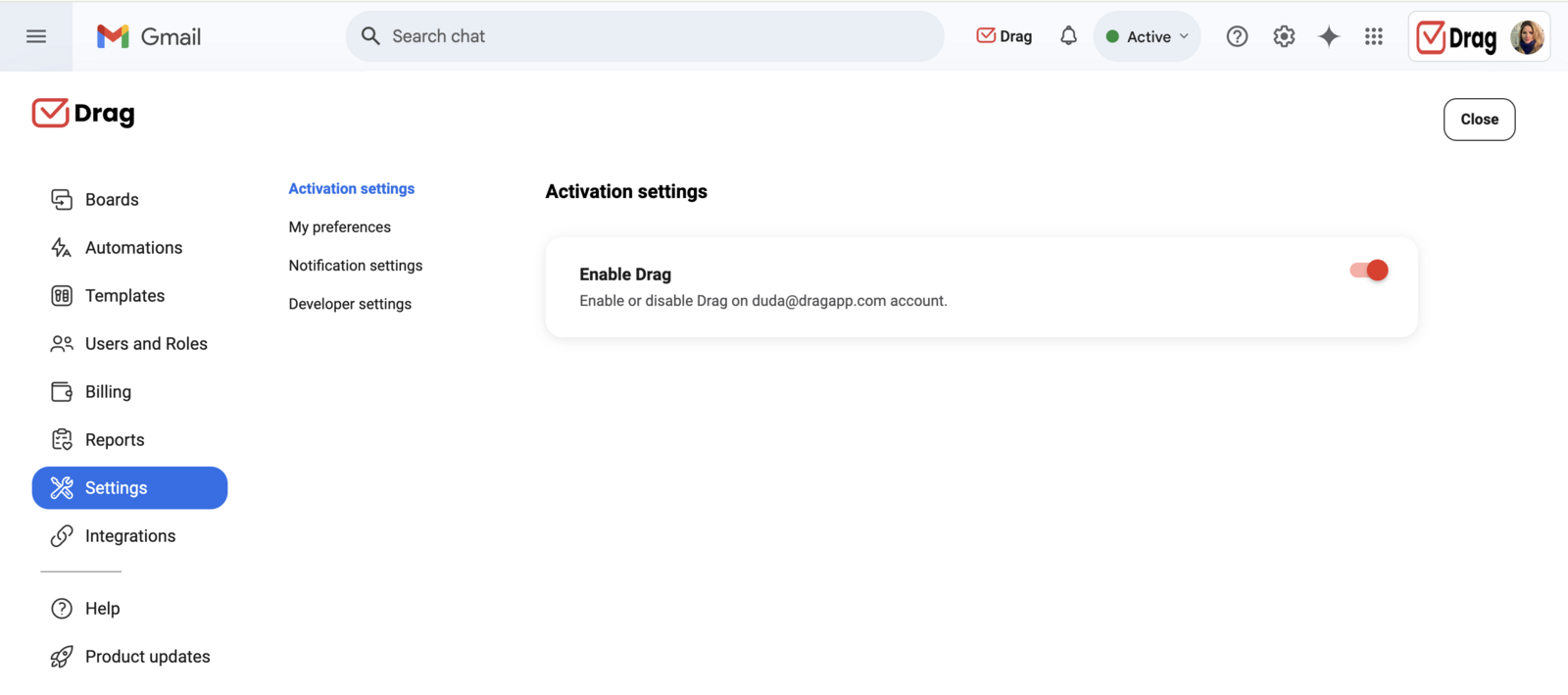
- If it is off, turn it on and refresh Gmail.
Your account is not fully authenticated
Drag needs you to sign in and grant permissions to work. If you are not sure you completed setup, see I installed the Drag Chrome extension and nothing changed in my Gmail.
Clear Drag's local storage
A corrupted local cache can make Drag's boards drop out of the Gmail sidebar. Clearing it often brings them back, and it does not touch your emails or boards.
- Open the Drag menu in the top right of Gmail, then Settings, then Developer settings.
- Click the bin icon next to Clear cache.
- Refresh Gmail.
For the full steps, see How to clear local storage.
Restart your computer
If Drag is still missing, fully quit Chrome (not just the window) and reopen it, or restart your computer. This clears a stuck browser process that can stop Drag from loading. Reopen Gmail afterwards.
Another extension is conflicting with Drag
See does Drag conflict with other extensions to check for a conflict. If you still need help, contact support@dragapp.com.