If Drag does not load properly, resetting its access and clearing your browser data usually fixes it.
Available on: Chrome extension
Reset and reload Drag
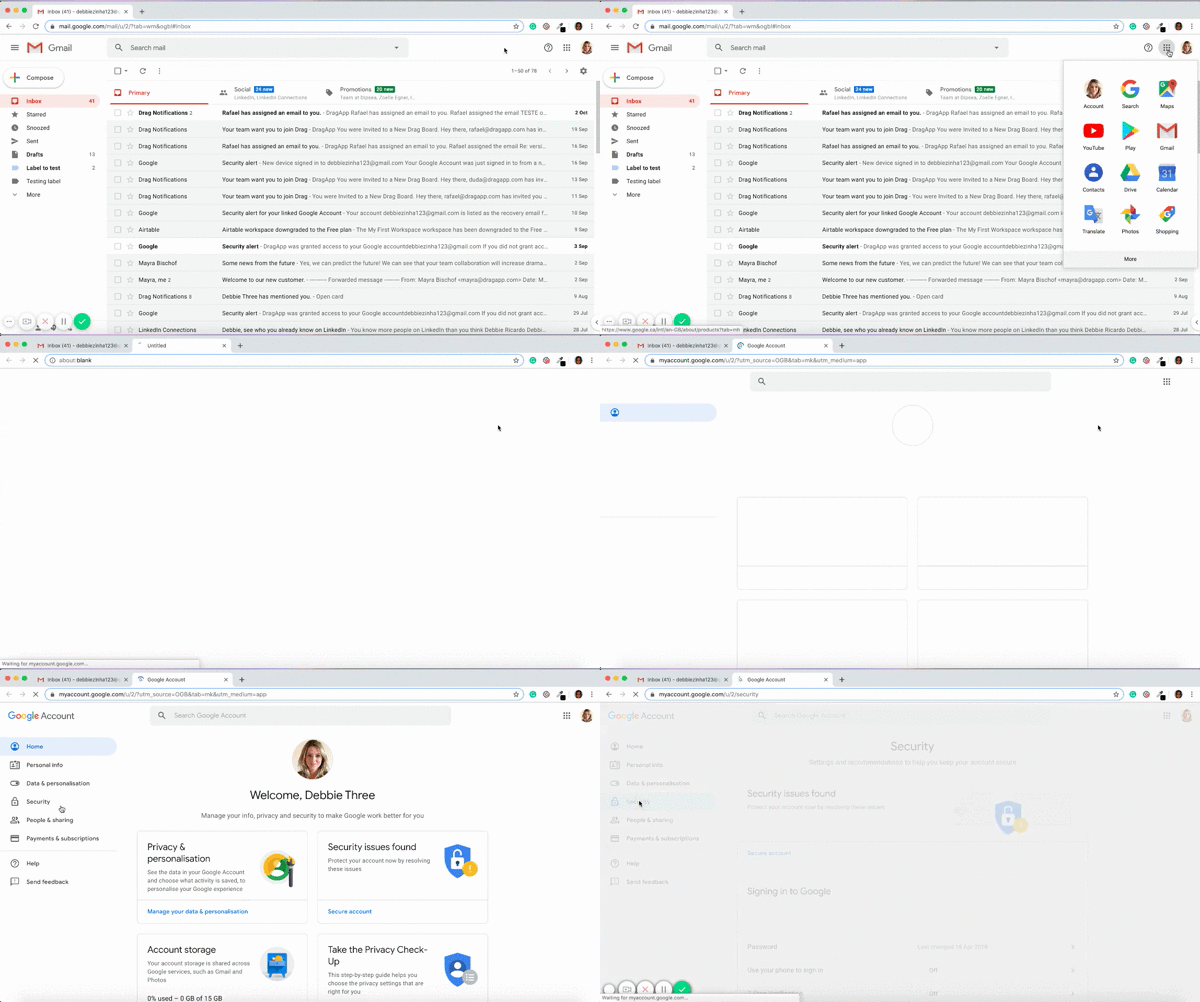
In your Google Account, go to Security.
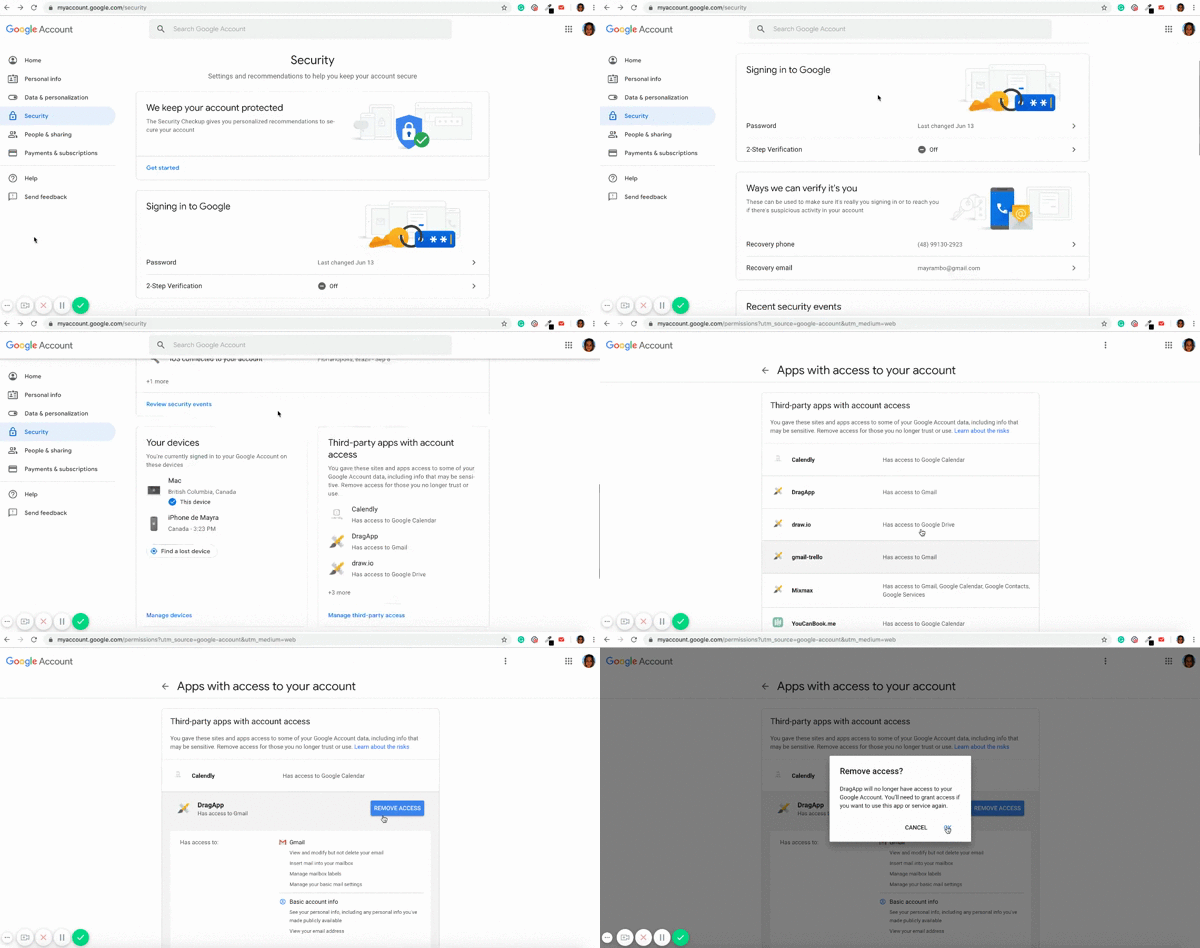
Find Third-party apps with account access, click Manage third-party access, select Drag, and click Remove access.
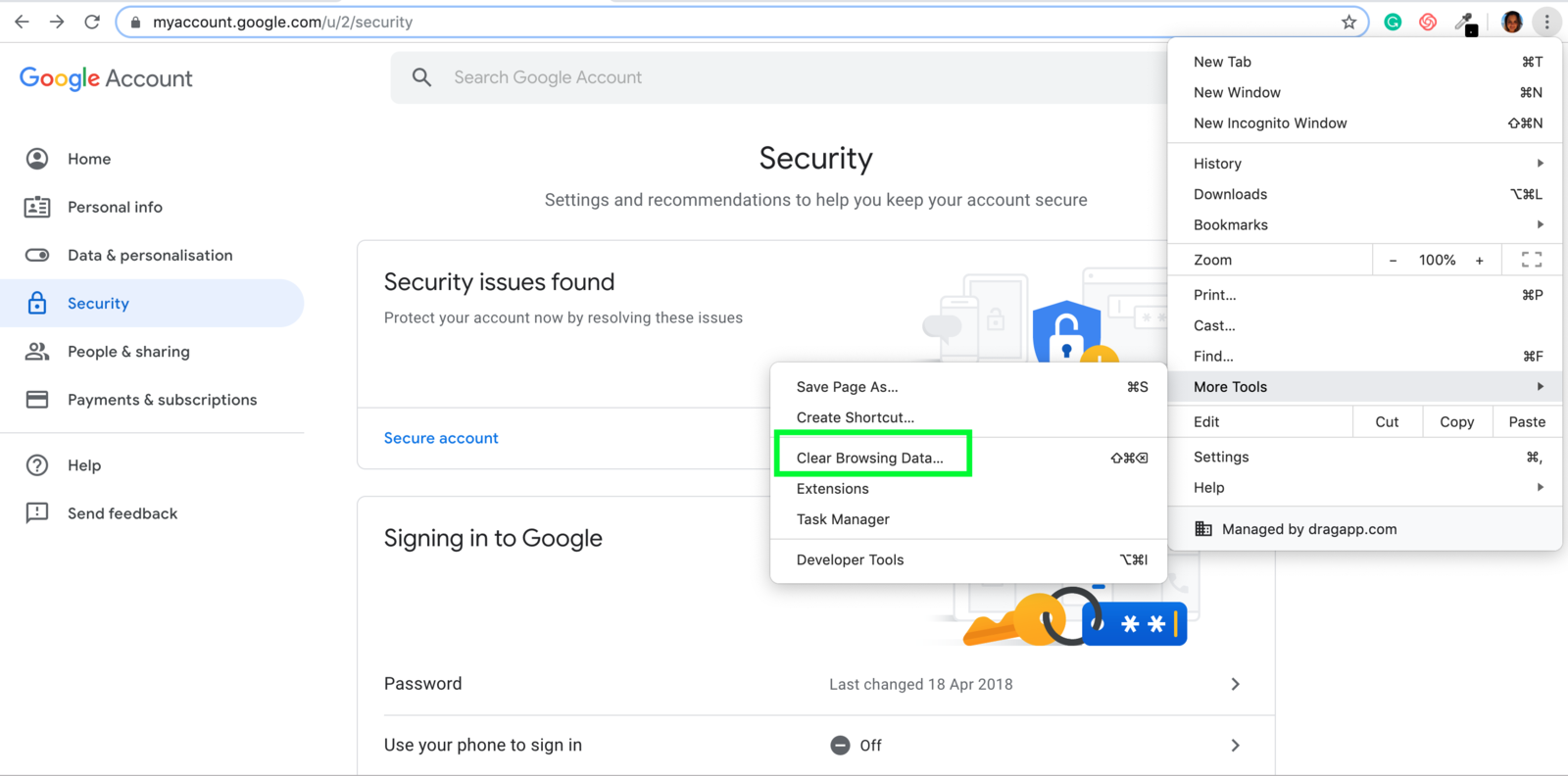
In your browser, open the three-dot menu, go to More tools, and select Clear browsing data.
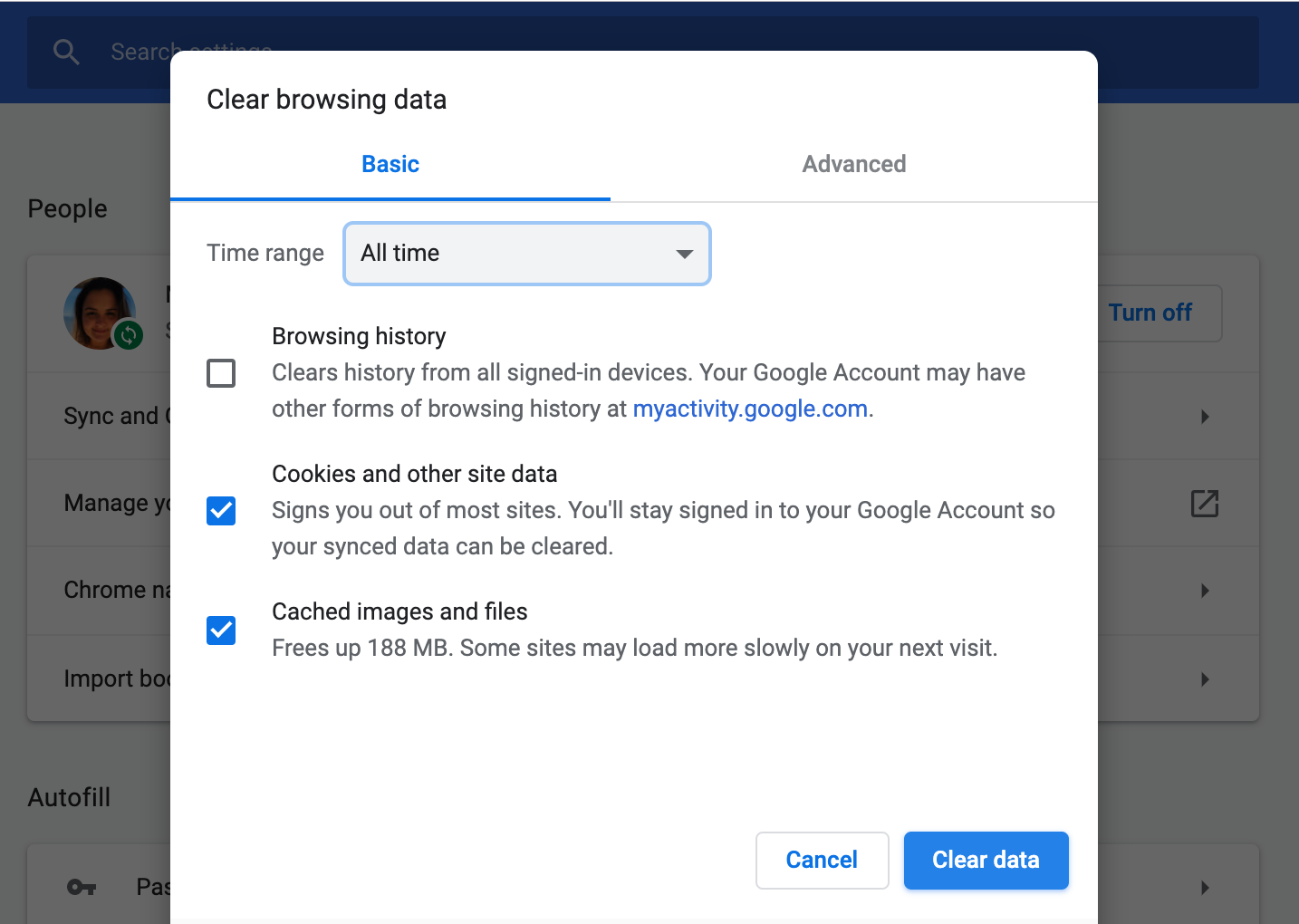
Select Cookies and other site data and Cached images and files, set the time range to All time, and click Clear data.
- Refresh your Gmail tab. Drag prompts you to sign in again and should work normally.
If you still have trouble, contact us at support@dragapp.com.