Some Chrome extensions that also modify Gmail can conflict with Drag and interfere with its interface, causing slowness or glitches.
Available on: Chrome extension
Extensions known to conflict
If you use any of these, disable or remove them to improve Drag's performance:
- 3CX
- ActiveInbox
- Boomerang
- Contact+ for Gmail
- CloudHQ
- Cirrus Insights
- Deskun
- Followup.cc
- Kiwi
- LinkedIn Email Finder
- Mailman
- Parallels Toolbox
- Pixelblock
- SalesHandy
- Salesflare
- Simple Notes
- Streak
- uBlock
- Unroll.me
- Virtru
- Yesware
If you suspect another extension not on this list is causing a conflict, let us know at support@dragapp.com.
Test for a conflict in incognito
If Gmail works normally in an incognito window, a conflicting extension is the likely cause:
- Go to chrome://extensions.
- On the Drag extension, click Details.
- Turn on Allow in incognito. Make sure no other extension has this enabled.
- Open a new incognito window from the Chrome menu (the three dots, top right).
- Open Gmail in the new window. If Drag does not start, refresh the page.
- Check whether Drag now works correctly.
Manage your extensions
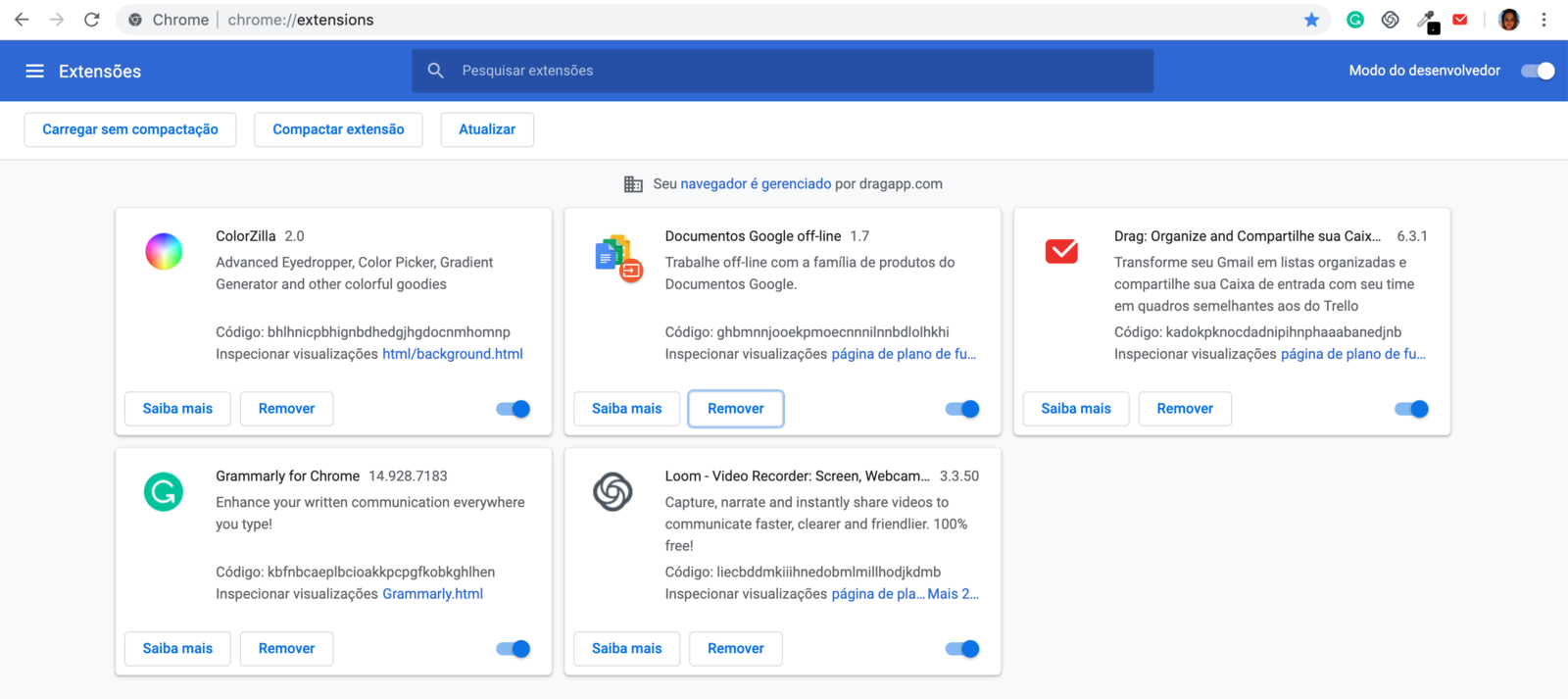
Go to chrome://extensions to review your extensions. To disable one, turn its toggle off. To remove one, click Remove.
Use the Drag web app to avoid conflicts
These conflicts only happen in the Chrome extension, because the conflicting extensions modify the same Gmail page. The Drag web app runs on its own at app.dragapp.com, outside Gmail, so those extensions cannot interfere with it. If a conflict is blocking you, open your boards in the web app while you sort out the extension. Your boards, cards, and data are the same in both places.
If you still want to use the conflicting extension
- Use the Drag web app at app.dragapp.com, which is not affected by Gmail extension conflicts.
- Use a separate Chrome profile without Drag installed, and enable the conflicting extension there.
- Reinstall Drag last, so it is the most recently installed extension. Because Chrome auto-updates extensions, you may need to repeat this after the other extension updates. Remove Drag from chrome://extensions, then install the Drag Chrome extension again.
If there is no conflict and Drag still does not work, email support@dragapp.com with a description and, if possible, a screenshot or screen recording.