Speed is a priority for us. If Gmail feels slow with Drag, the cause is often something outside Drag, and most fixes are quick. Work through the reasons below.
Available on: Chrome extension
Reason 1: conflicting extensions
Other Chrome extensions that modify Gmail can conflict with Drag and slow it down. To test, open Drag in an incognito window: if Gmail runs normally there, a conflicting extension is the cause. See does Drag conflict with other extensions for the full steps and fixes.
Reason 2: outdated Chrome
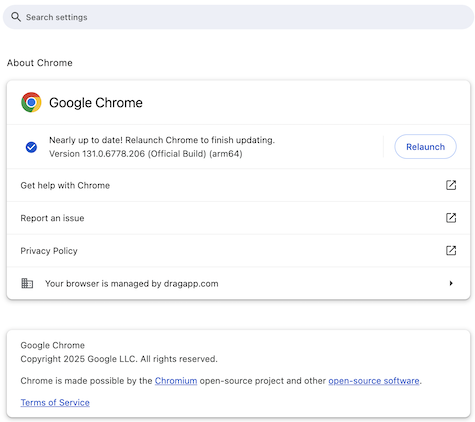
An outdated version of Chrome can slow down Drag and Gmail. Chrome usually updates itself when you close and reopen it. If you see Update, Relaunch to update, or Finish update in the top-right corner of Chrome, click it, then reload Gmail.

You can also type chrome://settings/help in the address bar to check for updates.
Reason 3: too much cache and cookies
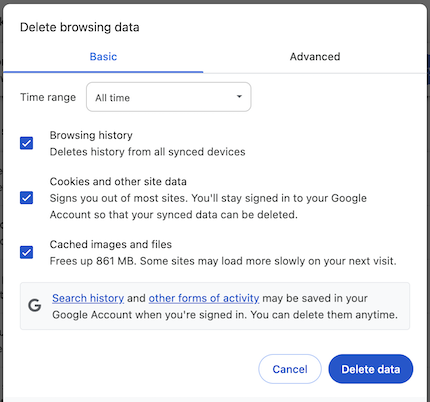
A large cache can raise memory use and cause slowness. To clear it:
- Open chrome://settings/clearBrowserData in the address bar.
- Set the time range to All time.
- Select all three checkboxes.
Click Delete data.
Reason 4: Chrome using too much memory
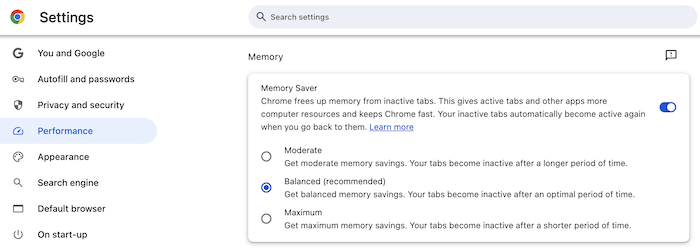
Chrome can use a lot of memory. To reduce it:
- Close tabs you are not using.
- Uninstall or disable extensions you do not use (at chrome://extensions).
- Enable Memory saver at chrome://settings/performance.
Reason 5: long or media-heavy threads
Very large, media-heavy threads load more slowly, in Drag and in native Gmail alike. You can make the composer lighter by skipping past messages when you reply or forward. Open the Drag menu, then Settings, then My preferences, and turn Show past messages when replying off.

Reason 6: a corrupted Chrome profile
A corrupted Chrome profile can cause slowness. The safest fix is to reset Chrome settings to default, then reinstall the Drag Chrome extension.
Reason 7: a weak internet connection
You may have briefly lost your connection. Refresh your Gmail tab to restore it.
If your slowness does not match any of these, contact our support team at support@dragapp.com.