A shared inbox board connects a team address such as support@ or sales@, so every email sent to it loads on one board that your whole team can work from. This article shows how to set one up.
Available on: Chrome extension · Web app · Desktop app
There are two ways to connect a shared inbox: create a new board for it, or add it to an existing empty board.
Option 1: Create a new shared inbox board
Start a new board. In Gmail, find Drag Boards in the sidebar and click the + icon next to it. In the web app, click New board.

- Choose the workflow you want the shared inbox for.
Select Shared Inbox, type the shared inbox address, and click Next.
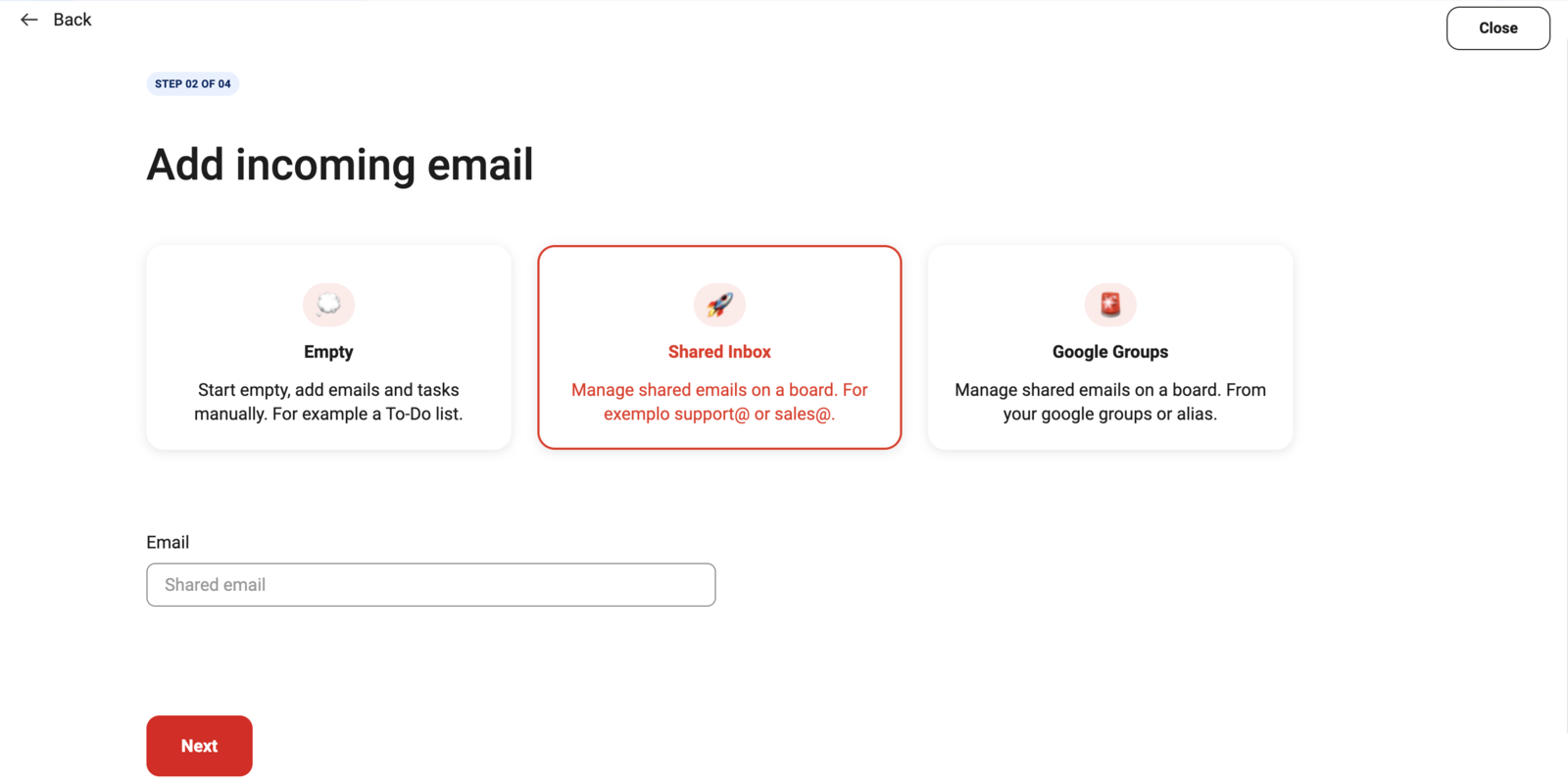
- Invite the teammates to share the board with (type addresses separated by commas), or click Next to share it later.
- Type a name for the board and click Next.
- Authenticate the shared inbox account by signing in.
- Read and accept Drag's permissions.
Your board opens ready to go: historical email loads into the first column, and new email arrives in real time.
Option 2: Add a shared inbox to an empty board
- Open the empty board.
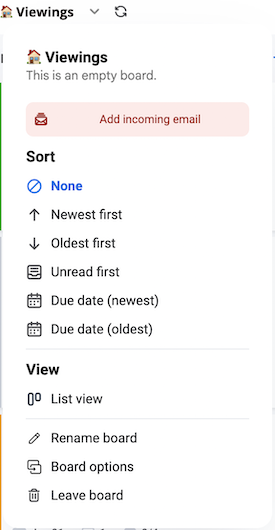
- Click the dropdown menu next to the board title.
Click Add incoming email.
Select Shared Inbox and type the shared inbox address.
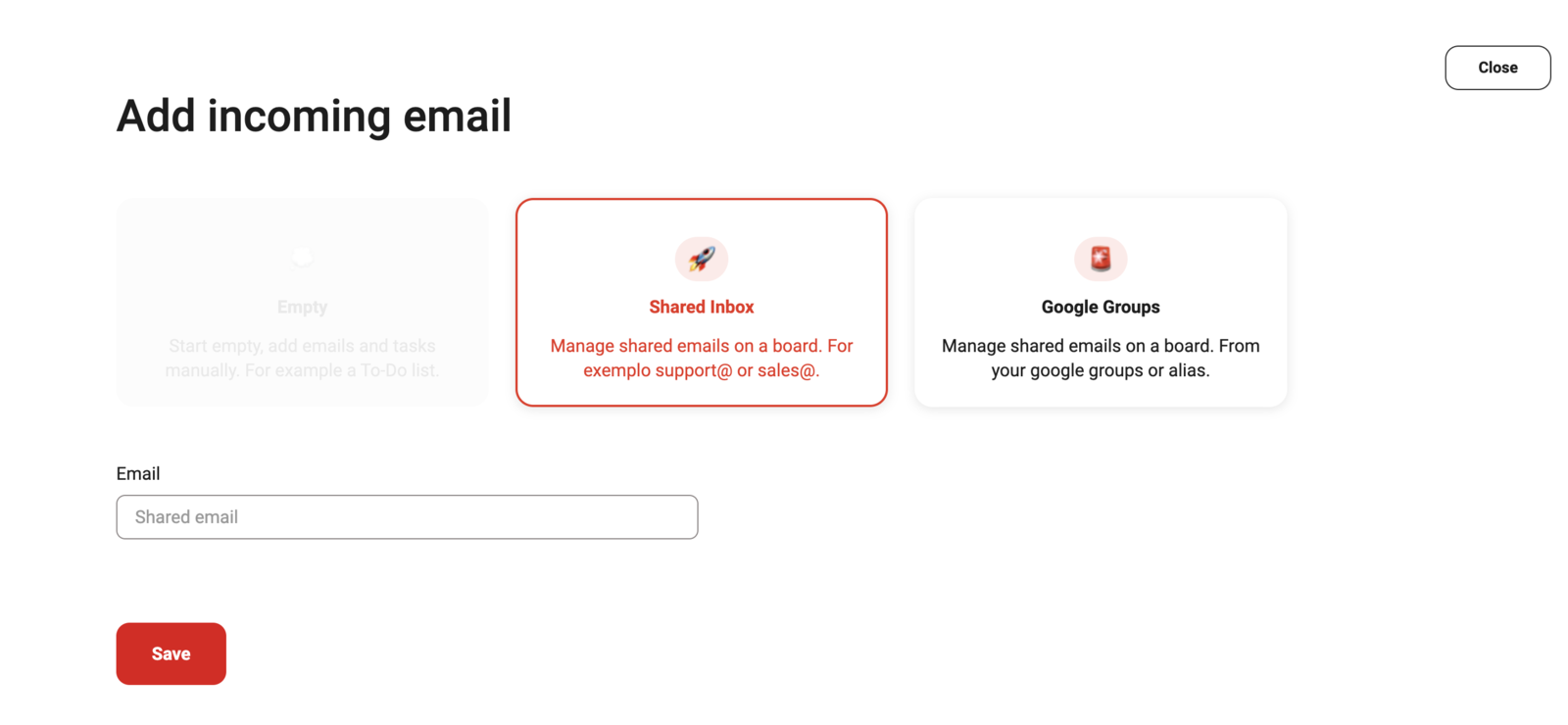
- Type a name for the board and click Next.
- Authenticate the shared inbox account and accept Drag's permissions.
Historical and new email load the same way as above.
What if I am already signed in to the shared inbox?
You can also set up the board from inside the shared inbox account:
- Sign in to the shared inbox account in Gmail (for example support@ or info@).
- Make sure Drag is enabled in that account.
- Turn the Drag view on so you see the inbox as a Drag board.
- Share the board with your team.
Everyone you invite then sees the shared inbox board in their Drag Boards list.
The desktop app works the same way as the web app, with silent auto-updates.