Your published Help Center articles can double as knowledge for Drag AI. When an article is connected, Drag draws on it to write more accurate AI Drafts and to answer questions in your portal's AI search. This article covers choosing which articles feed the AI.
Available on: Web app · Desktop app · Chrome extension
You can connect articles to Drag AI from the web app, the desktop app, or the Chrome extension. Open the Help Center from your Drag dashboard on any of them.
AI Knowledge is available on the Plus and Pro plans.
You don't need a published Help Center portal to power Drag AI. Once an article is added and enabled in AI Knowledge, it feeds your AI Drafts, even if your portal is never published.
Open the Articles tab
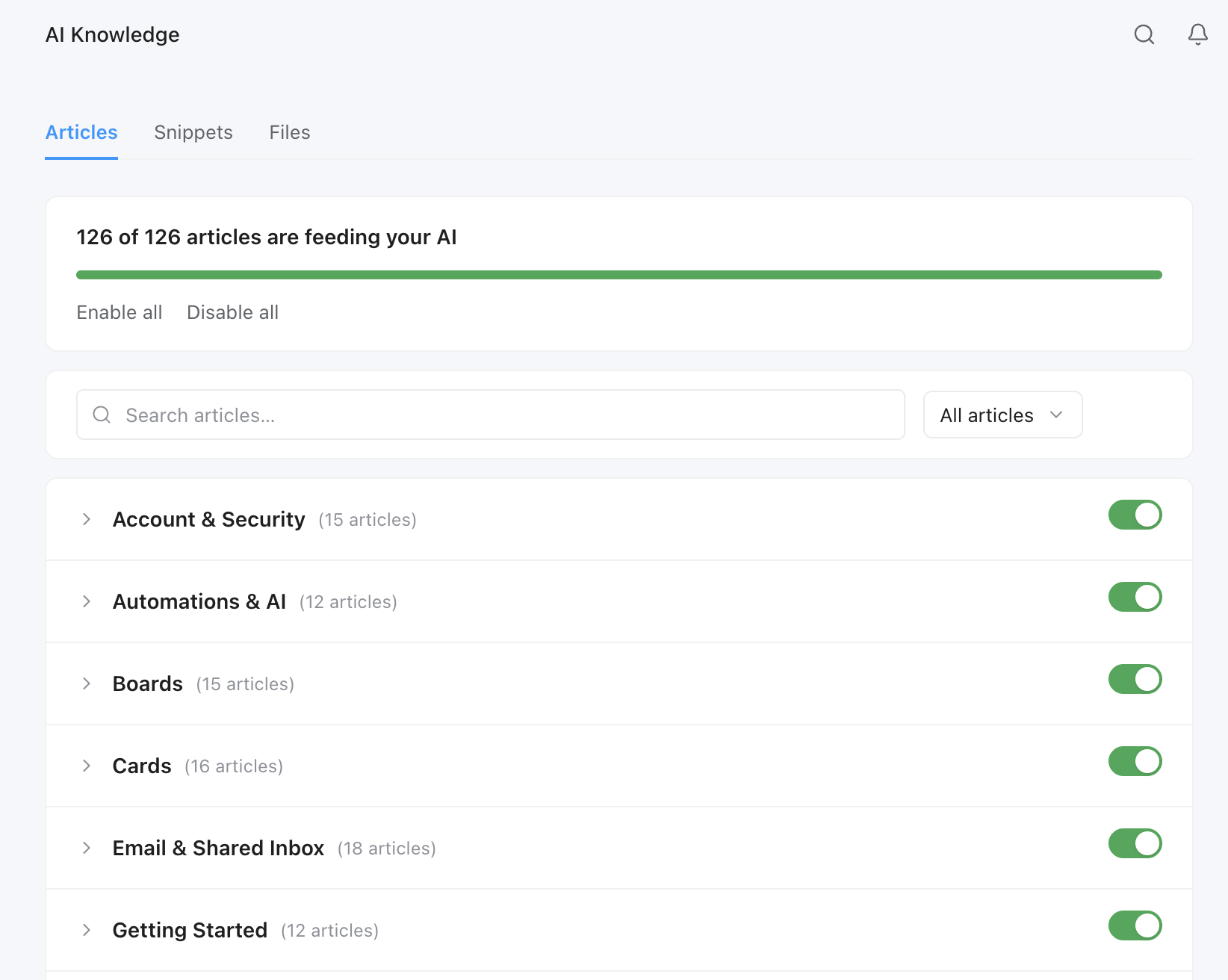
Open AI Knowledge from the sidebar, then open the Articles tab. This is the same knowledge area referenced from your Help Center, so your public documentation and your assistant stay in sync.
At the top, a summary shows how many of your articles are feeding the AI, for example "8 of 20 articles are feeding your AI".
Choose which articles feed the AI
Only published articles appear here, grouped by category. To connect or disconnect articles:
- Use the toggle next to a single article to include or exclude it.
- Use the toggle on a category to switch every article in it at once.
- Use Enable all or Disable all to switch your whole knowledge base in one step.
To find a specific article, use the search box, or filter the list by All articles, Enabled only, or Disabled only.
Note: While an admin has turned off AI for the team, articles can be taken out of AI but not added, and articles you edit aren't fed to the AI until AI is back on and they're saved again.

Articles, snippets, and files
Connected articles work alongside the other sources in AI Knowledge:
- Snippets: short FAQs and useful links you write directly.
- Files: documents you upload for the AI to read.
Articles are best for detailed, public how-to content you already maintain, while snippets and files are best for quick facts and reference material. Together they give Drag a fuller picture of your product and your answers.
The desktop app works the same way as the web app, with silent auto-updates.