Your Help Center is where you write and publish articles for a public knowledge base, and it can also feed Drag AI. This article covers writing a new article, using the editor, and moving an article from draft to published.
Available on: Web app · Desktop app · Chrome extension
You can write and edit articles from the web app, the desktop app, or the Chrome extension. Open the Help Center from your Drag dashboard on any of them, and the editor works the same way everywhere.
Open the Help Center
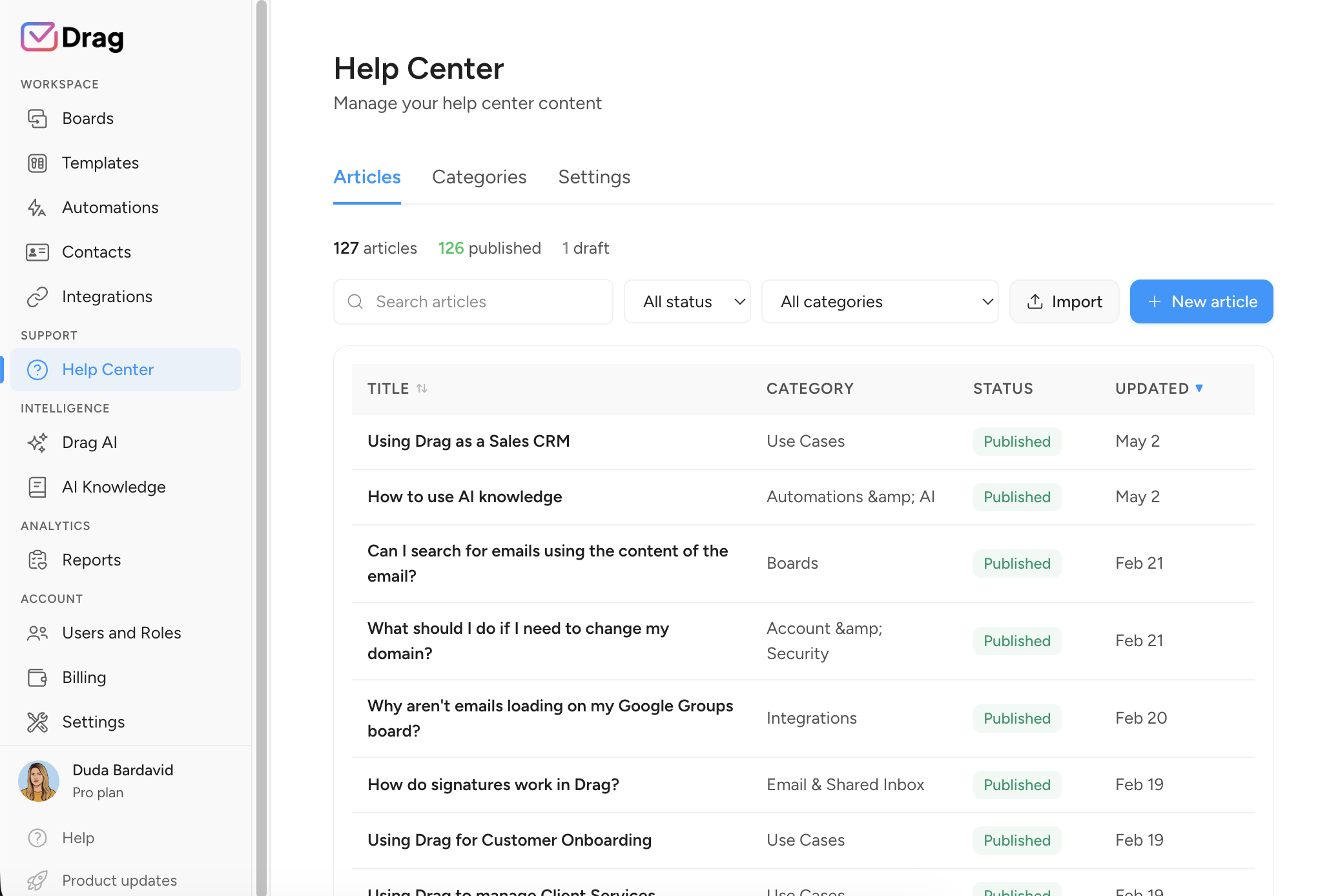
Open Help Center from the sidebar. The Articles tab lists everything you have written, with filters for status (All status, Draft, Published) and a search box.
Create an article
- On the Articles tab, click New article.
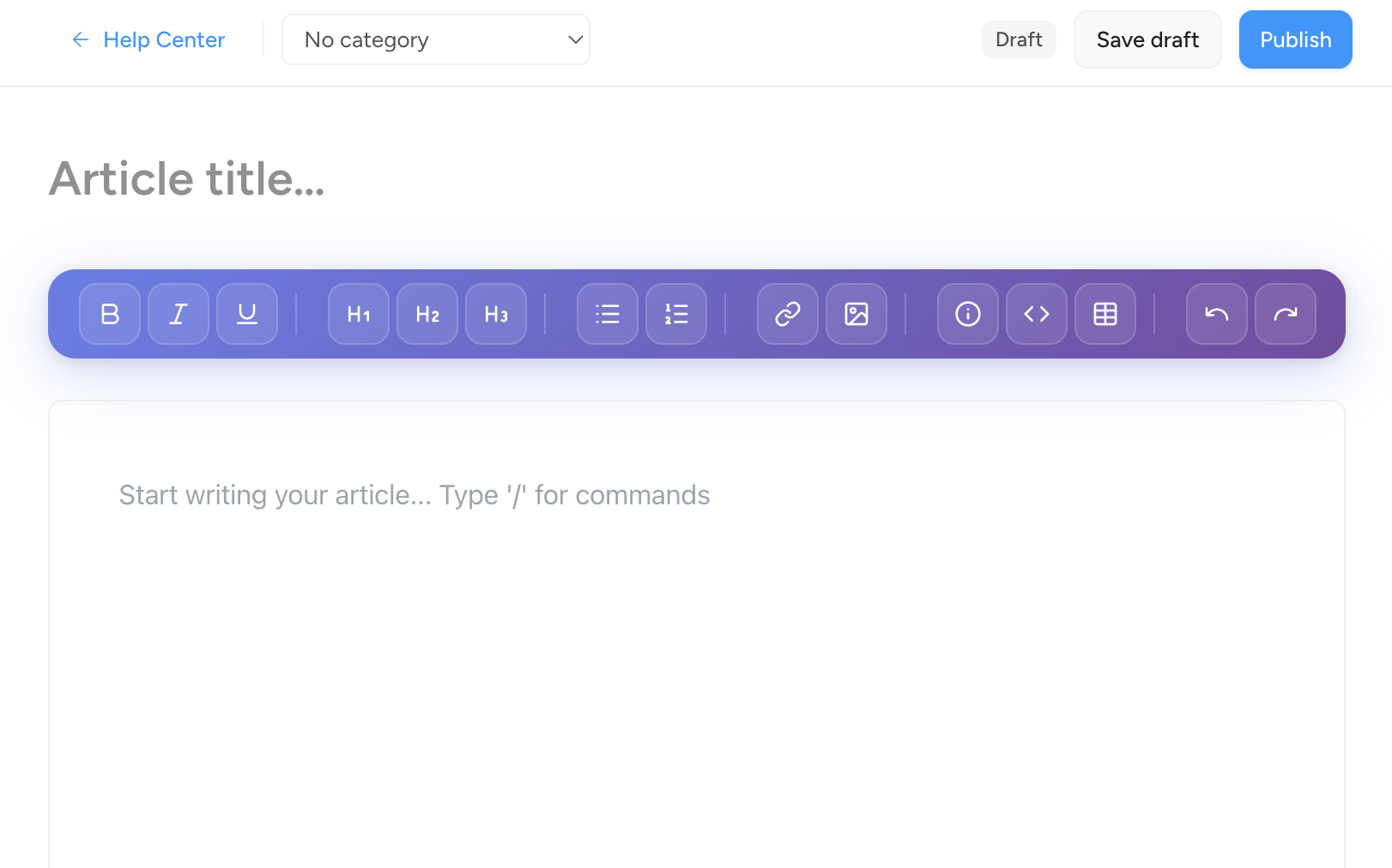
- The editor opens with an empty article.
Write with the editor
The editor is a block editor, similar to Notion. Type your title at the top, then start writing in the body. Type / anywhere to open the command menu and insert a block:
- Heading 1, Heading 2, or Heading 3
- Bulleted list or numbered list
- Table
- Image
- Video (paste a video URL, for example a YouTube link)
- Callout
To format inline text, select it and use the toolbar that appears: bold, italic, underline, strikethrough, link, headings, or an image.
Set the category and SEO
Your article settings sit alongside the editor:
- Category: choose which category the article belongs to. New articles start as No category until you pick one.
- Slug: Drag builds a slug from your title automatically and shows it under the title. This becomes part of the article's public web address.
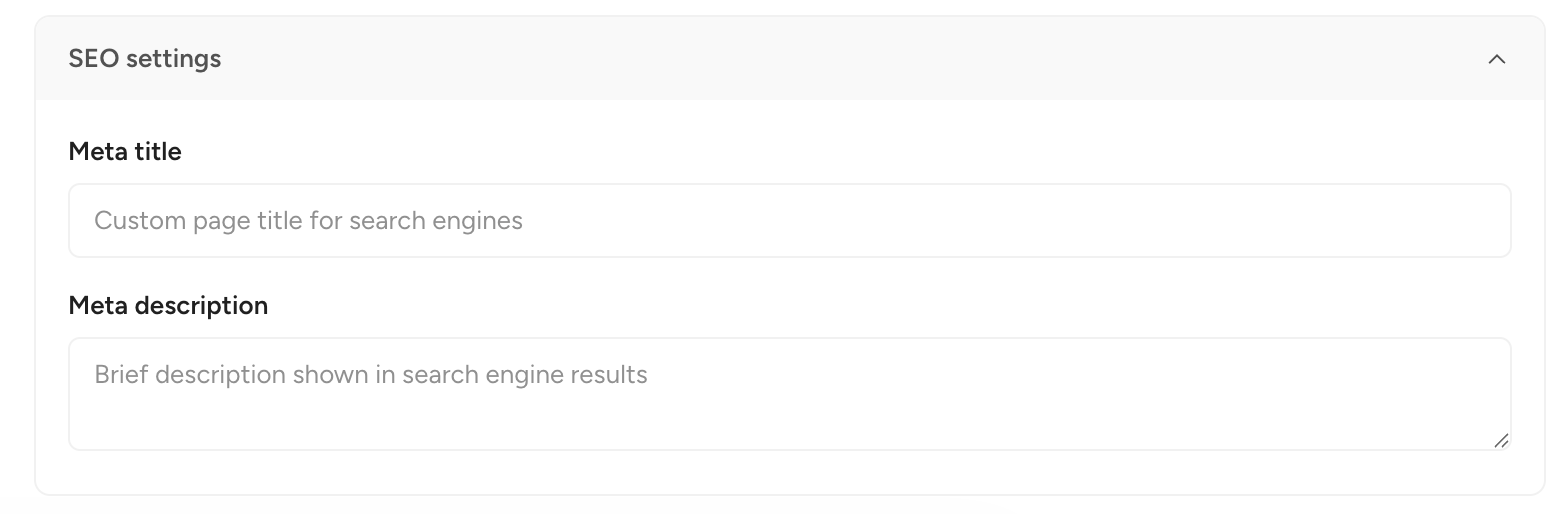
- SEO settings: expand this section to set a Meta title and Meta description, the text shown in search engine results.
Saving and autosave
Drag saves your work automatically as you write, a moment after you stop typing. The status indicator shows when a draft is saving and when it is saved. An article needs a title before it can be saved, so if you see Add a title to save, add one at the top.
Publish, unpublish, or delete
Each article shows a status badge: Draft or Published.
- To keep working privately, use Save draft. Drafts do not appear on your public portal.
- When the article is ready, click Publish. It goes live on your Help Center portal.
- To take a published article offline again, open it and click Unpublish.
- To remove an article for good, open it and click Delete. This cannot be undone.
Edit an existing article
Open any article from the Articles tab to edit it. Your changes autosave the same way. Publishing an edit to an already-published article updates it live.
The desktop app works the same way as the web app, with silent auto-updates.
Tip: Varley can write a first draft for you. Ask, for example, “Draft a Help Center article about our refund policy”. It's saved as a draft, ready for you to review and publish. Varley can also update a published article once you approve, which replaces the live version.