Board views save a set of filters so you can jump straight to the cards that matter, in one click. This article covers the default views every board has, and the custom views you can build.
Available on: Chrome extension · Web app · Desktop app
A view saves which cards show (by filter). That is different from a board layout, which changes how the cards are arranged (Kanban, List or Preview).
You reach a board's views from the dropdown next to the board title (in the Chrome extension, on the left panel of Gmail; in the web app, from the sidebar).
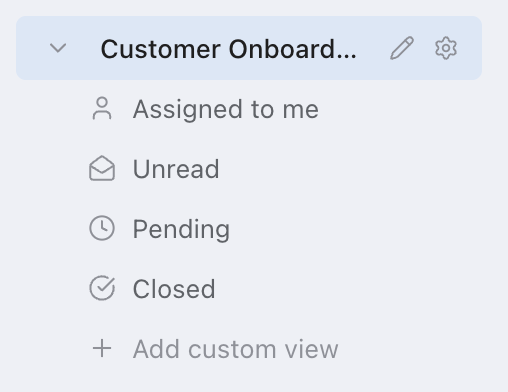
Default views
Every board comes with default views that you cannot edit:
- Assigned to me: cards assigned to you on that board.
- Unread: unread cards on that board.
- Pending: cards with Pending status.
- Closed: cards marked as closed.
Here are the filters each default view applies:
| View | Assignee | Status |
|---|---|---|
| Assigned to me | Current user | Open or pending |
| Unread | Any user | Open or pending |
| Pending | Any user | Pending |
| Closed | Any user | Closed |
Custom views
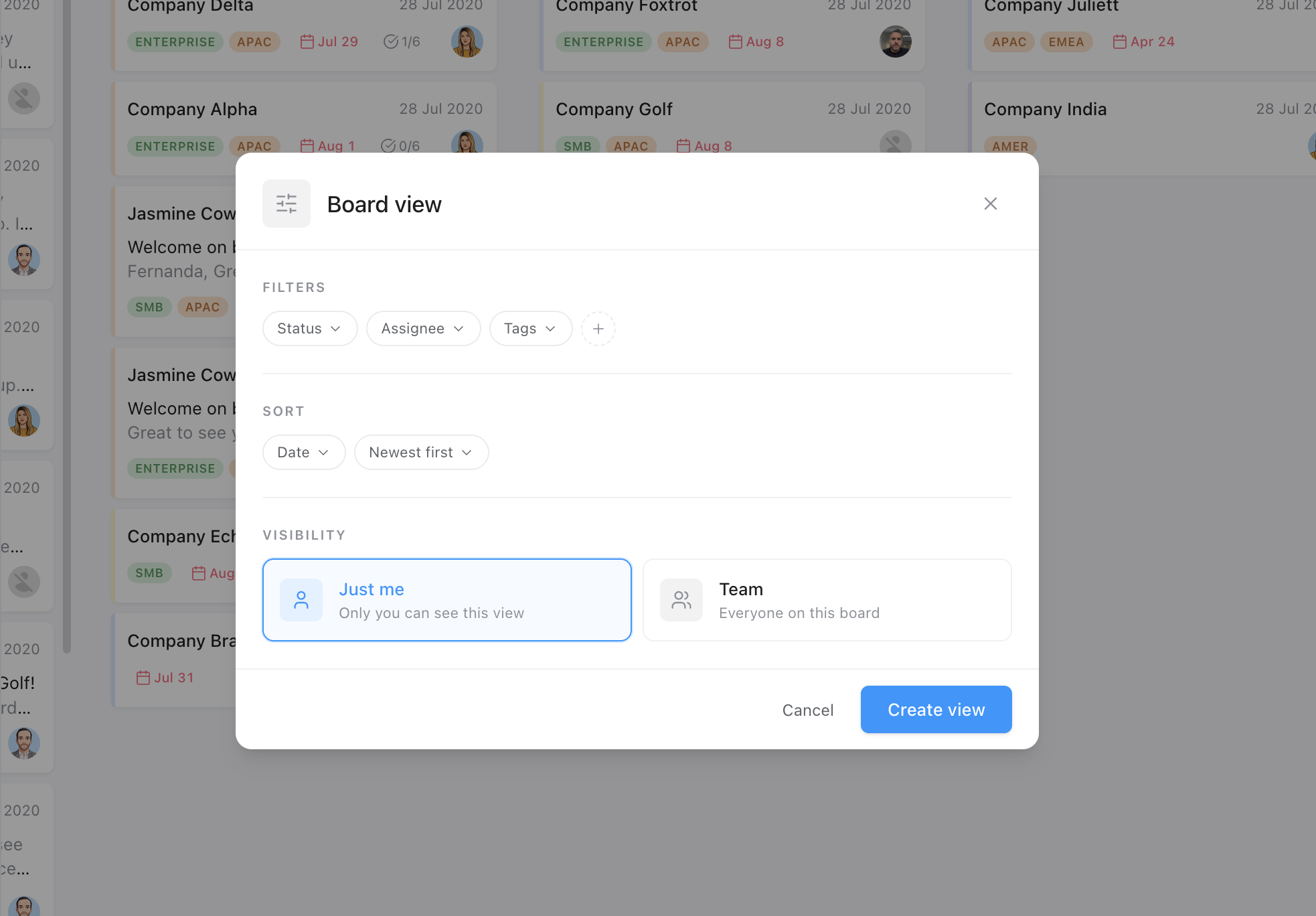
You can create your own views by saving a combination of filters, then reach them in one click.
Note: Custom views are available on the Plus and Pro plans.
Create a custom view
You can combine any of these filters:
- Email sender (name or address)
- Email recipient (name or address)
- Email subject or card title
- Status (read, unread, open, pending, closed, draft, archived, sent or snoozed)
- Tags currently applied to cards
- Assignee
- Color
- Sort order (none, newest first, oldest first, unread first, newest due date, oldest due date)
To create one:
- Open the dropdown next to the board you want the view for.
- Click Add view, below the default views.
- Choose your combination of filters.
Click Create custom view.
Share a custom view
New custom views are private to you. To share one with all board members:
From the web app:
- Select Team in the visibility option when creating / editing the custom view
From the Chrome Extension:
- Click the three-dot button next to the view.
- Select Share with all board members.
To stop sharing, open the same menu and select Stop sharing.
Edit, rearrange or delete a custom view
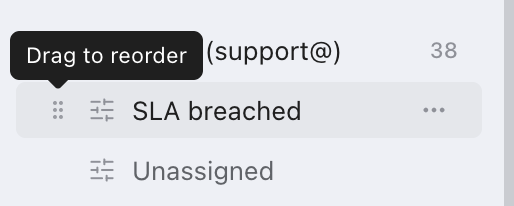
- Click the three-dot button next to the view.
Choose the option you want.
Note: Only the person who created a custom view can edit or delete it.
The desktop app works the same way as the web app, with silent auto-updates.