You can search for a card on one board, or across all your boards.
Available on: Chrome extension · Web app · Desktop app
Search for a card
Click the search icon at the top right. In the web app, you can also press ⌘K (Mac) or Ctrl+K (Windows).
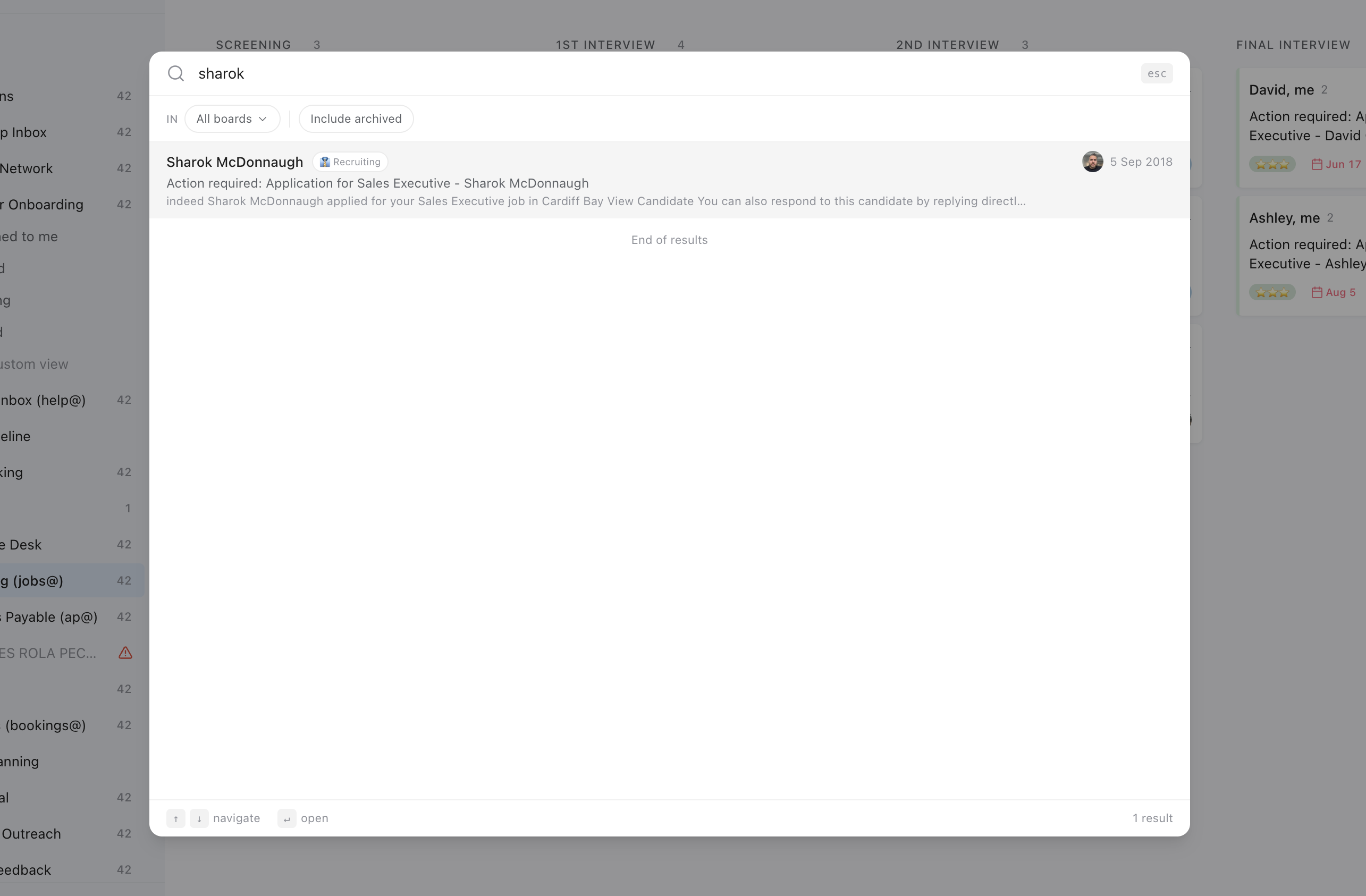
- Type your search term and press Enter. Two controls set the scope:
- Search all boards: search across every board. Leave it off to search only the board you are on.
- Include archived: also search archived emails and tasks. Leave it off to search only the cards currently on the board.
Results list each matching card with its board, assignee, date and color.
Scroll down to load more.
Click a result to open that card.
Note: Search matches card titles and fields, not the body content of emails. See Can I search for emails using the content of the email?.
The desktop app works the same way as the web app, with silent auto-updates.