If you already run a knowledge base in another tool, you can bring your articles into Drag instead of rewriting them. This article covers exporting from your current tool and importing into your Help Center.
Available on: Web app · Desktop app · Chrome extension
You can import articles from the web app, the desktop app, or the Chrome extension. Open the Help Center from your Drag dashboard on any of them, and the import works the same way everywhere.
Export from your current tool
Drag imports a CSV, JSON, or ZIP file. First, export your articles from your current help desk. Common paths:
- Zendesk: Guide, then Settings, then Export articles, then download the CSV.
- Freshdesk: Solutions, then Export, then download as CSV.
- Help Scout: Manage, then Docs, then your site, then Export (HTML), then download the ZIP.
- Hiver: Knowledge Base, then Settings, then Export, then download as CSV.
- Front: Knowledge Base, then Settings, then Export articles.
- Any other tool: export a CSV with columns for title, body (the HTML content), and category (optional).
Drag also imports from other tools like Intercom. If your tool is not listed, the CSV path above works for any source.
Import into Drag
- Open Help Center from the sidebar and stay on the Articles tab.
Click Import.
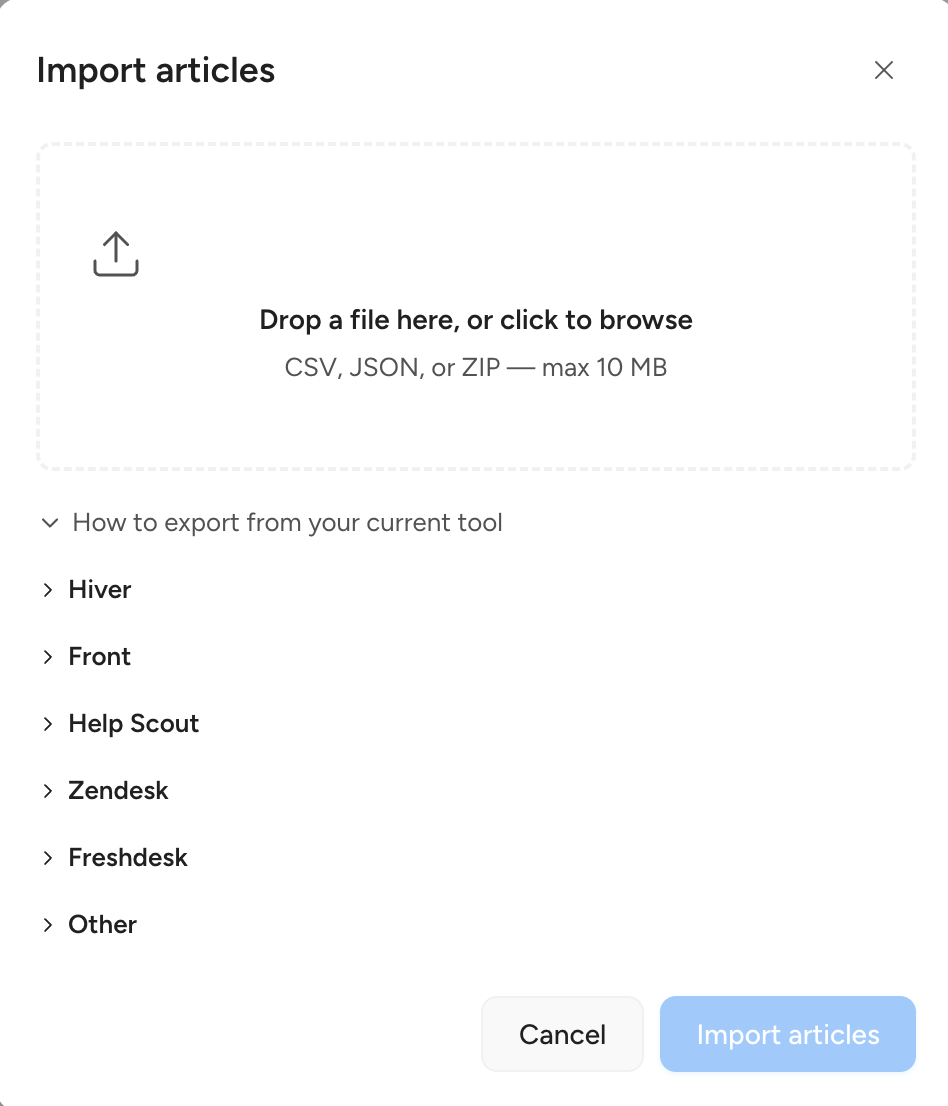
- In the Import articles window, drop your file or click to browse. The file must be CSV, JSON, or ZIP, up to 10 MB.
- Click Import articles.
What happens during import
Drag works through a few stages, shown as it goes:
- Parsing the file.
- Cleaning and importing the articles.
- Migrating images.
- Rewriting internal links so they point to your new Drag articles.
Large imports can take a minute. Keep the tab open until it finishes.
After the import
When it is done, Drag shows a summary: how many articles were imported, how many were skipped as duplicates, any categories it created, images it migrated, and internal links it updated. Click View imported articles to see them in your list.
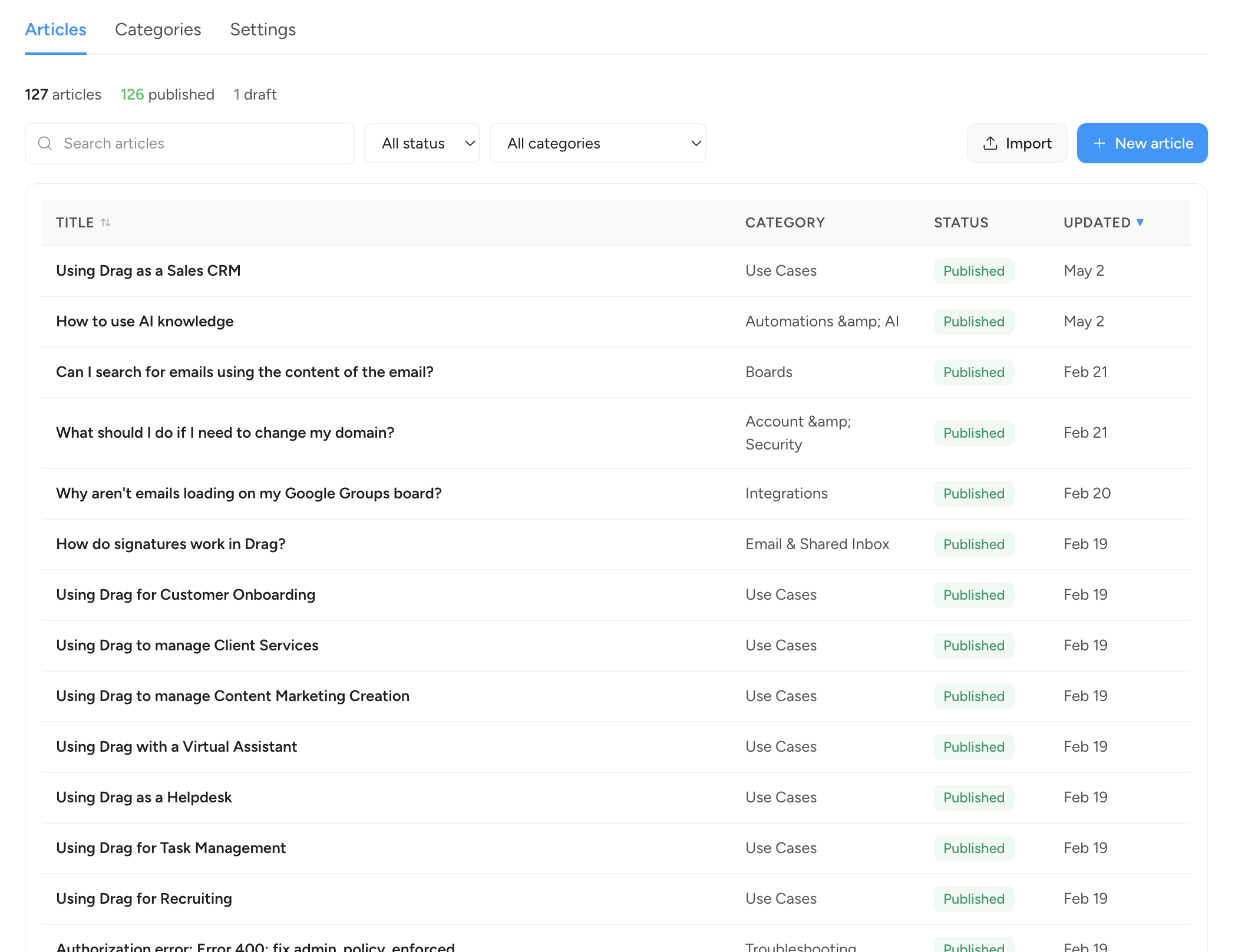
Imported articles arrive as drafts unless they were already published in your source. Review each one, assign it to a category, and publish it when it is ready.
The desktop app works the same way as the web app, with silent auto-updates.