You can save both boards and individual cards as templates, so recurring workflows and tasks are ready to reuse instead of built from scratch. This article covers board templates and card templates.
Available on: Chrome extension · Web app · Desktop app
Note: Board and card templates are available on the Plus and Pro plans.
Two kinds of templates:
- Board templates are full boards, with columns and example cards.
- Card templates are single cards, with predefined content and formatting.
Board templates
A board template is a pre-built board with predefined structure, so you do not rebuild recurring setups every time.
Save a board as a template
- Open the board you want to save.
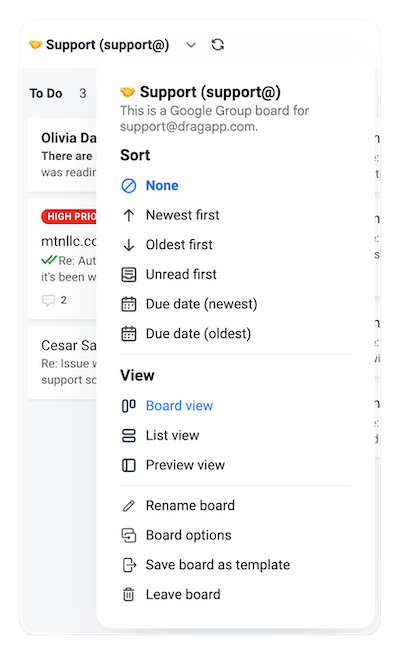
- Click the dropdown menu next to the board title.
Select Save as Template.
- Give it a name and a description, then click Save.
- A blue banner appears at the top of the board to show it is a template.
Here is what a board template keeps and what it leaves behind:
| Information | Copied to template? |
|---|---|
| Columns | Yes |
| Task cards | Yes |
| Tags | Yes |
| Custom fields | Yes |
| Historical conversations (email, WhatsApp) | No |
| Live chat messages | No |
| Activity log | No |
| Board members and card assignees | No |
| Due dates | No |
| Board settings (reply permissions, default sender) | No |
| Board automations | No |
| Files | No |
| Merged cards | No |
Create a board from a template
- Click the + button in the sidebar to create a new board.
- Choose Create board from template.
- Pick the template that matches your workflow and click Next.
- Invite teammates if you want, or click Next.
Delete a board template
- Open the board template.
- Click the dropdown menu next to the board title.
- Select Convert to non template.
Card templates
Card templates work like board templates, but apply to a single card. They are useful for recurring tasks that follow the same format, such as onboarding steps or review checklists. A card template can include tags, color codes, checklists, notes and custom fields.
Save a card as a template
- Open the card you want to save.
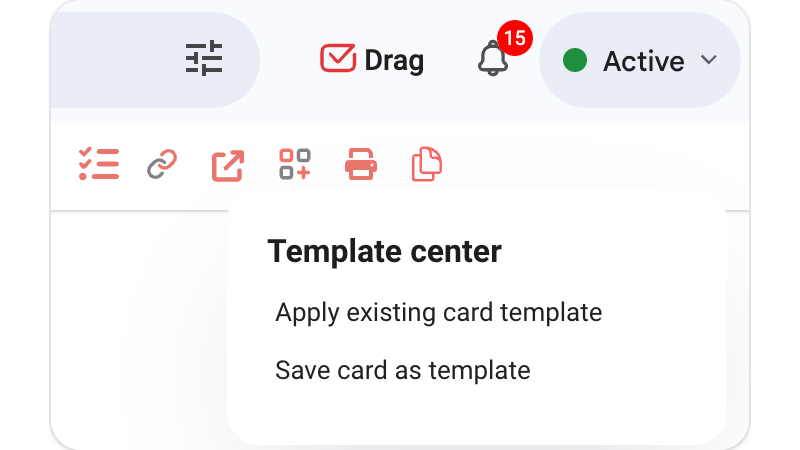
- Click Template Center in the card toolbar.
- Select Save card as template.
Enter a name and description, then click Save.
Apply a card template
You can apply a card template two ways.
To apply one manually:
- Open the card.
- Click Template Center.
- Select Apply existing card template.
- Choose the template and click Apply template.
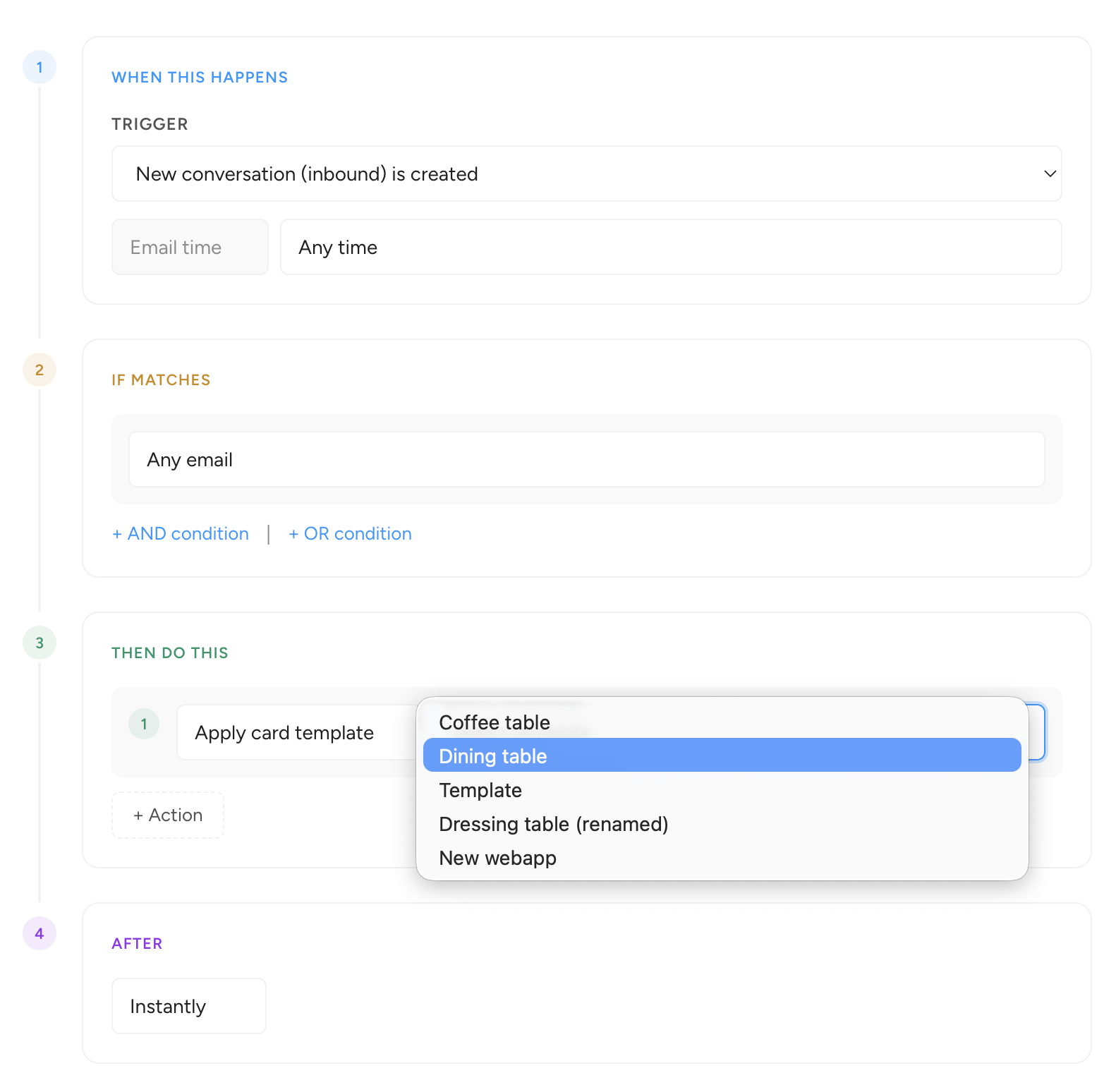
To apply one automatically with an automation:
- In the dashboard, open Automations.
- Create a new automation rule.
- In the action (Then...) section, choose Apply card template.
Pick the template and click Create.
Warning: Applying a card template replaces any existing checklists, notes, tags, color codes and custom fields on that card with the template's content.
Edit or delete a card template
- Open the card template. If you are not sure which card is a template, open any non-template card on the same board, click Template Center, then Apply existing card template to see the list, and open a template in a new tab.
- Click Template Center and select Update card template or Convert to non template.
The desktop app works the same way as the web app, with silent auto-updates.
If you still have questions, our team is happy to help at support@dragapp.com.