Drag can turn a Google Group into a shared board. This suits teams that route email through a Google Workspace group or distribution list, such as an alias, rather than a real shared mailbox. A Google Groups board centralizes one copy of each email so the whole team works from the same place, in real time.
Available on: Chrome extension · Web app · Desktop app
Note: You must be a member of the Google Group to create its board in Drag.
Create a Google Groups board
Where you find the option depends on your platform.
In the Chrome extension
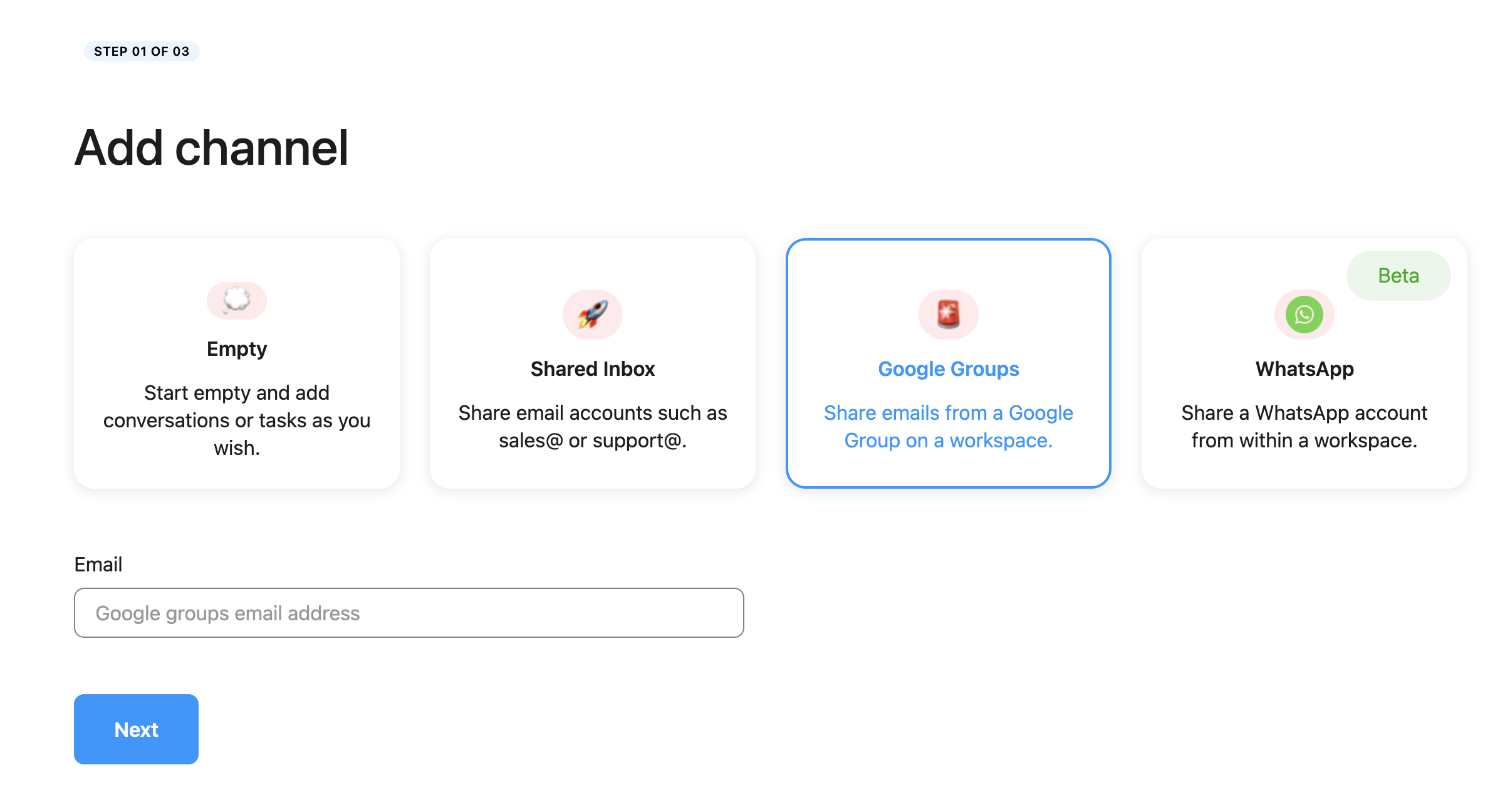
- In your Gmail sidebar, find Drag Boards and click the + next to it.
Select the Google Groups option, type the Google Group email address, and click Next.
- Invite the team members you want on the board (type their email addresses and press enter, separated by commas), or click Next to invite people later.
- Type a name for the board and click Next. You land on the new board, and every email sent to the Google Group loads here.
In the web app
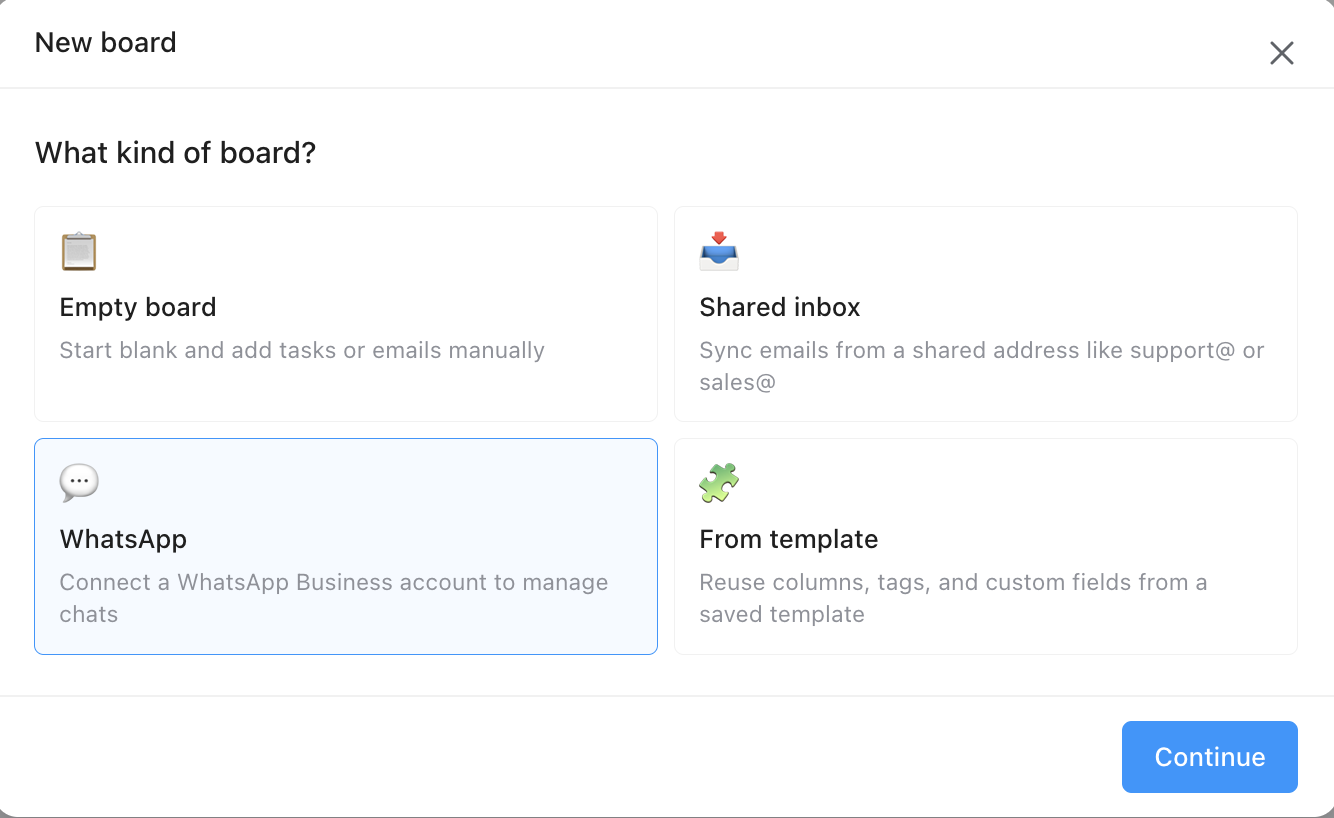
- Start a new board and, on What kind of board?, choose Shared inbox.
- Enter the Google Group email address.
- Under What type of account is this?, choose Google Group, then click Continue.
Name the board and click Create board. Every email sent to the Google Group loads on the board.
Add a Google Group to an existing board (Chrome extension)
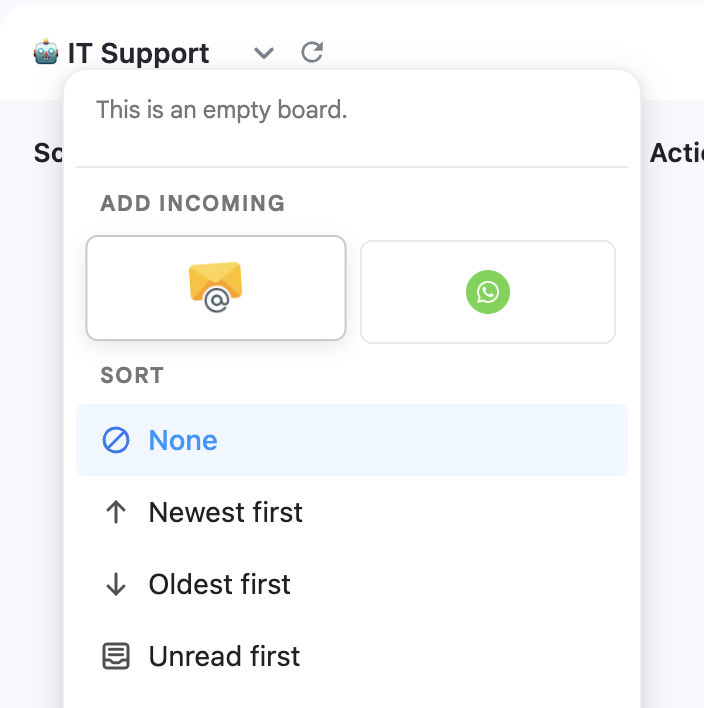
In the Chrome extension, you can also feed a Google Group into an existing empty board:
- Go to the empty board where you want the emails.
Open the dropdown menu next to the board title and click Add incoming.
- Select Google Groups and type the group's email address.
Note: After a Google Groups board exists, you can add or remove its members in Drag independently of the Google Group's own membership in Google Workspace.
Common questions
- Can I reply from the Google Group address? Yes. See how to reply from a shared email address.
- Can I use automations on Google Groups boards? Yes. Build them the same way as on any board, with automation rules.
- Emails are not loading on the board. See why emails are not loading on a Google Groups board.