Claude connects to your Drag shared inbox as a custom connector. You paste one web address into Claude's settings and enter your Drag API key once. Nothing is installed and no file is edited, and it works on every Claude plan.
Available on: Chrome extension · Web app · Desktop app
Before you start
- A Drag API key. In the web app, open Settings, then Integrations, and copy your API key. API access is available on the Pro plan.
- A Claude account. Custom connectors work on every Claude plan, including Free, which allows one connector. On Team and Enterprise plans, an Owner has to enable custom connectors for the organization first.
Add the connector
- In Claude, on the web or in the desktop app, open Settings.
- Go to Connectors.
Click Add custom connector.

Give it a name, paste
https://app.dragapp.com/mcpas the address and click Add.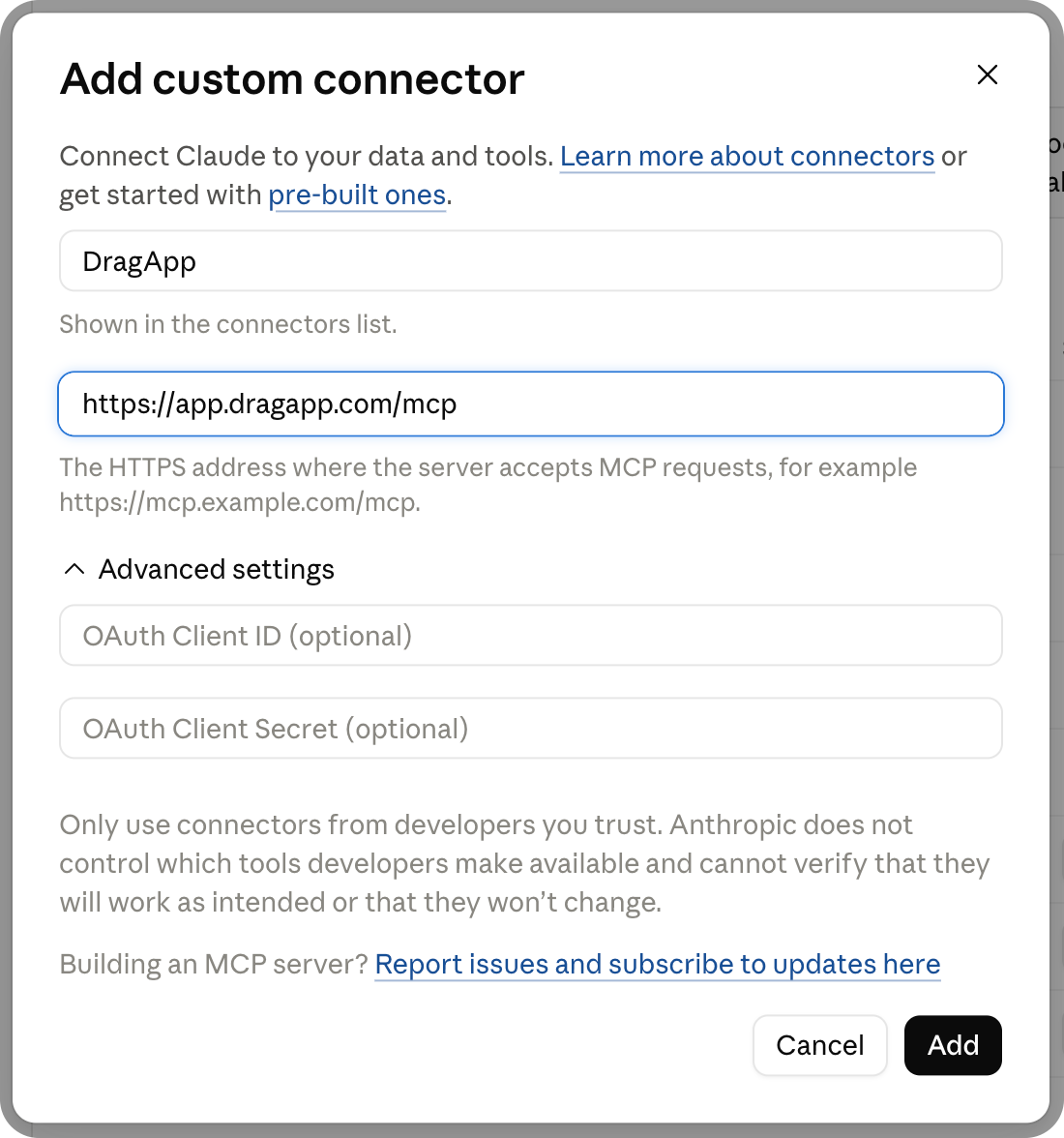
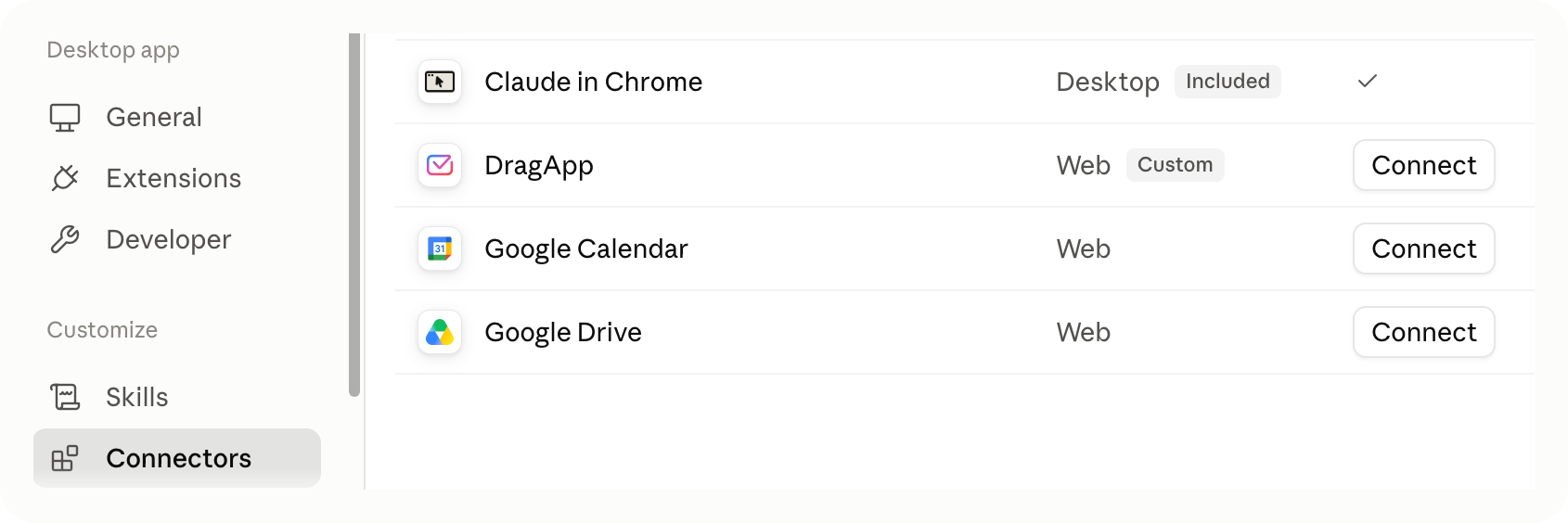
Drag now appears in your connector list. Click Connect. A Drag connect page opens in your browser.
Paste your Drag API key into that page and submit it.
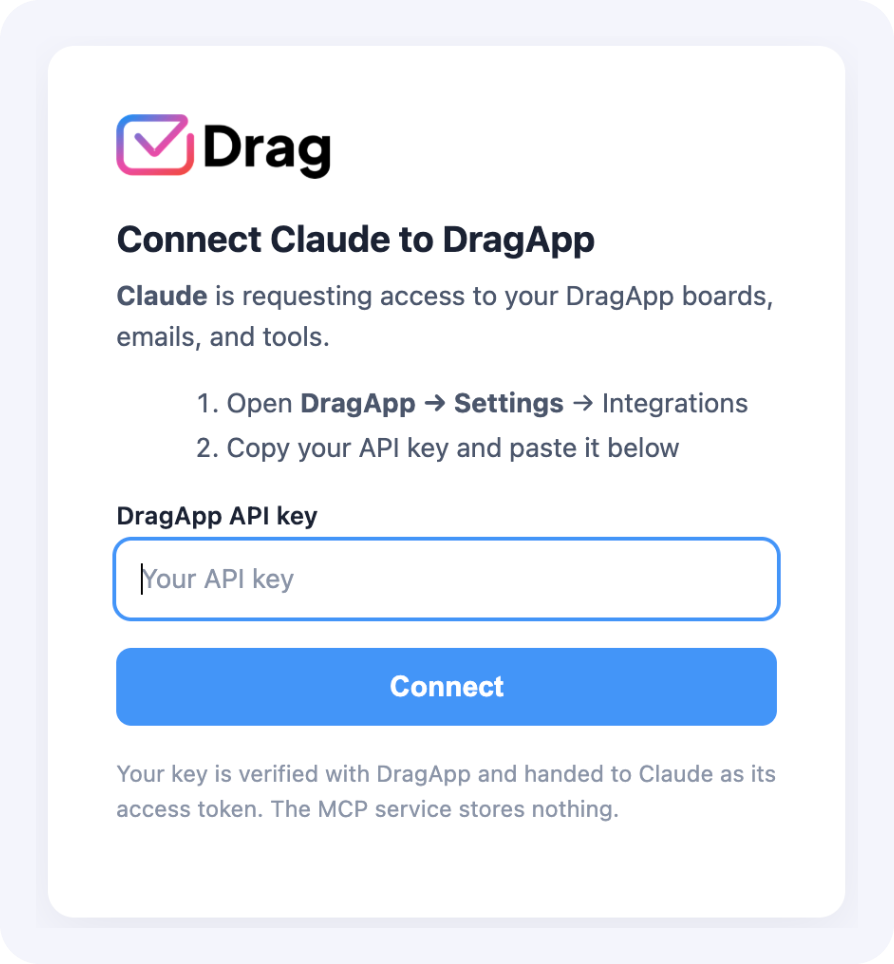
Drag verifies the key and the connection goes live. Your key is entered on the connect page only, never as part of a web address.
Check that it worked
Start a chat in Claude and ask it to list the boards in your DragApp.
The first time Claude uses a Drag tool, it asks your permission for that specific tool, and you can allow it once, allow it always, or refuse. Approve it and your boards appear in the answer.
Claude acts as you, through your own Drag account, so it can only see and do what your account's role and plan already allow. For everything it can do once connected, see what the Drag MCP server offers.
Connect ChatGPT the same way
The same address works in any AI tool that accepts remote MCP connectors. ChatGPT accepts them in its connector settings on the Business, Enterprise, Pro, and Team plans: add https://app.dragapp.com/mcp there and enter your key on the connect page, the same way as in Claude.
The free ChatGPT plan does not accept custom MCP connectors.
Note: If an admin has turned off AI for your team, the connection is refused with AI tools are turned off for your DragApp team by an admin, and it can't be used until AI is back on.
Troubleshooting
- The connector will not add. Check the address is exactly
https://app.dragapp.com/mcp, with nothing extra on the end. On Team and Enterprise plans, an Owner has to enable custom connectors in the organization settings first. If the option is missing from your settings, that is the reason. - The key is rejected on the connect page. Copy it again from Settings, then Integrations, watching for a stray space at either end, and confirm your plan includes API access.
- Claude connects but will not act. A tool you refused stays refused until you change it in the connector's permission settings.
Warning: Your API key gives full access to your Drag workspace. Enter it only on the Drag connect page, and treat it like a password everywhere else. If it is ever exposed, generate a new key in Settings, then Integrations, which cuts off the old one immediately. Removing the connector in Claude also ends the connection at once.
Tip: Want AI inside Drag itself, with nothing to connect? Varley is built in, needs no API key, and works on Starter, Plus and Pro. See Varley, AI Drafts or Claude: which should I use?