By default, an email on a shared board stays shared with everyone on that board, including every reply and forward. Sometimes a conversation needs to continue in private. Forward privately lets you do that while still working in a shared inbox.
Available on: Chrome extension · Web app · Desktop app
Forward vs forward privately
Forward:
- The new message is added to the original card on the shared board.
- No new thread is created; only the original card stays on the board.
- Replies load back on the same card on the shared board.
Forward privately:
- The new message is not added to the original card.
- A new, private thread is created with the forwarded message, in the sender's Gmail Sent folder.
- Replies load in the sender's personal Gmail inbox and are not visible to the shared board.
Note: A privately forwarded message is always sent from the sender's own address, even if the board has a different default sender. This keeps replies private and stops them returning to the shared board.
How to forward an email privately
- Open the conversation on the shared board.
- Open the card's menu (the three-dot button on the top right).
Select Forward privately.
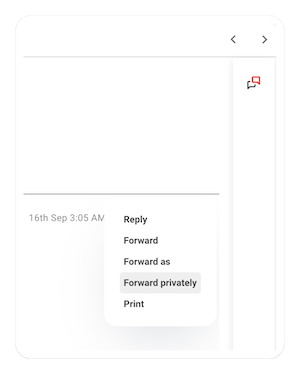
- Enter the recipients, write your message, and click Send.
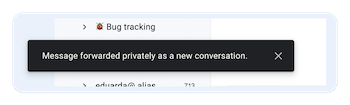
A message at the bottom left confirms a new, privately forwarded conversation was created.
Who can forward privately
By default, only board admins, team admins and super admins can forward emails privately. See roles and permissions. You can also create custom roles and decide which roles include this permission.
The desktop app works the same way as the web app, with silent auto-updates.