Varley lives in a panel next to your boards. This article shows you how to open it, ask your first question, and find past conversations.
Available on: Chrome extension · Web app · Desktop app
Open Varley
In Gmail (Chrome extension)
- Click the Varley icon in Gmail's top bar, next to the Drag logo.
- The panel opens on the right. Click the icon again to close it.

In the web app and desktop app
- Click the round Varley button at the bottom right of the screen.
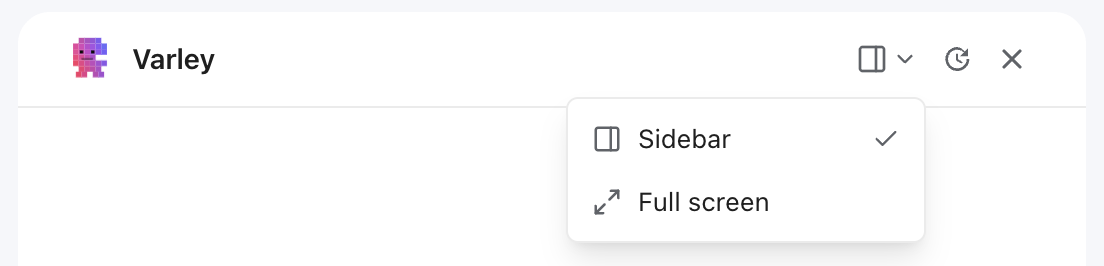
- To change how the panel is shown, open the view menu in the panel header and choose Sidebar (a panel on the right) or Full screen.

Tip: While your cursor is in the panel, press Esc to close it.
Ask something
Type your request in the box that says Ask Varley to do something and press Enter. Press Shift+Enter for a new line. To interrupt Varley while it's working, click Stop.
When the panel is empty, Varley shows up to three suggestions based on your shared boards, such as “What's unresolved on Support this week?” or “Summarise the newest thread on Sales”. Click one to send it.
Need ideas? See What can I ask Varley?.
What Varley knows about your screen
- If you have an email thread or card open, “this email” or “it” means that one.
- If you have a board open, a column you mention without naming a board means a column on that board.
- Name a board to ask about any board you have access to, for example “What's waiting on Billing?”
Follow-up suggestions
After each answer, Varley offers up to three next steps, such as Draft a reply, Assign to: me or Make it shorter. Click one to send it straight away.
Approve what Varley proposes
When you ask Varley to change something, it shows a proposal card with the details, and nothing happens until you click the button on it. See How does Varley ask before it acts?.
Conversation history
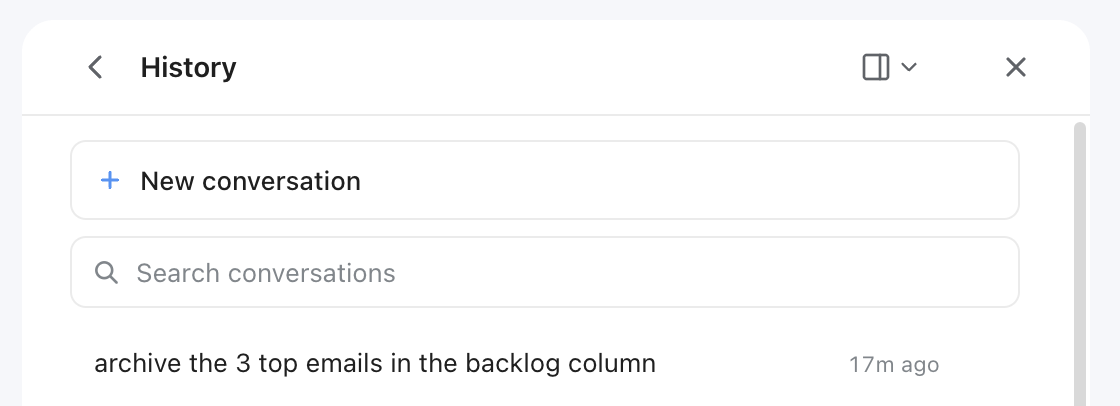
- Click the Conversation history icon in the panel header.
- Scroll the list or use Search conversations to find a past conversation, then click it to pick up where you left off.
- To rename a conversation, click Rename (the pencil icon).
- To start fresh, click New conversation.
Your conversations are private. Teammates can't see them.
Tip: In a long conversation, Varley works from the most recent messages. When you switch to a new topic, start a new conversation for the best answers.
Your AI credits
The line under the message box shows how many AI credits your team has left this month. Each message you send Varley uses 10 credits. See How do AI credits work?.