If you see "This app is blocked" when installing Drag, your organization's settings are preventing third-party apps that have not been explicitly allowed. The fix is to add Drag to your list of trusted apps.
Available on: Chrome extension
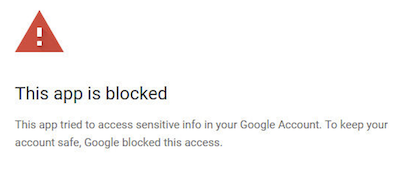
These settings are controlled by your Google Workspace administrator. If you are the administrator, follow the steps below. If not, send this article to your administrator.
Trust Drag in the Google Workspace Admin console
- Open the setting to control which third-party and internal apps can access your Google Workspace data.
Click Configure new app and select OAuth App Name Or Client ID.
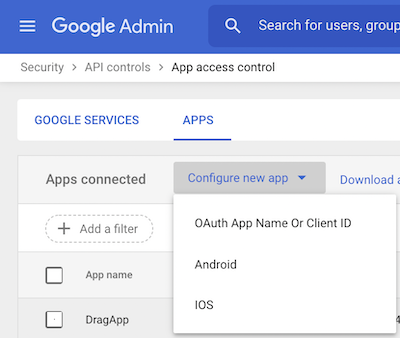
Search for Drag using this Client ID:
- Chrome Extension: 104232899952-jds06v6th5h7b64svj1ceh4ugo2bf9p9.apps.googleusercontent.com
- Web App: 104232899952-jds06v6th5h7b64svj1ceh4ugo2bf9p9.apps.googleusercontent.com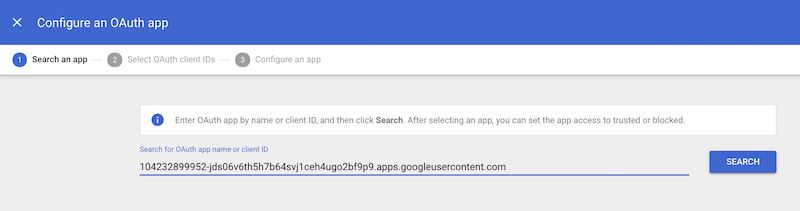
Select Trusted: can access all Google services and click Configure.
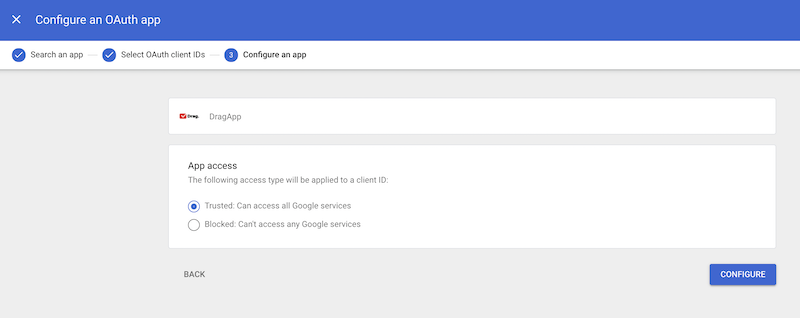
- Go back to Gmail and refresh the page. You should be able to install Drag now.
For more on our security practices, see how security is managed on DragApp services.